Configuring the Application Object

After you've created the Application object, you need to make sure it is configured correctly.

  1. If the Application object's property pages are not currently displayed, right-click the object > click Properties.

  2. Click the DeFrame tab > click Application Setup to display the Application Setup page.
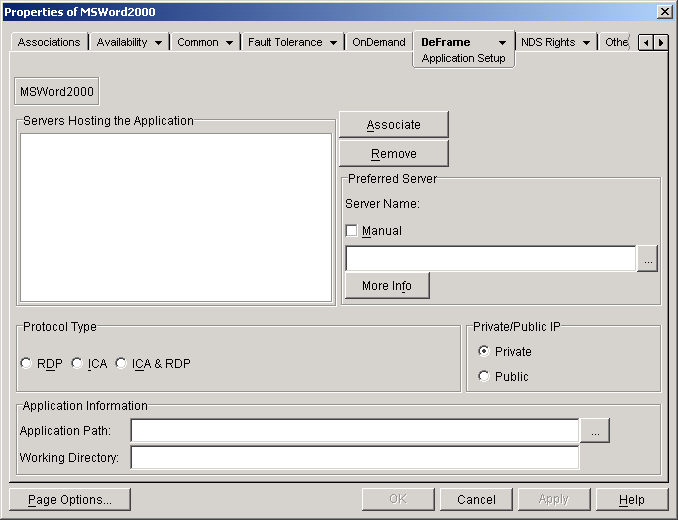

    DeFrame Application Setup page on an Application object

  3. Fill in the following fields:

    Servers Hosting the Application: Use this list to define the terminal servers from which the application can be run. When a user launches the application, the application is run from the least utilized terminal server. To add a terminal server to the list, click Associate, then browse for and select a DeFrame Server object.

    IMPORTANT:  In order for DeFrame to determine the least utilized terminal server, the terminal server and application must be configured to participate in load balancing. For information, see Configuring Load Balancing Services .

    Preferred Server: If the application is hosted on multiple terminal servers and the servers are participating in load balancing, the DeFrame Watchdog Service creates a preferred server list. The list, which is prioritized according to server utilization (with the least-utilized server receiving the highest priority), is used to determine the server that will run the application the next time it is launched.

    The preferred server list is not shown on this page, but is displayed under the deframeAppPSList attribute on the Other tab. Each server is listed by its distinguished name and priority. For example:

    ts1.deframe.server.novell01
    ts2.deframe.server.novell00

    00 is the highest priority (least-utilized server), 01 is the second highest, and so forth.

    You need to use this Preferred Server field only if the application will be run from one terminal server, or if you want to force the application to run from one terminal server. In that case, click Manual to indicate a manual assignment > add the preferred terminal server to the Server Name field by browsing for and selecting the appropriate DeFrame Server object.

    To see a manually-assigned preferred server's address information, click More Info.

    Protocol Type: Select the protocol (RDP, ICA, or ICA & RDP) for the client session in which the application will run. The application's protocol setting overrides the user's protocol setting (User object > DeFrame tab > User Settings page) and is used as long as the server supports the protocol. The following table provides a summary.

    Server's Protocols Application's Protocol Setting User's Protocol Setting Protocol Used for Client Session

    RDP

    RDP

    RDP

    RDP

    RDP

    RDP

    ICA

    RDP

    RDP

    RDP

    ICA & RDP

    RDP

    RDP

    ICA

    RDP

    RDP

    RDP

    ICA

    ICA

    RDP

    RDP

    ICA

    ICA & RDP

    RDP

    RDP

    ICA & RDP

    RDP

    RDP

    RDP

    ICA & RDP

    ICA

    RDP

    RDP

    ICA & RDP

    ICA & RDP

    RDP

    ICA & RDP

    RDP

    RDP

    RDP

    ICA & RDP

    RDP

    ICA

    RDP

    ICA & RDP

    RDP

    ICA & RDP

    RDP

    ICA & RDP

    ICA

    RDP

    ICA

    ICA & RDP

    ICA

    ICA

    ICA

    ICA & RDP

    ICA

    ICA & RDP

    ICA

    ICA & RDP

    ICA & RDP

    RDP

    RDP

    ICA & RDP

    ICA & RDP

    ICA

    ICA

    ICA& RDP

    ICA & RDP

    ICA & RDP

    ICA

    Private/Public IP: Select whether the terminal server's private or public IP address (DeFrame Server object > DeFrame Server Environment tab > Environment page) will be used when launching the application. If you select Private, the application will only be available to users inside your firewall. If you select Public, the application will only be available to users outside your firewall.

    If you need the application to be available both inside your firewall and outside, you will need to create two Application objects, one for private access and one for public access.

    Application Path: Enter the path to the application's executable file. If you are running ConsoleOne on the terminal server, you can browse for and select the file. If you've added multiple terminal servers to the Servers Hosting the Application list, the application's executable must be in the same location on each of the terminal servers.

    Working Directory: The working directory defaults to the directory where the application resides. If necessary, you can change the directory.

  4. Leave the Application object's property pages open and continue with the next section, Configuring ICA Client Settings .
Configuring ICA Client Settings

This section applies only if you've set the application's protocol type to ICA or ICA & RDP (DeFrame tab > Application Setup page).

You can use the ICA Client Settings page to determine how the ICA client will handle the application. This includes window color, window size, encryption, sound, cache, and compression.

To configure the ICA client settings:

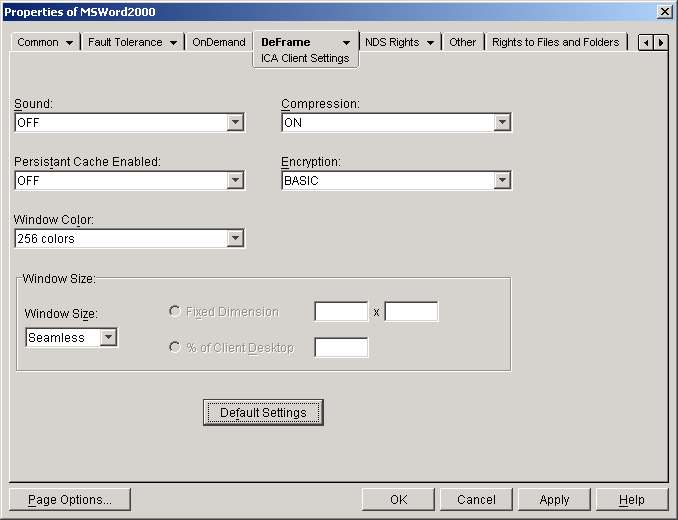
  1. Click the DeFrame tab > click ICA Client Settings.


    DeFrame ICA Client Settings page on an Application object

  2. Configure the following settings, or click Default Settings to reset the settings to their predefined values:

    Sound: Select ON to enable sound for the session, or select OFF to disable sound. Enabling sound increases the terminal server load and requires increased bandwidth for transmitting the sound data. The default is OFF.

    Compression: Select ON to enable data compression, or select OFF to disable compression. Enabling data compression can reduce the bandwidth required to transmit the data. The default is ON.

    Persistent Cache: Select ON to enable caching of frequently-used screen elements to the user's local drive, or select OFF to disable caching. Creating a persistent cache can reduce the bandwidth required to transmit reusable data. The default is OFF.

    Encryption: Select the minimum encryption level for data transmissions. The default is BASIC. If your Citrix MetaFrame servers support it, you can use RC5 encryption with 40-bit, 56-bit, or 128-bit keys.

    IMPORTANT:  If you use an encryption level other than BASIC, contextless login to the terminal server will be disabled. Users will be prompted to enter their username and password whenever they launch the application.

    Window Color: Select the window color display setting for the session. You can select 16 colors, 256 colors, high color (16 bits), or true color (32 bits). The default is 256 colors.

    Window Size: Select the window size for the session. You can select a predefined window size (640x480, 800x600, 1024x768, 1280x1024, 1600x1200), specify a custom size based on a fixed dimension or percentage of the user's desktop, or specify a seamless window. A seamless window makes the application look like a local application to the user rather than a remote application and enables the user to use local function keys, switch between applications on the task bar, and tile local and remote windows. The default is seamless window.

  3. When finished, continue with the next section, Configuring File System Access Rights .


Configuring File System Access Rights

When a user launches the application, DeFrame creates a local user profile on the terminal server. As part of this process, the user is added to a local group and receives the file system rights assigned to that local group. If you are using the DeFrame Dynamic User (DDU) functionality, the user is added to the Everyone group. If you are using ZENworks for Desktops Dynamic Local User (DLU) policy, the user is added to the group defined in his or her policy.

If, when running the application, users will require file system rights in addition to the rights granted to the local group, you need to manually configure these rights. If you don't need to assign rights, skip to the next section, Enabling Usage Tracking .

To configure file system rights:

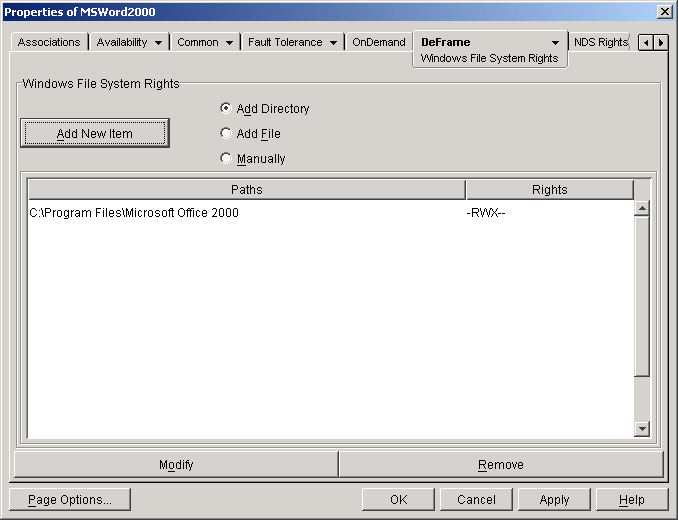
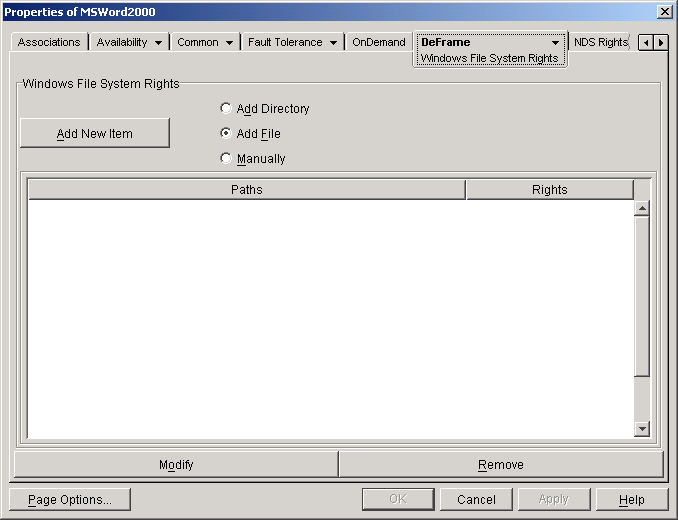
  1. Click the DeFrame tab > click Windows File System Rights.


    DeFrame Windows File System Rights page on an Application object

  2. Select one of the following options:

  3. If you selected Add Directory, click Add New Item, use the Add Directory dialog box to select the directory, then click OK to display the Windows File System Rights dialog box.

    or

    If you selected Add File, click Add New Item, use the Open dialog box to select the file, then click Open to display the Windows File System Rights dialog box.

    or

    If you selected Add Manually, click Add New Item, enter the file or folder path, then click OK to display the Windows File System Rights dialog box.


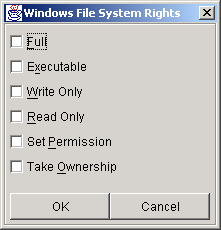
    Windows File System Rights dialog box

  4. Select the rights for the folder or file, then click OK to add the file or folder to the list.


    DeFrame Windows File System Rights page on an Application object

  5. If necessary, repeat Step 2 through Step 4 to assign any additional rights users will need to run the application.

  6. After you've finished assigning rights, click OK to save your information.

  7. Make sure the DeFrame Access Control service (Novell DeACL Service) is running on all terminal servers where this application resides. For information about starting the service, see Starting the DeFrame Services .

  8. Continue with the next section, Enabling Usage Tracking .


Enabling Usage Tracking

If the application will be delivered through an OnDemand Services package that includes usage charges, you need to enable the application's usage to be tracked.

If the application will be delivered through Novell Application LauncherTM in ZENworks® for Desktops, do not enable usage tracking. Usage tracking of thin-client applications is not supported in Novell Application Launcher and will result in the user being unable to launch the application.

To enable the application's usage to be tracked:

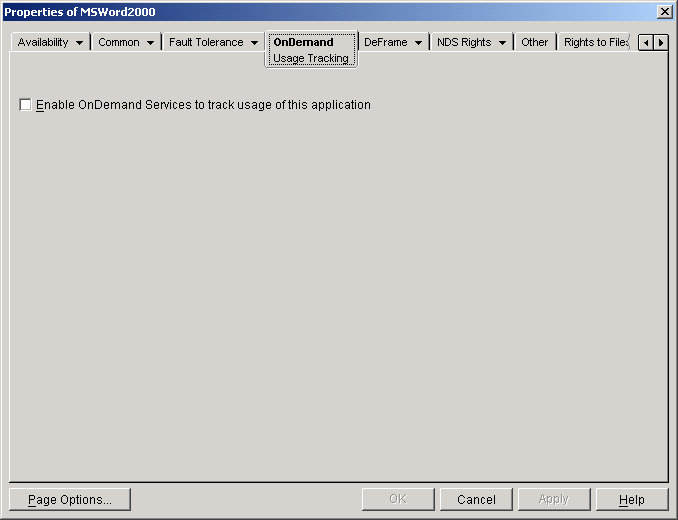
  1. Click the OnDemand tab to display the Usage Tracking page.


    OnDemand Usage Tracking page on an Application object

  2. Turn on the Enable OnDemand Services to Track Usage of This Application option.

  3. Click OK to save your changes.

  4. Continue with then next section, Distributing the Application through OnDemand Services , or with Distributing the Application through ZENworks for Desktops .