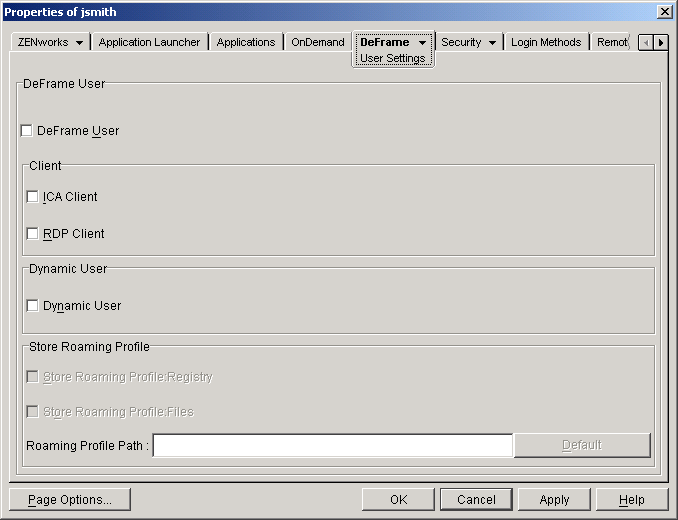
Configure the following options:
DeFrame User: Select this option to enable the user as a DeFrame user.
ICA Client: Select this option to force applications that are configured to run in either an ICA or RDP client session to run in an ICA client session on the user's workstation. The application's terminal server must support the ICA protocol (in other words, the Windows server must have Citrix MetaFrame installed). Otherwise, an RDP client session will be used.
RDP Client: Select this option to force applications that are configured to run in either an ICA or RDP client session to run in an RDP client session on the user's workstation.
If you select both ICA Client and RDP Client, and an application is configured to run in either type of session, an ICA client session will be used. For a summary showing the protocol (RDP or ICA) depending on the user's Client setting, an application's protocol setting, and a server's supported protocols, see Configuring the Application Object .
Dynamic User: Select this option to have DeFrame use its DeFrame Dynamic User (DDU) functionality to dynamically create the user's account each time the user launches an application from the server. DeFrame creates the user's account, using his or her eDirectory username, when the user starts the application. After the user exits the application, DeFrame deletes the user account. If the terminal server is a Primary Domain Controller (PDC) or Backup Domain Controller (BDC) and the domain name is defined in the terminal server's Domain field (DeFrame Server object > DeFrame Server Environment tab > Environment page), DeFrame creates the user account in the domain database. If the terminal server is not a PDC or BDC and the terminal server host name is defined in the terminal server's Domain field (DeFrame Server object > DeFrame Server Environment tab > Environment page), DeFrame creates the user account in the terminal server's local database.
IMPORTANT: If a user account already exists that matches the user's eDirectory username, DeFrame will use the existing account rather than create a new account. When the user exits the application, the account will be deleted, even though DeFrame did not create the account. If you have persistent accounts (local or domain) that you want to remain persistent, you should not use DDU.
If you don't enable this option, you need to ensure that the user has a permanent local or domain user account, or you need to use ZENworks for Desktops 3.2 Dynamic Local User (DLU) policies to create the user's account. If you create permanent user accounts for the user, the username and password for those accounts must match the user's eDirectory username and password.
Store Roaming Profile: These settings are available only if Dynamic User is selected. When the user exits an application, DeFrame deletes the user's local account. You can use the following settings to save the user's profile (registry settings and files):
Store Roaming Profile -- Registry: Select this option to have the user's Registry settings saved with the user's roaming profile.
Store Roaming Profile -- Files: Select this option to have the user's files, including any that he or she created using the application and saved to the terminal server's local drive, saved with the user's roaming profile.
Roaming Profile Path: Specify the location where you want the user's roaming profile stored. You can specify a location on the terminal server (for example, c:\profiles or \profiles) or you can specify a network location (for example, \\server1\vol1\profiles. Click Default if you want to use the default path, as defined in the DEFAULT_REG object located at the root of the eDirectory tree.
You can also include Windows environment variables in the path as well as a special DeFrame variable (%USERNAME%). For example, if you want the user's profile saved to his or her user directory on a network server, you could specify \\server1\vol1\%USERNAME%.