There are five server resources that are used to calculate a server's load: memory, CPU usage, users, page file, and virtual memory. The Watchdog service automatically calculates the load for each of these resources from information obtained from the server. The weights assigned to these individual resource loads are then factored into the calculation to determine the overall server load.
You can use the default weight settings for each resource, or you can modify the weights on a per-server basis to account for different performance capabilities. The weight of a resource determines how much influence its load has on the server load score relative to the other resource loads. For example, if you set the memory weight to 100, the CPU usage weight to 100, and the remaining resource weights to 0, the memory and CPU usage loads exert equal influence (50%) on the server load score and the other resource loads are ignored. If you set all five resource weights to 100, their loads each have equal influence (20%) on the server load score.
For a detailed explanation of how the server load score is calculated, see Server Load Calculation .
To adjust the weight assigned to a resource:
In ConsoleOne, right-click the terminal server object (DeFrame Server object) > click Properties to display the object's property pages.
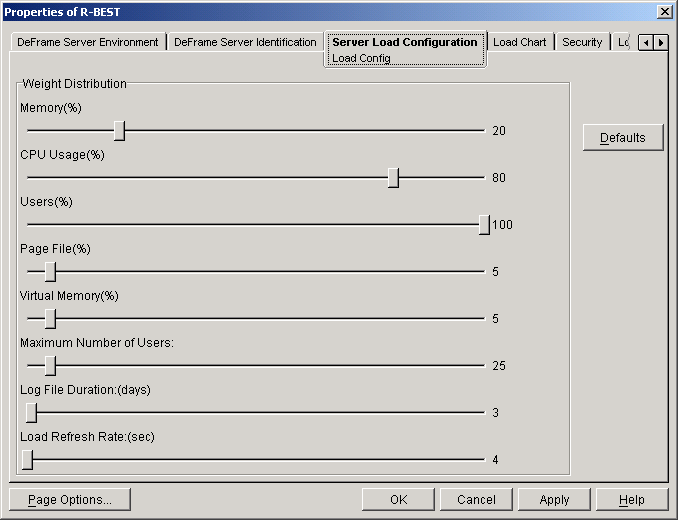
Click the Server Load Configuration tab to display the Load Config page.
Modify the following settings:
Memory, CPU Usage, Users, Page File, Virtual Memory: Select the weight you want applied to each resource load. A higher weight in relationship to the other resources places more importance on that resource's load when calculating the server load score. For example, if the server has lots of memory, you might want to set a high weight for memory. Doing so would result in a lower server load score when much of the server's memory is available (its memory load is low). A low server load score increases the likelihood that the server would become the preferred server for an application.
Maximum Number of Users: All resource loads are calculated from information obtained from the server, with the exception of the Users load. The Users load is calculated by dividing the number of currently logged-in users (obtained from the server) by the maximum number of users specified by this setting. Set this number equal to the maximum number of concurrent sessions you expect the terminal server to handle.
Log File Duration: Select the number of days after which the DeFrame Watchdog Service will purge information from its log file. The log file, named DEWATCHLOG.TXT, is located in the server's C:\WINNT\SYSTEM32\DEFRAME directory. The default is 3 days, which means the DeFrame Watchdog Service purges the information from the log file every 3 days.
Load Refresh Rate: This setting applies only if the server is functioning as a primary Watchdog service. Select how often the Watchdog service requests load information from other Watchdog services. The default is every 4 seconds.
If you want to reset all settings to the default configuration, click Defaults.
The default configuration is stored in the DEFAULT_REG object at the root of the eDirectory tree. You can modify the default configuration. The modifications you make will be applied to all terminal servers that are using the default configuration.
Click OK to save your changes.
The Watchdog service will begin using the new resource weights in 60 seconds. You can restart the Watchdog service to force it to immediately use the new weights.
Server Load Calculation
To calculate the server load score, the Watchdog service uses the following formula:
where resource 1 load score through resource 5 load score are the load scores calculated for memory, CPU usage, users, page file, and virtual memory. The following formula is used for that calculation:
The (resource used/resource total) ratio is calculated using values obtained from the server, with the exception of the users resource ratio (users logged in/maximum users allowed). For this ratio, the maximum users allowed value is determined by the Maximum Number of Users setting on the Load Configuration page.
The resource's adjusted weight is calculated from the following formula:
adjusted weight = (resource weight) / (total of all resource weights)
The adjusted weight is required because each resource can be assigned a weight between 0 and 100 percent. However, because the total weight for all five resources cannot exceed 100%, the weight value for each resource is internally adjusted so that the resources' total weight equals 100%. For example, substituting the default weights into the formula gives the following adjusted weights (totaling 100%):
Plugging these resource load scores into the server load score formula gives the following result:
11.55 + 16.58 + 6.16 + 2.74 + .76 = 37.79
If the server load score is less than 100, the server is included in load balancing and can become an application's preferred server, provided its load score is less than any other server hosting the application. If the load score is 100 or greater, the server is excluded from load balancing until its score drops below 100.