

In ConsoleOne, right-click the a container in the OnDemand Services package catalog > click New > click Object.
You can create the Package object anywhere in the catalog root container (as defined on the OnDemandService object) or its subcontainers. For information about how your package organization impacts users, see Organizing Packages and Applications .
In the New Object list, select the commercePackage object, then click OK.
Provide the new package with a name.
The name you supply will be used for the object's eDirectory name and for display in the OnDemand Services gadgets if you do not supply a Display Name later. Do not use any of the following characters in the name.
" (double quote) |
+ (plus) |
= (equals) |
\ (backslash) |
< (open angle bracket) |
; (semicolon) |
> (close angle bracket) |
/ (forwardslash) |
, (comma) |
|
Select the Define Additional Properties box, then click OK.
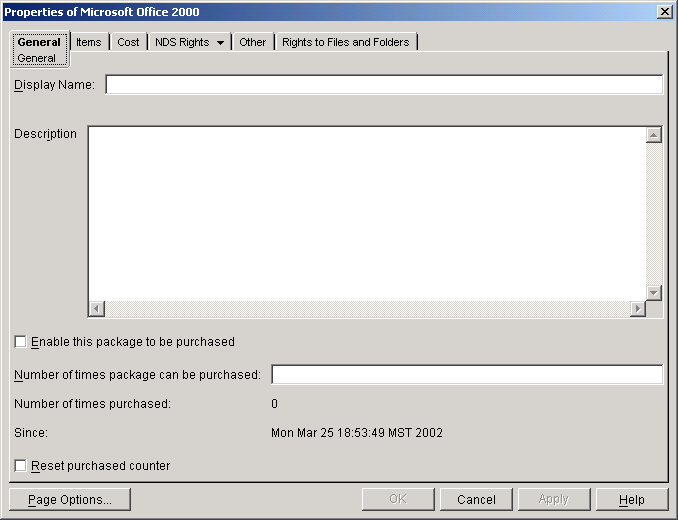
On the General tab, fill in the following properties:
Display Name: Enter the name of the package as you want it displayed to customers. If you don't enter a display name, the Package object's name is used.
Description: Enter a description to be displayed to the user.
Enable This Package to Be Purchased: Turn on this option when you are ready to allow users to purchase the package.
Number of Times Package Can Be Purchased: If you want to restrict the number of times the package can be purchased, enter the appropriate number. Leave the field empty to enable an unlimited number of purchases.
Reset Purchased Counter: This option applies only if you've set a limit on the number of times the package can be purchased.
Click this option, then click Apply to reset the purchase counter. This is useful if the purchase limit has been reached and you want to enable the package to be purchased again, or if you want to start tracking the number of purchases from the current day and time.
Leave the Package object's dialog box open, then continue with the next section, Adding Applications to the Package .