

In ConsoleOne®, right-click the container where you want to create the object > click New > click Object.
You should create the Commerce Item object in the company container (as defined in the OnDemandService object) or one of its subcontainers. This ensures that OnDemand Services has sufficient rights to the object. If you create it outside of the company container or its subcontainers, you will need to make the OnDemand Administrator (ODSAdmin) object a trustee of the Commerce Item object. For details about the required trustee rights, see ODSAdmin Trustee Rights .
In the New Object list, select the commerceItem object, then click OK.
Provide the new item with a name.
The name you supply will be used for the object's eDirectory name and for display in the OnDemand Services gadgets if you do not supply a Display Name later. Do not use any of the following characters in the name.
" (double quote) |
+ (plus) |
= (equals) |
\ (backslash) |
< (open angle bracket) |
; (semicolon) |
> (close angle bracket) |
/ (forwardslash) |
, (comma) |
|
Select the Define Additional Properties box, then click OK.
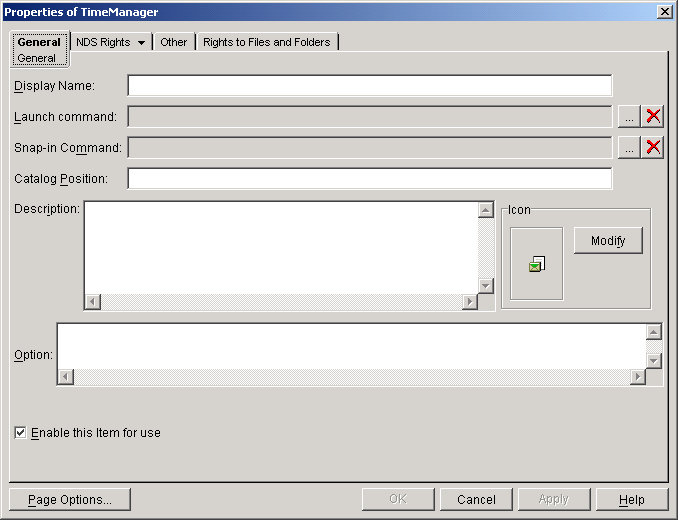
On the General tab, fill in the following properties:
Display Name: Enter the name of the item as you want it displayed to users. If you don't enter a display name, the Commerce Item object's name is used.
Launch Command: Click the Define Command button ( ) to display the Launch Command dialog box. Enter the URL for the Web application or content, then click OK.
Snapin Command: This field applies only if you are using Novell iChain® to secure access to the Web application. If so, click the Define Command button () to display the Snapin Command dialog box. Browse for and select the iChain ACL rule that will provide access to the secured Web application, then click OK. For more information about iChain and iChain ACL rules, see Securing Web Applications With Novell iChain .
Catalog Position: You can use this field to define a folder structure to display the item in the Launch Item gadget. The syntax uses forward slashes, as in the following example:
/Software/Wordprocessors
Description: Enter a description to be displayed to the user.
Icon: If you want to change the display icon, click Modify. You can select an icon from an executable file or .ico file.
Option: This field lets you specify a URL to a Web site that describes or promotes the item. Use the following syntax:
<attribute name='brandingURL' value='<URL>'/>
Replace <URL> with the appropriate URL. Make sure to include the protocol in the URL (for example, http://www.novell.com).
Enable this Item for Use: Select this option to make the item available to users. If you deselect this option, the item will not be available, even if a user has already purchased the package.
Click OK to save the information.