OnDemand Services requires a cost center in order to record purchase and usage charges for packages. The OnDemand Services Installation program helped you create your first cost center.
You need to configure the cost center by adding budget holders and assigning users. The cost center must have at least one budget holder, and any users whose purchases should be recorded against the cost center need to be assigned to the cost center. When a user requests a package, the budget holder for the user's cost center can approve or deny the request. If the request is approved, the charges associated with the package are recorded against the cost center.
The following sections explain how to assign budget holders and users to the cost center created during installation. You might want to include yourself as a budget holder and user for testing purposes.
Unless you don't need to bill package charges to individual budgets within your organization, you'll probably want to create additional cost centers before making OnDemand Services available to your users. Instructions for doing so are provided in Creating Cost Centers .
Adding Budget Holders
A cost center must have at least one budget holder. The cost center's budget holder is responsible for approving or denying package purchase requests from the cost center's users. A cost center can have multiple budget holders, but only one of them, referred to as the current budget holder, is active at one time. All other budget holders are referred to as backup budget holders. A backup budget holder can be assigned as the current budget holder at any time.
To add budget holders and assign the current budget holder:
In ConsoleOne, right-click the cost center's object > click Properties.
The cost center is an Organizational Role object. You can find it by looking for the object in the context specified during installation.
On the Identification page, use the Occupant field to add the users who will be the cost center's budget holders.
Click the Extensions tab to display the Budget Holder page.
Fill in the following fields:
Current Budget Holder: The cost center can have more than one budget holder. This allows for reassignment of the budget holder responsibilities from one person to another (for example, if a budget holder goes on vacation). The current budget holder is the budget holder who is currently active. He or she will receive package requests, can assign packages to users, and can add or delete users. Select the user you want to assign as the current budget holder.
You can add a user who has not been defined as an Occupant on the Identification page (see Step 2). If you do, you need to manually assign the user to the cost center's Security Equal to Me list.
NOTE: Budget holders can use the Current Budget Holder gadget to change the current budget holder assignment. Changing it each time does not require you to edit this page.
User Containers: Budget holders can create user accounts in eDirectory. By default, the user accounts will be created in the same container as the cost center object. If you add one container to this list, the users will be created in that container. If you add two or more containers, the budget holder will be able to select which container a user is created in.
Any users whose purchase charges should be accrued to the cost center need to be assigned to the cost center.
If a user already exists in eDirectory, you must use ConsoleOne to assign him or her to the cost center. If the user doesn't exist in eDirectory, one of the cost center's budget holders can create the user's account through the OnDemand Services User Administration gadget, at which time the user will automatically be assigned to the cost center.
To assign an existing user to the cost center:
In ConsoleOne, right-click the User object > click Properties.
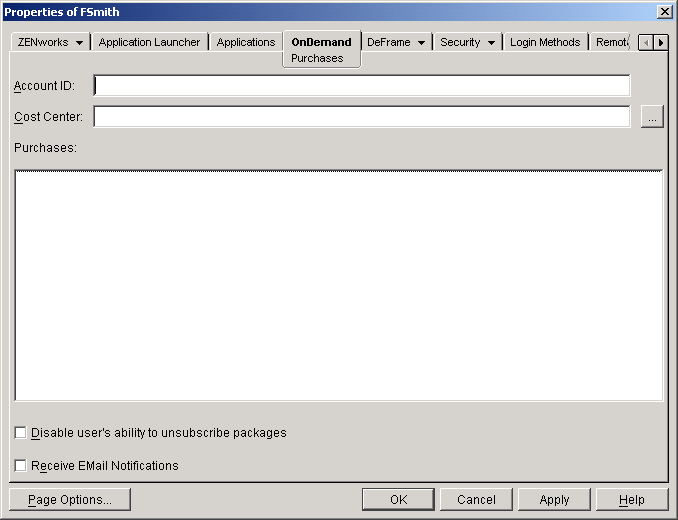
Click the OnDemand tab to display the Purchases page.
Fill in the following fields:
Account ID: The user's account ID is recorded on each Purchase and Usage object that he or she generates. If you have a third-party billing system or reporting system, you can base your billing or reporting on the account ID.
The account ID can be a unique identifier, such as the user's employee workforce number, or it can be a common identifier, such as the user's cost center ID as it is defined in the billing or reporting system.
Cost Center: Browse to and select the cost center (represented by an Organizational Role object) that you want the user assigned to.
Allow User to Unsubscribe to Packages: If you want the user to be able to cancel his or her subscription to a package, select this option. If you do so, the user can use the Workflow Tracking gadget to view an approved subscription purchase and cancel the subscription.
Receive E-Mail Notifications: Select this option to enable the user to receive e-mail messages notifying him or her of approved or denied purchases.


![Identification page on a cost center[apos ]s Organizational Role object](../graphics/ods_cc_id.gif)
![Budget Holder page on a cost center[apos ]s Organizational Role object](../graphics/ods_cc_bh.gif)