9.14 Creating or Deleting Cluster SBD Partitions
If a single node (or group of nodes) somehow becomes isolated from other nodes in a cluster, a condition called split brain results. Each side believes the other has failed, and forms its own cluster view that excludes the nodes it cannot see. Neither side is aware of the existence of the other. If the split brain is allowed to persist, each cluster will fail over the resources of the other. Since both clusters retain access to shared disks, corruption will occur when both clusters mount the same volumes.
Novell Cluster Services provides a split-brain detector (SBD) function to detect a split-brain condition and resolve it, thus preventing resources from being loaded concurrently on multiple nodes. The SBD partition contains information about the cluster, nodes, and resources that helps to resolve the split brain condition.
Novell Cluster Services requires an SBD partition for a cluster if its nodes use physically shared storage. Typically, you create the SBD when you configure the cluster on the first node. You can alternatively configure an SBD for the cluster after you configure the first node, but before you configure Novell Cluster Services on the second node of the cluster. You might also need to delete and re-create an SBD partition if the SBD becomes corrupted or its device fails.
An SBD must exist and the cluster must be enabled for shared disk access before you attempt to create shared storage objects in a cluster, such as pools and volumes. NSS management tools need the SBD to detect if a node is a member of the cluster and to get exclusive locks on physically shared storage.
This section describes how to use the Novell Cluster Services SBD Utility (sbdutil) to create and delete SBD partitions.
For information about how the split brain detector works, see NetWare Cluster Services: The Gory Details of Heartbeats, Split Brains, and Poison Pills (TID 10053882) .
IMPORTANT:For instructions about setting up the SBD partition during the Novell Cluster Services configuration, see Section 5.5.5, Configuring a New Cluster.
9.14.1 Prerequisites for Creating an SBD Partition
You must have a shared disk system (such as a Fibre Channel SAN or an iSCSI SAN) connected to your cluster nodes before attempting to create a cluster partition. For information, see Section 4.7, Shared Disk Configuration Requirements for more information.
You need one small LUN in your storage array to use exclusively for the SBD partition. You can create another LUN of the same size to use as its mirror. The device should have at least 20 MB of free available space. About 4 MB of space that is used to store its shareable state information. For information about the SBD partition requirements, see SBD Partitions.
IMPORTANT:The SBD Utility mirrors the devices. Use only single devices. You cannot present an existing NSS software RAID 1 device to the utility.
After you carve the device for the SBD partition, you must initialize it and mark it as . You must also initialize and share a second device if you plan to mirror the SBD. You can use NSSMU, the Storage plug-in for iManager, or an NSS utility called ncsinit to initialize a device and set it to a shared state.
NOTE:For an iSCSI SAN, a very small iSCSI device might rarely have uncommon CHS (cylinder-head-sector) geometry values. NSS prefers at least 32 sectors per track. If there are fewer than 32 sectors per track, NSS tools using EVMS can fail to create the partition or to mark the device as shareable. You can use fdisk to check for valid CHS values before you initialize and share the device. If necessary, you can use fdisk to set the sectors for the device (such as /dev/sdx) to 32:
fdisk -H 64 -S 32 /dev/sdx
9.14.2 Before Creating an Cluster SBD Partition
Before creating an SBD partition, you should ensure that an SBD does not already exist on your cluster.
IMPORTANT:If a cluster SBD partition already exists, do not create another one. Before you create a new SBD partition, delete the existing one as described in Section 9.14.2, Before Creating an Cluster SBD Partition.
-
As the root user, enter the following at the terminal console of a Linux cluster server:
sbdutil -f
This tells you whether an SBD partition exists and identifies the device on the SAN where the SBD partition is located.
-
If the SBD partition already exists, use one of the following methods to delete the existing partition before attempting to create another one:
9.14.3 Creating a Non-Mirrored Cluster SBD Partition
If you did not create a cluster partition during the Novell Cluster Services installation on the first node of the cluster, you can create one on it later by using the SBDUTIL utility (/opt/novell/ncs/bin/sbdutil). You might also need to delete and re-create an SBD partition if the SBD becomes corrupted or its device fails. See the man page for sbdutil for more information on how to use it.
If a cluster partition does not exist, create one by doing the following:
-
Ensure that the device you want to use has been initialized and marked as as described in Section 9.14.1, Prerequisites for Creating an SBD Partition.
-
Enter cluster down at the terminal console of one cluster server.
This causes all cluster servers to leave the cluster.
-
Stop Novell Cluster Services by entering the following on each node:
rcnovell-ncs stop
-
As the root user, enter the following at the terminal console of a Linux cluster server:
sbdutil -c -n clustername -d device_name -s size
For the -d option, replace device_name with the name of the device where you want to create the cluster partition. Use the EVMSGUI (or EVMSN or EVMS) tool to check the names of the devices if needed, and only use the base (leaf) names (such as sdb or mpathd) with the -d option.
For the -s option, replace size with the size (in MB) to use for the SBD partition. If the -s option is not used, the default size is 8 MB. The -s option is available in OES 2 SP1 and later. For information about size requirements, see SBD Partitions.
For example, you might enter something similar to the following:
sbdutil -c -n mycluster1 -d sdb -s 200
If the creation is not successful, the response is No Shared Disk. If the creation is successful, you can use the sbdutil -f command to view the path and name of the SBD partition, such as
/dev/evms/.nodes/mycluster1.sbd
For example, the following command creates the /dev/evms/.nodes/mycluster1.sbd partition:
sbdutil -c -n mycluster1 -d sdb -s 200
For example, the following command creates the /dev/evms/.nodes/cl1.sbd partition:
sbdutil -c -n cl1 -d CX4-LUN000 -s 1020
If the SBD command is not successful, the response is No Shared Disk. If the SBD is created, there is no response. You can use the sbdutil -f -s command to view the path and name of the SBD partition.
-
If the cluster has never had an SBD partition, modify the Cluster object in eDirectory to enable its attribute.
This step is required only if Cluster Services was initially installed without an SBD partition or mirrored SBD partitions. However, it does no harm to verify that the attribute is enabled.
-
In a Web browser, open iManager, then log in to the Novell eDirectory tree that contains the cluster you want to manage.
IMPORTANT:Log in as an administrator user who has sufficient rights in eDirectory to delete and modify eDirectory objects.
-
Select , then select .
-
Browse to locate and select the Cluster object of the cluster you want to manage, then click .
-
Under , select the , then click .

-
Select (enable) the check box, then click .

-
Click to save changes.
-
-
Restart Novell Cluster Services on all cluster nodes.
-
Rejoin each node to the cluster.
9.14.4 Creating a Mirrored Cluster SBD Partition
If the cluster has a shared disk system, you can achieve a greater level of fault tolerance for the SBD partition by mirroring it. Novell Cluster Services uses the NSS software RAID capability to mirror the SBD partition.
You can mirror the SBD partition when you install Novell Cluster Services on the first node, or you can create it afterwards by using the sbdutil utility or the evmsgui utility to create a mirrored cluster partition.
Using SBDUTIL to Create a Mirrored Cluster SBD Partition
-
Ensure that both of the devices you want to use have been initialized and marked as as described in Section 9.14.1, Prerequisites for Creating an SBD Partition.
-
Enter cluster down at the terminal console of one cluster server.
This causes all cluster servers to leave the cluster.
-
Stop Novell Cluster Services by entering the following on each node:
rcnovell-ncs stop
-
As the root user, enter the following at the terminal console of a Linux cluster server:
sbdutil -c -n clustername -d device_name -d device_name -s size
Replace device_name with the name of the devices where you want to create the cluster partition and its mirror. Use the EVMSGUI (or EVMSN or EVMS) tool to check the names of the devices if needed, and only use the base (leaf) names (such as sdb or mpathd) with the -d option.
For the -s option, replace size with the size (in MB) to use for the SBD partition. If the -s option is not used, the default size is 8 MB. The -s option is available in OES 2 SP1 and later. For information about size requirements, see SBD Partitions.
For example, the following command creates the /dev/evms/.nodes/mycluster1.sbd mirrored RAID device and the mycluster1.msbd1 and mycluster1.msbd2 partitions:
sbdutil -c -n mycluster1 -d sdb -d sdc -s 200
For example, the following command creates the /dev/evms/.nodes/cl1.sbd mirrored RAID device and the cl1.msbd1 and cl1.msbd2 partitions:
sbdutil -c -n cl1 -d CX4-LUN000 -d CX4-LUN001 -s 1020
If the SBD command is not successful, the response is No Shared Disk. If the SBD is created, there is no response. You can use the sbdutil -f -s command to view the path and name of the SBD RAID device. You can use NSSMU or the Storage plug-in to iManager to view the partitions used by the RAID device.
-
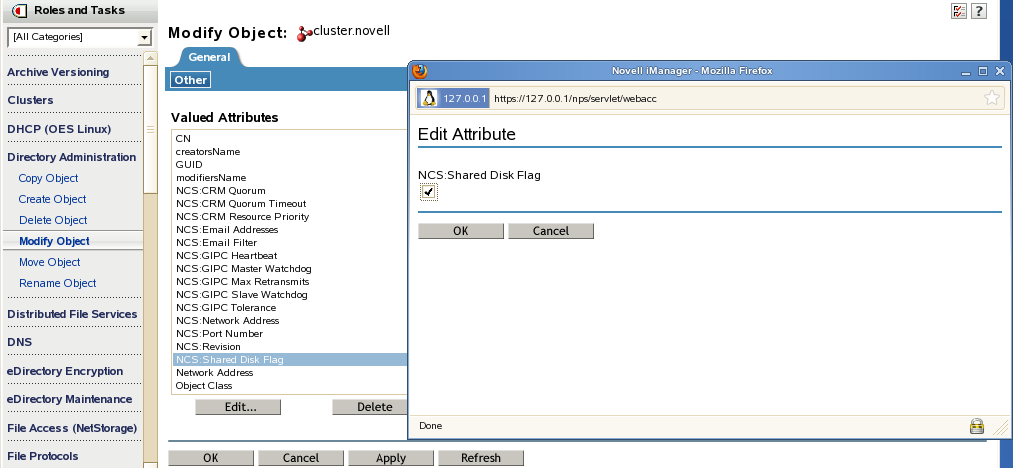
If the cluster has never had an SBD partition, modify the Cluster object in eDirectory to enable its attribute.
This step is required only if Cluster Services was initially installed without an SBD partition or mirrored SBD partitions. However, it does no harm to verify that the attribute is enabled.
-
In a Web browser, open iManager, then log in to the Novell eDirectory tree that contains the cluster you want to manage.
IMPORTANT:Log in as an administrator user who has sufficient rights in eDirectory to delete and modify eDirectory objects.
-
Click , then click .
-
Browse to locate and select the Cluster object of the cluster you want to manage, then click .
-
Under , select the , then click .
-
Select (enable) the check box, then click .
-
Click to save changes.
-
-
Restart Novell Cluster Services on all cluster nodes.
-
Rejoin each node to the cluster.
Using EVMSGUI to Create a Mirrored Cluster SBD Partition
-
Ensure that both of the devices you want to use have been initialized and marked as as described in Section 9.14.1, Prerequisites for Creating an SBD Partition.
-
At the Linux terminal console of a cluster server, log in as the root user, then enter evmsgui to start the EVMS GUI utility.
-
In evmsgui, create an SBD partition:
-
Click , then click .
-
Click , choose the , then click .
-
Select , then click .
-
Specify 20 MB or larger as the size of the cluster partition, then choose as the partition type.
For information about size requirements, see SBD Partitions.
-
Specify the name of your cluster as the , then click .
-
Click to save your changes.
-
-
In evmsgui, mirror the newly created SBD partition:
-
Click .
-
Locate the SBD partition and right-click it.
-
Select , then click .
This creates a RAID 1 device with the name /dev/evms/.nodes/cluster.sbd.
-
Click to save your changes.
-
-
Exit evmsgui.
-
Reboot all cluster nodes.
9.14.5 Deleting a Non-Mirrored Cluster SBD Partition
You must delete an existing SBD partition for the cluster before you attempt to create (or re-create) an SBD partition. The existing SBD partition might have been created during the Novell Cluster Services installation, or later by using the sbdutil.
-
At a Linux terminal console of a cluster server, log in as the root user.
-
Enter cluster down at the terminal console of one cluster server.
This causes all cluster servers to leave the cluster.
-
Stop Novell Cluster Services by entering the following on each node:
rcnovell-ncs stop
-
Delete the SBD partition.
-
Enter nssmu to open the NSS Utility, then select .
-
Select the SBD partition you want to delete.
-
Click to delete the partition and its contents, then click to confirm the deletion.
-
-
If you have more than one node in the cluster, use one of the following methods to create a new SBD partition:
Ensure that the SBD partition exists before continuing.
-
Start Novell Cluster Services by entering
rcnovell-ncs start
-
Join the nodes to the cluster by entering cluster join at the terminal console on each node in the cluster.
9.14.6 Deleting a Mirrored Cluster SBD Partition
Before you attempt to create (or re-create) an SBD partition, you must delete an existing SBD partition for the cluster. If the SBD partition is mirrored, you delete the software RAID device instead of deleting the two partitions separately. The existing mirrored SBD partition might have been created during the Novell Cluster Services installation, or later by using the SBDUTIL or the EVMS GUI tool.
-
At a Linux terminal console of a cluster server, log in as the root user.
-
Enter cluster down at the terminal console of one cluster server.
This causes all cluster servers to leave the cluster.
-
Stop Novell Cluster Services by entering the following on each node:
rcnovell-ncs stop
-
Delete the mirrored software RAID that you used for the SBD partition.
-
Enter nssmu to open the NSS Utility, then select .
-
Select the software RAID 1 for the SBD partition you want to delete.
-
Click to delete the software RAID and its member segments, then click to confirm the deletion.
-
-
If you have more than one node in the cluster, use one of the following methods to create a new SBD partition:
Ensure that the SBD partition exists before continuing.
-
Start Novell Cluster Services by entering
rcnovell-ncs start
-
Join the nodes to the cluster by entering cluster join at the terminal console on one of the nodes in the cluster:
9.14.7 Removing a Segment from a Mirrored Cluster SBD Partition
You can remove a segment from a mirrored cluster SBD partition and keep the remaining SBD partition. The software RAID definition remains, so if you delete the remaining partition later, you must delete the software RAID instead of simply deleting the partition as with a standalone SBD partition.
IMPORTANT:To get rid of the software RAID definition, you must delete the mirrored SBD partition as described in Section 9.14.6, Deleting a Mirrored Cluster SBD Partition, then re-create a non-mirrored SBD partition, as described in Section 9.14.3, Creating a Non-Mirrored Cluster SBD Partition.
Beginning in OES 2 SP2, you can specify which segment to keep when you use NSSMU to remove a segment from a software RAID 1 (mirror) device.
-
At a Linux terminal console of a cluster server, log in as the root user.
-
At the terminal console of one cluster server, enter
cluster maintenance on
This causes all cluster servers to enter maintenance mode.
-
Enter nssmu to open the NSS Utility, then select .
-
Select the software RAID1 device for the cluster SBD partition that you want to manage.
-
Press Enter to show its member segments.
-
Select the member segment you want to delete, then select to remove the segment.
The RAID definition will still exist for the remaining segment of the mirrored SBD partition, but it reports that it is not mirrored.
-
At the terminal console of one cluster server, enter
cluster maintenance off
This causes all cluster servers to return to normal mode.