2.2 Installing SMG

SMG is installed on a SLES 15 or openSUSE 15 server. The steps take you thorough installing the necessary components on your server and then installing SMG.

  1. Download and install SLES 15 or openSUSE 15 on your server and make sure to do the following during your install:

    NOTE:The images shows in the steps below are take from SLES 15. If you are installing on openSUSE, your interface will be different.

    1. Skip this step if you are installing on openSUSE.

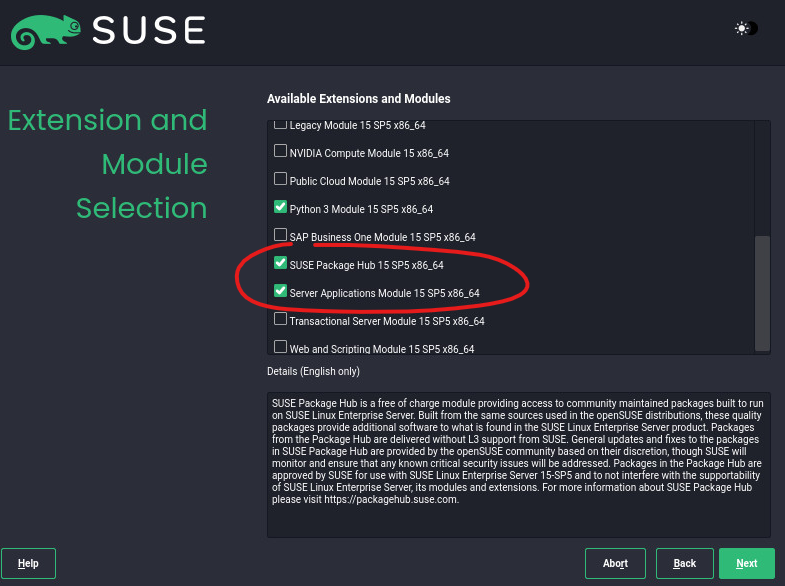
      On SLES 15, when prompted for the extensions to install, make sure SLES Package Hub, Basesystem Module, and Server Applications Module are selected.

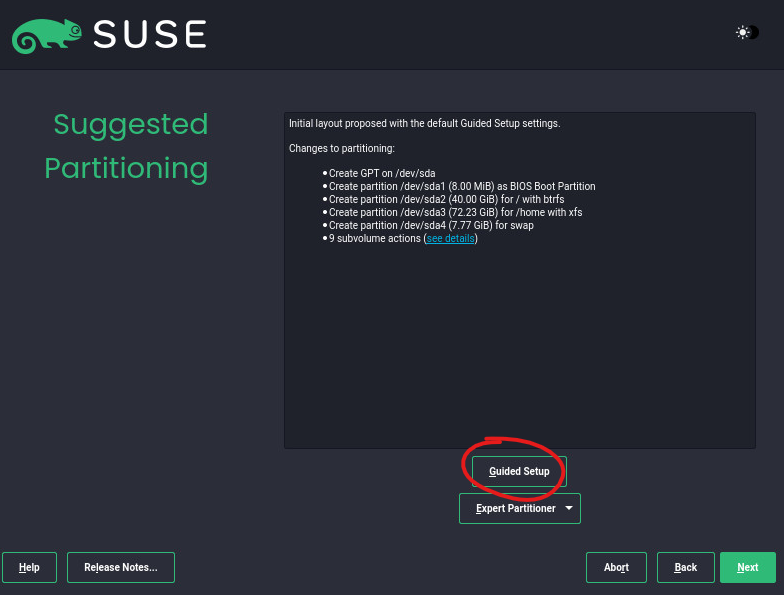
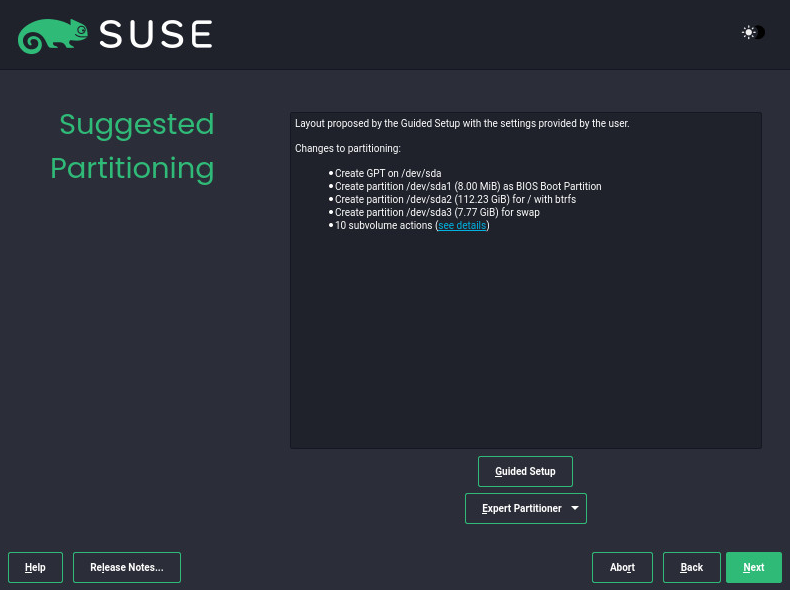
    2. When the setup wizard reaches Suggested Partitioning, select Guided Setup and do the following:

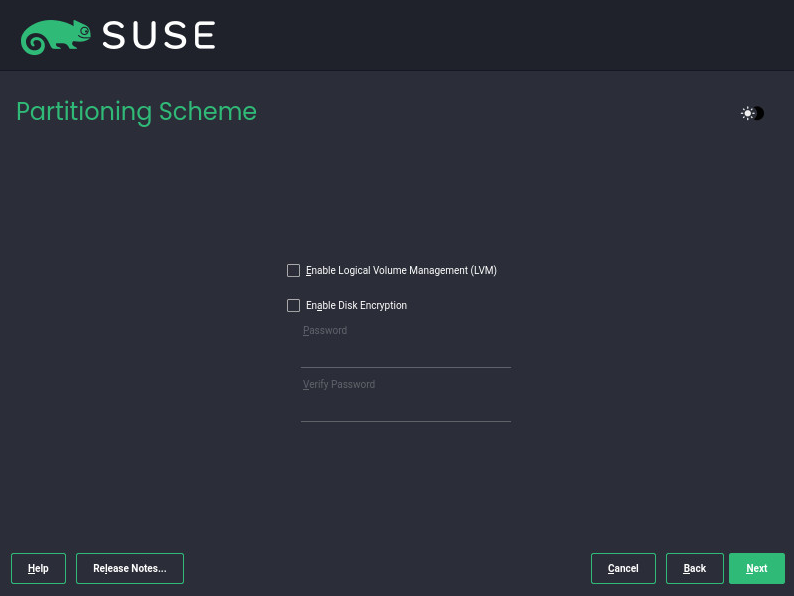
      • Leave the Partitioning Scheme with the default settings or adjust them if you have preferences here (SMG has no requirements for these options).
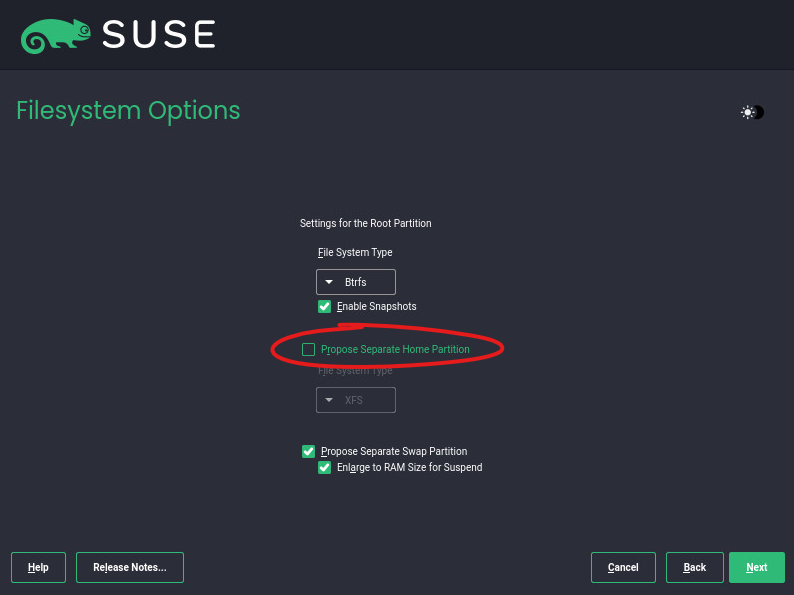
      • On the Filesystem Options page, turn off Propose Separate Home Partition. Turning this off makes it so most of the disk space is available for SMG. You can change the file system type if you have a preference, otherwise leave it as the default.
      The resulting partitioning should look similar to the example below. The partition for / should be the size of most of your disk space.
    IMPORTANT:If you already have SLES 15 or openSUSE 15 installed and don’t want to install a new server, please make sure that it is updated to at least SP5 and has the Base System Package and Package Hub extensions installed.

  2. (Optional) By default, SMG is installed to /opt/opentext/smg. If you want to install SMG to a different physical storage location, create a mount point for /opt/opentext/smg to the desired location.

  3. Make sure you are logged into the SLES server as root and launch the Terminal application.

  4. Login to your SLD account and download the following items:

    • smg-init-x.x.x.tar.bz2 (download to your server)

    • SMG license PEM

    • SMG registration code

  5. Navigate to where you put the smg-init-x.x.x.tar.bz2 file in the terminal and run the following commands to extract and run the installer:

    tar -xf smg-init-x.x.x.tar.bz2
    cd smg-init-x.x.x
    ./smg-init.sh
  6. Follow the instructions in the wizard to install SMG. The install script makes changes to the SLES OS. Some of the changes are optional. Please configure your server to suit your needs. For a list of the changes see SLES OS Modifications Reference.

    NOTE:During the installation process, you might see an error that says “Repository ‘SMG-2024-04-BASE’ is invalid”. This error occurs during the registration process that will run again. The error can be disregarded if the install script reports that it completes successfully.

  7. Continue with Configuring SMG.

2.2.1 SLES OS Modifications Reference

The following changes are made to the SLES OS by the SMG install script. All the changes are optional. Please configure your server to suit your needs and processes.

Services (optional changes)

The following services are enabled and started:

  • apache2 - The web server used to access the web management components of SMG, such as the installation wizard, administration console, and quarantine service.

  • postgresql - The database server that contains the configuration of SMG.

  • opendkim -The service used to manage DKIM mail signing services.

Apache Configuration (optional change)

The /etc/apache2/listen.conf file is modified to ensure that the web server is available to browsers on both port 80 and port 443 (secure).

Postgresql hba File Changes (required change)

The /var/lib/pgsql/data/pg_hba.conf file is adjusted to allow TCP/IP access to the local database using md5 authentication, required by SMG.

Postgesql user password (required change)

A password is set for the postgres user. This is necessary for SMG to gain privileges to run database creation scripts.

Disable Postfix (optional change)

Postfix is an email server application that is enabled by default. It conflicts with the SMTP server that runs inside SMG. If you want or need to use Postfix, you must configure it to run on a different IP interface or port to prevent conflicts with SMG.

OpenDKIM (optional change)

The /etc/opendkim/opendkim.conf file is adjusted to allow the SMG admin UI to synchronize is configuration and use the service with the following options:

  • SOCKET inet: 4932@localhost

  • Canonicalization relaxed/relaxed

  • Mode sv

  • KeyTable refile: /etc/optendkim/key.table

  • SigningTable refile: /etc/opendkim/signing.table

  • InternalHosts refile: /etc/opendkim/trusted.hosts

  • ExternalIgnoreList refile: /etc/opendkim/trusted.hosts

Firewall (required changes)

The following ports are opened for public access:

  • http - web server traffic

  • https - secure web server traffic

  • smtp - email traffic

  • smtps - secure email traffic’

  • postgresql - database server connectivity

  • dns - Hostname lookups

  • 4928 - SMG supervisor application install communications

  • 4929 - SMG scanner application internal communications

  • 4930 - SMG scanner application install communications (secure)

  • 4932 - DKIM API access

  • 3310 - ClamAV traffic