Setting Up Hummingbird HostExplorer 7

This section provides information on the following:


Creating the Emulator Macro Script

  1. Create and configure a session in the emulator for your environment, then open the session.


    Opening Hummingbird HostExplorer 7

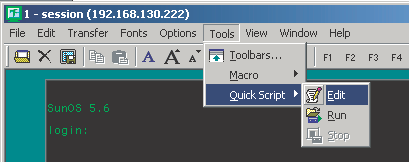
  2. Click Tools > Quick Script > Edit.


    The Quick Script option

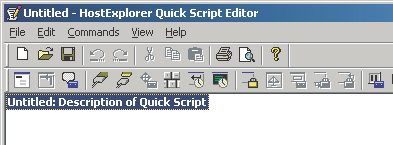
  3. Double-click Untitled: Description of Quick Script.


    An untitled application in Quick Script

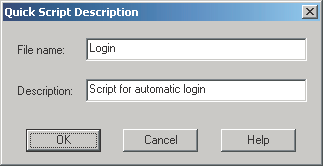
  4. Type a filename and description for the Quick Script, then click OK.

    Ensure that the filename is only one word (no spaces).


    Name and Description fields


Configuring Hummingbird HostExplorer for Usernames

  1. In the Login dialog box, click Commands > Wait For Text.


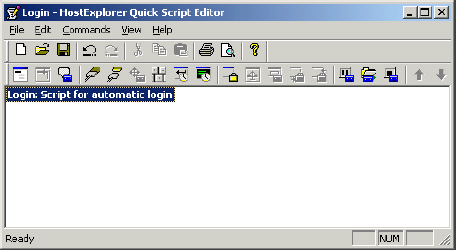
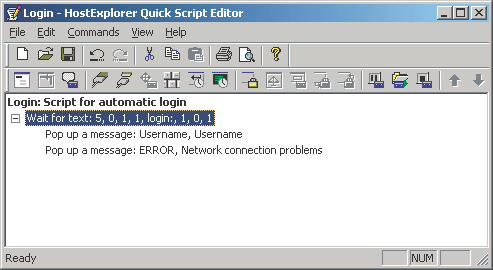
    The Login screen for Hummingbird HostExplorer

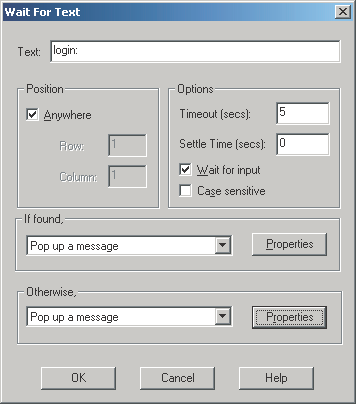
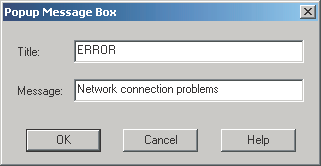
  2. Configure the Wait For Text dialog box for username prompts, then click OK.


    The Wait For Text dialog box


Configuring Hummingbird HostExplorer for Passwords

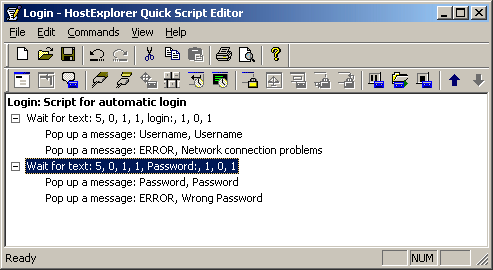
  1. In the Login dialog box, click Commands > Wait For Text.


    The Login screen for Hummingbird HostExplorer

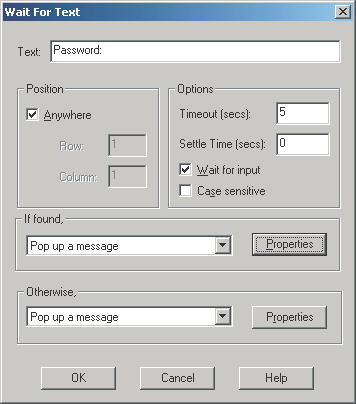
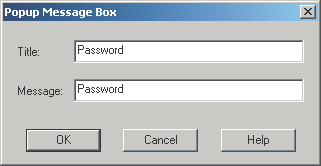
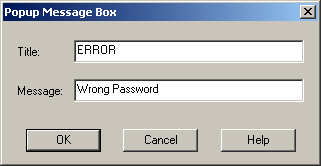
  2. Configure the Wait For Text dialog box for password prompts, then click OK.


    Configuration fields for the Wait For Text screen

  3. At the Login dialog box, click File > Save As.


    The Login screen for Hummingbird HostExplorer

  4. Type Login as the filename, click Save, then close the Quick Script editor.


    The Save As screen

The macro is now complete.


Configuring the Emulator Session

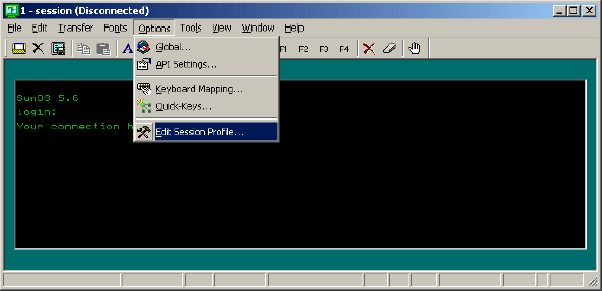
  1. Click Options > Edit Session Profile.


    The Edit Sessions Profile option

  2. (Conditional) Select not to use the SecureLogin wizard at this time.

    If SecureLogin prompts you to run the SecureLogin wizard, check the Don't Prompt Me In the Future check box, then click No.
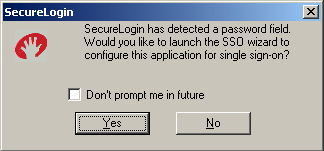

    The prompt for the SecureLogin Wizard

  3. Expand the session in the Settings Groups panel.

    Click General in the Settings Groups panel, then click the Browse button next to the Auto Start Quick-Key drop-down list.
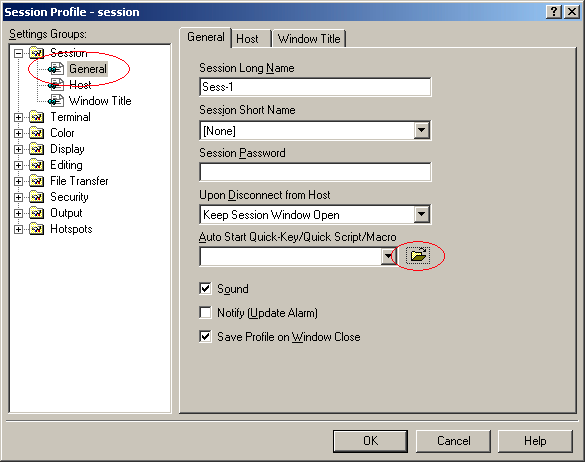

    The Settings Group panel

  4. Browse to where you saved the Quick Script macro file, then click Open.

    The default path is c:\Documents and Settings\All Users\Application Data \Hummingbird\Connectivity \7.10\HostEx\QuickScript\Login.qsv.
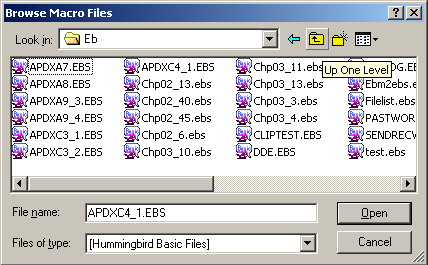

    Browsing to the Quick Script macro file

  5. Click OK, then close the emulator.

  6. Open the session again.

    You can use the shortcuts on the Start menu, then follow the prompts, or create a shortcut directly to the session.

    To create a shortcut directly to the session, use the following format:

    "Path to hostex32.exe" -P Session name

    For example, type

    "C:\Progra~1\Hummingbird\hostex32.exe" -P Session1

    The emulator connects and displays the following dialog box.
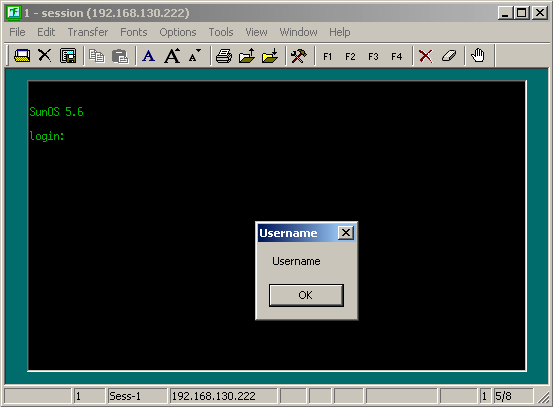

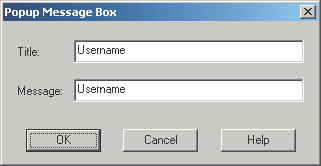
    The Emulator dialog box

    IMPORTANT:  Don't click OK.