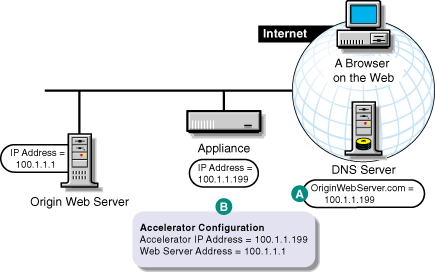
Figure 19 provides a visual map for the information in this section.
NOTE: The letters in Figure 19 are referenced in the table that follows. The addresses shown are for illustration purposes only. You will need to substitute actual addresses for your network.
Figure 19
| To | Do This | Notes |
|---|---|---|
Ensure your basic network configuration is complete for each appliance |
|
|
Ensure that DNS resolves browser requests to the appliance IP addresses configured for the Web server accelerator services |
|
See A in Figure 19. |
Set up one or more Web server accelerator services |
|
See B in Figure 19. If server persistence is enabled on the Web Server Accelerator tab, Excelerator will use the same Web server to fill browser requests throughout a session. This setting affects all accelerators on the appliance and saves e-business users from having to log in multiple times. See Web Server Accelerator Tab. If logging is enabled, accelerator log files for the Web server accelerator will have the same name as the Web server accelerator. The DNS name is required when:
If you enter DNS names in the Web Server Addresses list, make sure they are not the names that now resolve to appliance numeric IP addresses. That would create an endless loop. |
The steps you take for having DNS resolve requests to the appliance rather than to the origin server depend on whether the appliance and the origin Web server are on the same subnet.
If the appliance and the origin Web server are on the same subnet, you can swap IP addresses as shown in Figure 20.
Figure 20 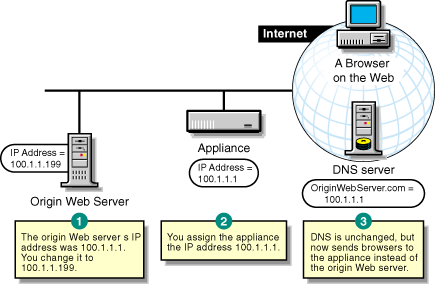
If the origin Web server is on a remote network, you need to alter DNS as shown in Figure 21.
Figure 21 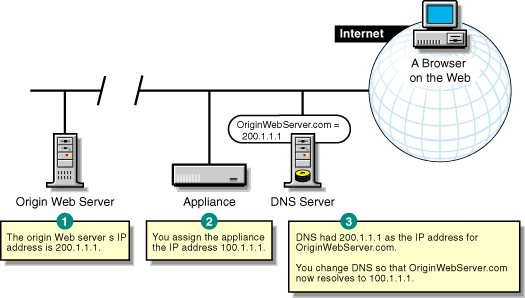
Appliance multihome capabilities are explained in Standard Multihoming for Multiple Web Sites and Multihoming and Path-Based Support. Keep the following points in mind when configuring multihomed support on the appliance:
Support for SSL is restricted. Although Excelerator allows multiple Web server accelerators to use the same IP address and port combination, this is not supported for Web servers using SSL.
You must ensure that Web servers using SSL are each accelerated using a unique IP address and port combination. Attempts to do otherwise will cause Excelerator to report a TCP bind error.
DNS names must be unique when accelerating multiple sites. If you are accelerating multiple Web sites on the same IP address, the DNS names in the Web server accelerator definitions must exactly match the DNS names that are used in browser requests. Each accelerator definition must use a unique combination of DNS name, IP address, and port number for Excelerator to properly route browser requests.
DNS names must be the same when accelerating a single Web site. If you are accelerating multiple Web servers with different IP addresses as a single Web site, the DNS names, accelerator IP addresses, and the accelerator proxy port in the multihoming master and child accelerator definitions must exactly match each other.
The first accelerator must be multihoming master and it must fill from the Web server you want Excelerator to contact for all non-specific data requests. Subsequent child accelerators can then be defined for each server you want Excelerator to contact for specific data requests.
With graphics requests, for example, the multihoming master uses the path-based rules you define to determine which child accelerator to route requests to and, therefore, which Web server to fill requests from.