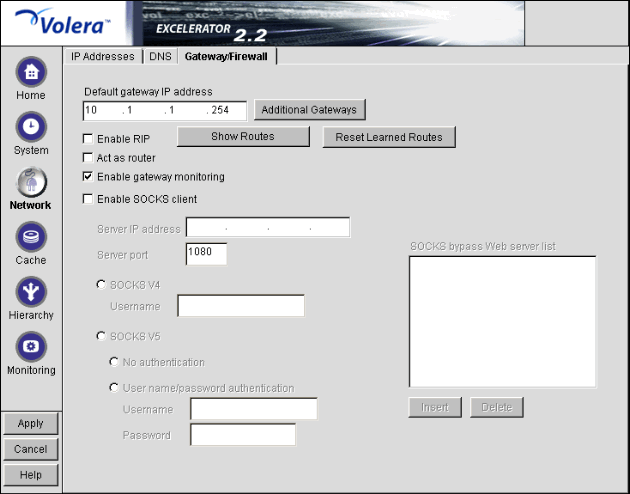
Path: Network > Gateway/Firewall
Figure 93
The Gateway/Firewall tab lets you set up both default gateways as well as additional gateways for specific routing to hosts or networks. It also lets you specify RIP and SOCKS information for firewalls.
To let the appliance function, you must specify a default gateway (router) whether the appliance is originating packets that need to be routed (from proxy requests or scheduled downloads) or is serving as a router for packets that need to be routed externally.
Default Gateway IP Address: You must have at least one gateway defined for the appliance to function. This is the IP address of the gateway or router being used by the appliance.
Additional Gateways: The appliance uses these only if the Act As Router option is checked. See Additional Gateways Dialog Box.
Enable RIP: Allows you to turn on Routing Information Protocol 1. Through this protocol, the appliance is able to learn routes.
The appliance can also work in a network that uses RIP 2, but you must manually add static routes using the Routes Dialog Box.
Show Routes: See Routes Dialog Box.
Reset Learned Routes: Throws away all information acquired through RIP. RIP must be turned on for this to have any effect.
Act as Router: Check this box if the appliance will function as the default gateway for clients on the network. See Transparent Proxy as a Default Gateway (Router) and Transparent Proxy as an Inline Router (Network Gateway). If you check this option, you can specify additional gateways.
Enable Gateway Monitoring: The appliance normally monitors gateway availability by pinging the configured gateways every minute. You should uncheck this item if the appliance accesses its gateways through a connection, such as a dial-up phone line or ISDN connection, that should not be kept continually open. Keep in mind, however, that unchecking the option will cause the gateway configuration on the Health Status Tab to fail.
Enable SOCKS Client: SOCKS is a firewall communication protocol. If a firewall prevents the appliance from communicating directly, you can specify information for SOCKS4 or SOCKS5 servers.
Server IP Address: The address of the SOCKS server you want to use.
Server Port: The port number for SOCKS traffic on the network.
SOCKS V4: Enables the SOCKS4 protocol.
Username: Specify a username if the SOCKS4 server requires one for communication.
SOCKS V5: Enables the SOCKS5 protocol. The appliance currently supports only NULL and Username/Password authentications.
No Authentication: If you use SOCKS5 without verification, this box must be checked (where there is no username or password required).
Username/Password Authentication: Enables the entry of a SOCKS5 username and password if your SOCKS server requires authentication.
Username: Enter your SOCKS username.
Password: Enter your SOCKS password.
SOCKS Bypass Web Server List: If the SOCKS client is enabled, all HTTP and FTP server traffic is redirected to the SOCKS firewall. However, requests to origin servers on an intranet within the firewall should not be routed through the SOCKS server. Requests to servers whose IP addresses are inserted into this list will not be sent to the SOCKS server.
Path: Network > Gateway/Firewall > Additional Gateways
Figure 94 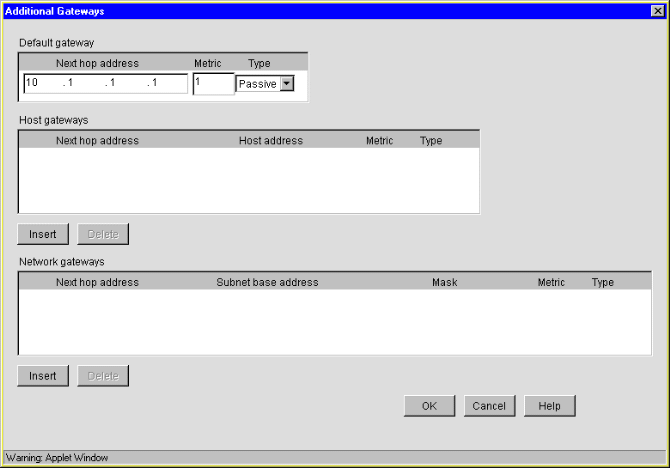
This dialog box lets you specify additional gateways. The appliance routes requests to specific destinations through these gateways. If a request could be routed through multiple gateways, the appliance chooses the gateway associated with the most restrictive mask (the smallest range of destination addresses). The default gateway is used only when no other routes apply.
IMPORTANT: The appliance uses additional gateways only when the Act As Router option is checked on the Gateway/Firewall tab.
Gateways fall within three basic groups:
The syntax for this gateway is often expressed in router configuration tables as follows:
0.0.0.0 / 0.0.0.0 / iii.iii.iii.iii
The variable i represents the IP address of the default gateway.
IMPORTANT: If the appliance is acting as a router and you don't specify a default gateway, the appliance routes only those requests whose destination addresses are covered by a host or network gateway. Other requests are not routed.
The appliance uses Metric field values to alter normal (most restrictive) routing. The default field value is 1. A higher number indicates a higher cost associated with the gateway being referenced. This lets you configure the appliance in such a way that more expensive gateways are not used unless the default or less specific gateway is unavailable.
The appliance conveniently determines masking information when you enter the host or network information.
Default Gateway: The default gateway entered on the gateway panel. You can add a metric and specify whether the gateway is active or passive.
Host Gateways: You can define one or more gateways to be used for packets being sent to specific hosts:
Network Gateways: You can define one or more gateways to be used for packets being sent to specific subnets.
Path: Network > Gateway/Firewall > Show Routes
Figure 95 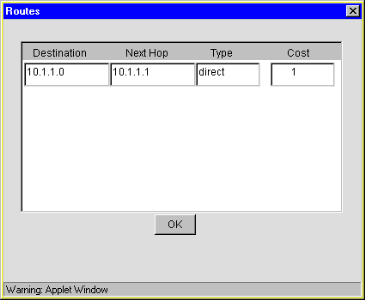
This dialog box is useful for viewing and troubleshooting the routes the appliance is using. The list contains an entry for each defined gateway, each IP address assigned to an appliance network adapter, and routes discovered through RIP if the Enable RIP box is checked. Click Reset Learned Routes to clear RIP entries from the list.
Destination: The default route is named and listed first. The subnet address is shown for other routes.
Next Hop: This is the IP address of appliance network adapters, or the gateway address for all routes that are external to the appliance.
Type: Appliance network adapter routes are direct; all others are remote.
Cost: This is either the metric value you assigned to manually configured additional gateways (including the default gateway) or a relative cost factor assigned by the RIP function if the Enable RIP box is checked.