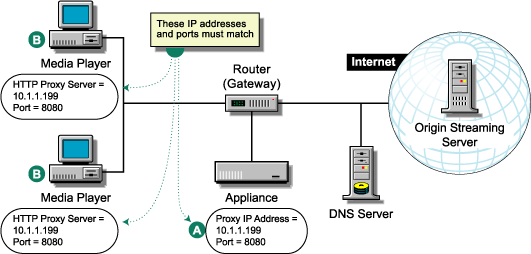


Figure 2 and Figure 3 provide a visual map for the information in this section.
NOTE: The letters in Figure 2 and Figure 3 are referenced in the table that follows. The addresses shown are for illustration purposes only. You will need to substitute actual addresses for your network.
Figure 2
Figure 3 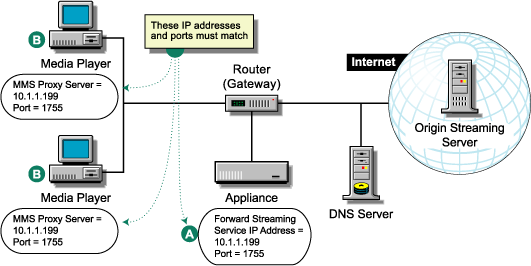
Set up forward proxy services as follows:
| To | Do This | Notes |
|---|---|---|
Understand Media Excelerator's features. |
|
|
Ensure your basic network configuration is complete. |
|
|
Enable HTTP forward proxy services on the appliance. |
|
See A in Figure 2. |
Create an MMS forward proxy service. |
For more information, see in the Streaming Tab in Volera Excelerator 2.3 Administration Guide. |
See A in Figure 2. IMPORTANT: If you are using the default MMS port numbers, you can only configure one MMS service per IP address. |
Configure forward proxy services for Windows Media Player 7.0 or later using MMS services. |
Player setup procedures vary slightly depending on the version of Windows Media Player you are using. For example, in version 7, you do the following:
|
See B in Figure 2. Use the appliance's checked IP address as the address for the forward proxy server. IMPORTANT: Automatic detection of proxy settings is not supported for native MMS proxy services running on port 1755. |
Configure forward proxy services for your Windows Media Player using HTTP. |
Player setup procedures vary slightly depending on the version of Windows Media Player you are using. For example, in version 7, you do the following:
|
See B in Figure 2. Use the appliance's checked IP address as the address for the forward proxy server. |
(Alternative) Set up WPAD for Windows Media Player 7 or later. The version 7 Windows Media Players on your network can be set to automatically access the streaming forward proxy. important note: WPAD is only supported using MMS over HTTP. |
|
|