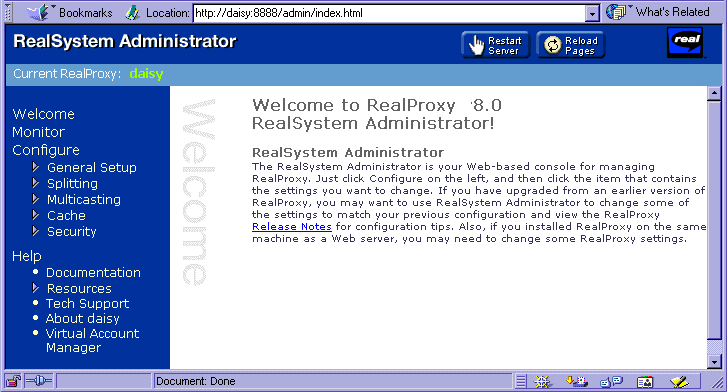
All RealProxy settings are customized through the RealSystem Administrator. This chapter describes how to use RealSystem Administrator as well as the basic settings used by all RealProxys.
RealSystem Administrator is the Web-based console for customizing RealProxy features. It can be run from any browser on your network. It is password-protected when first installed, and you can create additional user names and passwords for any other people who will be helping you administer your RealProxy.
When the RealProxy installation program completes, it asks if you want to run RealSystem Administrator. If you choose yes, RealProxy starts, and RealSystem Administrator displays.
To make changes to any feature, click on the appropriate category listed under Configure. Make the changes and click Apply. A confirmation page appears to let you know that the changes have been made. You may be required to restart RealServer; a message to that effect will appear if it is necessary.
If your Web browser is set to permit cookies, RealSystem Administrator "remembers" the page that was open in the right-hand frame the last time you used it or when you click the refresh button. In Netscape Navigator, RealSystem Administrator will reload with the main Welcome page when you resize the browser window unless cookies are enabled.
 |
Note |
|---|
| RealProxy must be running before you can use RealSystem Administrator. |
You can view the configuration of your RealProxy from nearly any browser on your network. Compatible browsers are Netscape Navigator version 4.0 or higher and Microsoft Internet Explorer version 4.0 or higher.
In a browser, type the following address:
http://realproxy.example.com:AdminPort/admin/index.html
realproxy is the name of the machine on which RealProxy is installed.
example.com is the name of the domain in which RealProxy exists.
Or, rather than typing the name and domain of the system on which RealProxy is installed, you can type the IP address.
AdminPort is the port which RealSystem Administrator uses to connect to RealProxy. You are asked for a port number during setup. Use that port number here.
The following URL will start RealSystem Administrator if it is typed in the browser on the same computer as RealProxy (be sure to substitute your port number for AdminPort):
http://127.0.0.1:AdminPort/admin/index.html
The following command also works on the same computer:
http://localhost:AdminPort/admin/index.html
Once you have started RealProxy and then RealSystem Administrator, you can change RealProxy features with the instructions below:
RealSystem Administrator makes the changes to the configuration file.
For some changes, RealSystem Administrator may alert you that you need to restart RealProxy using the Restart Server button at the top of the screen.
When you install RealProxy, RealSystem Administrator is configured to require user names and passwords for anyone who connects to RealSystem Administrator itself. You can add permission for additional users, so that other people in your organization can use RealSystem Administrator to customize RealProxy.
 |
Additional Information |
|---|
| RealProxy uses a subset of the authentication features available to RealServer. For more information on authentication, refer to RealServer Administration Guide. |
SecureAdmin.
Repeat Step 2 through Step 7 for each person who will have administration privileges.
 |
Tip |
|---|
| You can verify that the users were added successfully by clicking Browse Users in Realm. A new browser window appears, displaying the names of all the users. |
Changes made with RealSystem Administrator are stored in the configuration file. There are a few specific features which can only be adjusted by editing the configuration file directly. These are highlighted in "Features Only Available Via Direct Editing".
The configuration file is a text file formatted with tags which are based on XML (Extensible Markup Language). This language introduces great flexibility to the configuration file format and allows third-parties to use this file and add to its functionality. Syntax of this file is given in Appendix A, "Configuration File Syntax".
Be sure that your configuration file is stored where only authorized users can make changes to it.
|
|
Tip |
|---|
| Keep a backup copy of the configuration file. You may need it if you make changes to this file that you later want to undo or if you accidentally delete the working copy. |
You can change the RealProxy settings by opening the configuration file with any text editor. You can also add variables that aren't included in the initial file, but are listed in this manual in Appendix B, "Configuration File Contents". In addition, third-party plug-ins may require their own parameters and variables. Use a text editor to add them to the configuration file.
To make changes to existing settings in this file is simple; this manual provides guidance. If, however, you plan to add new sections, you will need to understand the syntax of the entire file. The file is organized into sections. This is not strictly necessary, but helps with clarity. The structure of the configuration file is described in detail in Appendix A, "Configuration File Syntax".
The default name of the configuration file is rmserver.cfg, but if you have multiple servers you may want to rename the files so as to easily identify which server you're working with.
When you edit the configuration file manually, be sure to use correct syntax, because RealProxy looks for exact spellings and correct use of angle brackets. RealProxy does not display messages related to syntax errors; instead, it will ignore those settings it does not understand.
|
|
Note |
|---|
| Always restart RealProxy after changing any settings in the configuration file with a text editor. |
RealSystem Administrator shows the configuration file settings of the RealProxy configuration file in use; use caution if you are switching between manually editing the file and using RealSystem Administrator to edit it.
 |
Warning |
|---|
| Exit RealSystem Administrator before opening the configuration file with a text editor or unexpected changes may result. |
Regardless of which features are in use, certain important settings apply to every RealProxy. They are described in this section.
Port settings tell RealProxy where to listen for requests.
If your RealProxy and Web server are on the same machine, you may need to modify the HTTP Port setting. See "Running Web Servers and RealProxy on the Same System" for additional information.
RealProxy uses the following settings to determine where to listen for requests sent via a particular protocol. You can view the settings from RealSystem Administrator by clicking General Setup>Ports.
pnm://). The default value is 1090.
rtsp://) At installation, the value is 554.
|
|
Note |
|---|
| To use a port lower than 1024 on a UNIX system, you must be logged on as super-user. |
There are other settings on this page, and they are described elsewhere in this guide. See Chapter 10, "Proxy Routing".
To customize RealProxy features, you'll need to modify settings with RealSystem Administrator or by editing the configuration file directly. But all of RealProxy's features are enabled by default; there is no need to set up any features.
Passthrough mode is always enabled. It can't be turned on or off.
The media cache is enabled by default. You do not need to make any changes to begin using the cache automatically.
The cache feature uses the following settings, which are pre-configured:
Enabled by default.
Cache.
Once the cache has reached its maximum size, RealProxy removes the media which were requested the least often. This method is called Least Requested URL.
|
|
Tip |
|---|
| It's a good idea to make the cache size as large as you can, since the more you can cache, the more bandwidth you can conserve. |
When a client requests a live stream, RealProxy checks to see if the transmitter RealServer is configured for pull splitting. RealProxy then gets the live stream using the highly efficient pull splitting connection.
Pull splitting is enabled by default.
RealServer uses the following settings to perform pull splitting (you can view them by clicking Splitting>Pull Splitter in RealSystem Administrator), and they are pre-configured:
/split/.
UDP. Choose TCP if you are splitting through a firewall (this may produce a slower connection with more overhead).
Instructions on configuring RealProxy to perform multicasting are located in Chapter 11, "Multicasting Live Streams".