The following sections provide information about deploying ZfD Remote Management:
The Remote Management Agent should be installed on the managed workstation so that the administrator can remotely manage that workstation. The Remote Management Agent starts automatically when the managed workstation boots up. When you initiate a Remote Management session with a managed workstation, the Remote Management Agent uses NDS® to verify whether you have the Remote Management rights. On successful verification, the Remote Management session proceeds. You can use the Remote Management Policy to specify the preferred protocol (IP or IPXTM) that the agent should use to communicate with the management console during a remote session. For details, see Setting Up the Remote Management Policy. If you select a protocol that is not available on that managed workstation, the agent will attempt to use the available protocol. The management console attempts to contact the agent using the network addresses stored within the Workstation object in NDS. It will cycle once through the network addresses trying to communicate with the agent on the managed workstation. For IP addresses in the workstation, the management console attempts to contact the agent using IP. For IPX addresses stored in the Workstation object, the management console attempts to contact the agent using IPX. However, for the management console to communicate with the managed workstation using IPX, ensure that the IP and IPX stacks are installed on the managed workstation. If only the IPX stack is installed, the management console will not be able to communicate with the managed workstation using IPX. Before you install the ZfD Remote Management Component, see Installation Prerequisites for Remote Management in Getting Started for more information. ZfD Remote Management functionality can be used to remotely manage Windows 95/98 or Windows NT/2000 workstations. If you need to remotely manage Windows NT/2000 servers, you can use the ZENworks for Severs Remote Management functionality. Refer to ZENworks for Servers documentation. To remotely access a workstation from the ZfD management console, the appropriate Remote Management Agent must be loaded on that workstation. The Remote Management Agent is a service installed on the Windows 95/98/NT/2000 workstation and runs automatically after installation. The agent can be installed using the Novell® Application LauncherTM, or while installing the Novell ClientTM that ships with ZfD. The preferred method for installing the agent is to add the Remote Management Install Application object to the Application Launcher and associate the Application object with the managed workstation. The Remote Management Install Application object is created in NDS during ZfD installation. The following sections provide information about installing the Remote Management Agent on Windows 95/98/NT/2000 workstation:
IMPORTANT: For Windows NT/2000 managed workstations, you must associate the Application object with the Workstation object or the Container of the Workstation object. You will not be able to launch the Application object if you associate it with a User object.
To install the Remote Management Agent using the Application Launcher: From the management console, right-click a managed workstation. Click Properties > Applications. Click Add > browse to select Remote Management Install. From the Applications Page, select one of the following association for Remote Management Install.
Force Run Runs the Remote Management Install Application object as soon as the application starts at the managed workstation. App Launcher Displays the Remote Management Install Application object icon in the Application Launcher and Application Explorer (browser view) depending on which ones you make available at the managed workstation. Start Menu Displays the Remote Management Install Application object icon on the Windows 95/98 or Windows NT/2000 Start menu under Novell Application Launcher. Desktop Displays the Remote Management Install Application object icon on the Windows 95/98 or Windows NT/2000 desktop area. System Tray Displays the Remote Management Agent icon on the system tray. Click OK. When you install the Novell Client on the managed workstation, the Novell Client installer will provide an option to install the Remote Management service. To install the Remote Management service during Novell Client installation, select the Custom installation option, then click Remote Management. In order for the Remote Management Agent to accept a Remote Management request, the managed workstation must be registered in NDS and be imported as an NDS Workstation object. The Remote Management Agents use NDS authentication to verify that the user requesting to remotely access the managed workstation is authorized to do so. The effective policy settings based on which the administrator performs Remote Management sessions on the managed workstation are taken from the NDS Workstation object and the User object of the user logged in to the managed workstation. The ZfD management console runs from ConsoleOne, and the Remote Management Agents are NDS authentication-aware and policy-aware and will not allow unauthorized Remote Management sessions. The following sections provide information about setting up security for Remote Management sessions:
The Remote Management Policy is an NDS object in a policy package. Policy packages are NDS objects that contain policies grouped according to the object type. Object types can be Workstation object, User object, User Group, or Container object. The Remote Management Policy enables the administrator to specify security settings for various Remote Management sessions. The administrator can use the ZENworks Policy Wizard to create a policy package or use an existing Remote Management policy for an object. The policy packages are categorized into Workstation Policy Packages and User Policy Packages. The Workstation Policy Package and the User Policy Package are further categorized based on the operating system of the workstation or the operating system that the user is logged in to. Each policy package has a set of default policies that you can use. By default, the Remote Management policy is available from all the listed policy packages provided by ZfD, including:
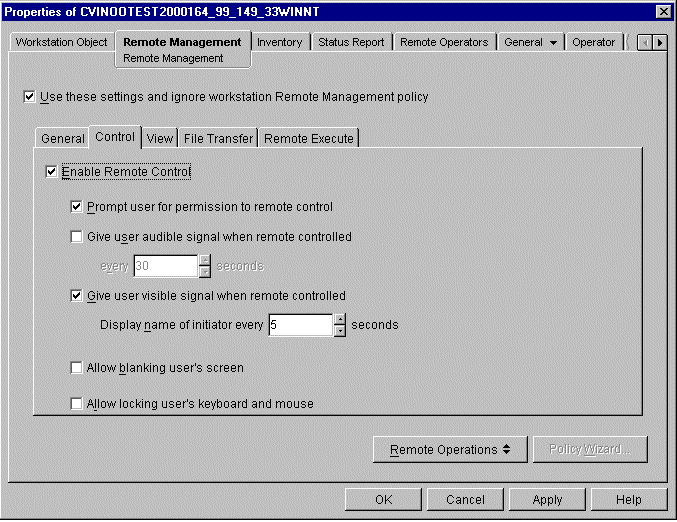
The following figure displays the Remote Control security options available from the Remote Management policy.
The following table provides a description of security options available in the Remote Management policy.
Planning for Installing the Remote Management Component
Installing the Remote Management Component
Installing the Remote Management Agent using the Application Launcher
Application Object Option
Explanation
Installing the Remote Management Service using the Novell Client Installer
Setting Up Remote Management Security
Setting Up the Remote Management Policy
| Parameter | Applicable for | Description |
|---|---|---|
Enable Remote Management session |
Chat, Diagnostics, File Transfer, Remote Control, Remote Execute, and Remote View |
Indicates whether the administrator is allowed to perform the remote session on the managed workstation. Ensure that the Remote Management session is enabled on the Workstation policy for the Workstation object and User policy for the user logged in to the managed workstation. |
Display Remote Management Agent icon |
Chat, Diagnostics, File Transfer, Remote Control, Remote Execute, and Remote View |
Indicates whether the Remote Management Agent should be displayed on the managed workstation each time the administrator initiates a Remote Management session. If this option is checked on the effective Workstation policy for the Workstation object, the Remote Management icon will be displayed on the managed workstation. |
Select protocol to use during Remote Management sessions |
Remote Control and Remote View |
Indicates the protocol that should be used during the Remote Management session. If the selection is made on the effective Workstation policy for the Workstation object, the selected protocol will be used for the Remote Control or Remote View session. |
Prompt user for permission |
File Transfer, Remote Control, Remote Execute, and Remote View |
Indicates whether the administrator should obtain permission from the user at the managed workstation each time the administrator wants to perform the remote session on the managed workstation. If this option is checked on the effective Workstation policy for the Workstation object or the effective User policy for the user logged in to the managed workstation, a Remote Management session will proceed only if the user logged in to the managed workstation provides the permission when prompted. |
Give user audible signal |
Remote Control and Remote View |
Indicates whether an audible signal should be sent to the managed workstation each time the administrator accesses the managed workstation. If this option is checked on the effective Workstation policy for the Workstation object or the effective User policy for the user logged in to the managed workstation, the user at the managed workstation will receive an audible signal each time the administrator accesses the managed workstation. |
Give user visible signal |
Remote Control and Remote View |
Indicates whether a visible signal should be sent to the managed workstation each time the administrator accesses the managed workstation. If this option is checked on the effective Workstation policy for the Workstation object or the effective User policy for the user logged in to the managed workstation, the user at the managed workstation will receive a visible signal when the administrator accesses the managed workstation. |
Allow locking keyboard and mouse controls of managed workstation |
Remote Control |
Indicates whether the administrator is allowed to lock the keyboard and mouse controls of the managed workstation. When this option is selected, the Locking Controls button will be displayed in the toolbar of the Viewing Window. If this option is checked on the effective Workstation policy for the Workstation object and the User object, the Locking Controls button will be displayed in the toolbar of the Viewing Window. |
Allow blanking screen of managed workstation |
Remote Control |
Indicates whether the administrator is allowed to blank the managed workstation screen. When this option is selected, the Screen Blanking button will be displayed in the toolbar of the Viewing Window. When you enable this option, the Locking Controls option will be enabled automatically. If this option is checked on the effective Workstation policy for the Workstation object and the User object, the Screen Blanking button will be displayed in the toolbar of the Viewing Window. |
The administrator can change the default settings on any page of the Remote Management policy. If you change the values of the default protocol and Remote Management Agent icon settings, you have to restart the Remote Management Agent for the changes to take effect. The new settings will apply for all ensuing Remote Management sessions.
You can use the Manage Remote Operators Wizard to set up the required rights for the management console user. Alternatively, you can use the Remote Operators tab to add the user as a management console user while giving the appropriate Remote Management rights.
To set required rights using the Remote Operator tab:
Right-click the User object from the management console.
Click Properties > the Remote Operator tab > Add.
Remote Management session authentication in ZENworks 2 required the management console and managed workstation to always contact the Master Replica of the NDS partition that held the Workstation object. This dependency on the Master Replica would sometimes slow down the authentication process if the Master Replica was not on the same network as the management console and managed workstation. This constraint has been removed in ZfD 3 (with the exception listed below) to speed up the authentication wherever possible while ensuring the same level of seamless authentication.
With ZfD 3, the management console contacts any read/write replica to which the console user has access. This replica is almost always the nearest one. The reference of the replica contacted by the management console is then sent to the managed workstation.
The managed workstation uses this information and communicates with the same replica, thus ensuring that the managed workstation and the management console use the same NDS information.
HINT: If the managed workstation fails to contact the replica for which the reference has been sent by the management console, the Master Replica is still used for the purpose of authentication.
| Action | Scenario |
|---|---|
Session Continue |
|
Session Terminate |
|
Session Restart |
|
The following sections describe the Remote Management tasks of ZfD that the Remote Management Agent supports:
You can remotely power up a powered-down node in your network if the network card on the node is Wake on LAN enabled. This feature lets the administrator manage nodes during off-hours to minimize the downtime users experience for system maintenance and upgrades. It also facilitates power savings while keeping systems available for maintenance. Ensure that you meet the prerequisites for initiating a Remote Wake Up session. For details, see Understanding Remote Wake Up. You can control a managed workstation from ConsoleOneTM using the Remote Control feature so you can provide assistance to the user at the managed workstation to resolve workstation problems. Remote Control establishes connections between the management console and the managed workstation. With remote control connections, the administrator can go beyond viewing the managed workstation to taking control of it. You can view the desktop of the managed workstation from your desktop using the Remote View feature. Remote View lets you connect with a managed workstation so you can view the managed workstation instead of controlling it. This will help you troubleshoot problems that the user encounters. For example, you can observe how the user at the managed workstation performs certain tasks to see if the user performs a task incorrectly. Remote Execute lets you run any executable on the managed workstation from the management console. An application can be remotely executed by specifying its executable name in the Remote Execute window if the program is in the path of the managed workstation or by entering the complete path of the application if it is not in the path of the managed workstation. You can determine the value of the path from the Environment window launched from the Diagnostic feature of ZfD. Diagnostics shorten problem resolution times and assist users without requiring a technician to come to the troubled workstation. This increases user productivity by keeping desktops up and running. Remote diagnostic information of managed workstations is available over IP only; IPX is not supported. Remote diagnostics is not supported on Windows 3.x managed workstations. File Transfer lets you perform file operations between the management console and a managed workstation. To be able to transfer files between the management console and the managed workstation, ensure that the Remote Management Agent is installed on the managed workstation. Using File Transfer, you can move or copy files between the management console and a managed workstation. You can also rename and delete files, and create directories on the management console and on the managed workstation. From the File Transfer window, you can view the properties of files and directories on the management console and on the managed workstation, including size of the file, and the date and time of file creation. File Transfer also lets you open files with the associated application on the management console. The File Transfer program does not allow access to non-fixed drives on the managed workstation. File Transfer is not supported on Windows 3.x managed workstations. Chat is a real-time messaging tool that lets the management console user communicate with a user at the managed workstation. Only a management console user logged in as an administrator can initiate a chat session. To chat with the user at the managed workstation, you need to ensure that the Remote Management Agent is installed on the managed workstation. When the management console user initiates a chat session with the user at the managed workstation, the user at the managed workstation will be prompted for permission to initiate the chat session. The chat session begins when the user at the managed workstation provides the permission to initiate the chat session. During the chat session, you can copy and paste text in the message area. Either the management console user or the user at the managed workstation can close the chat session. Chat is not supported on Windows 3.x managed workstations. The Windows NT and Windows 2000 event logging mechanism allows applications running on the managed workstation to record events as log files. You can use the Event Viewer to view the event logs. The Event Viewer maintains Application, Security, and System log files. The events for Remote Management sessions are stored in the Application log file. The managed workstation on which the Remote Management Agent is installed maintains this log information as an audit log. IMPORTANT: ZENworks 2 stored audit information of Remote Management events in the SECURITY log file. ZfD stores the audit information in the APPLICATION log file. You can save the information of previous events using the Save As option from the File menu of the Event Viewer.Remotely Powering Up a Network Node
Remotely Controlling a Managed Workstation
Remotely Viewing the Desktop of a Managed Workstation
Remotely Executing an Executable on a Managed Workstation
Remotely Diagnosing Problems on a Managed Workstation
Performing File Transfer Operations between the Management Console and a Managed Workstation
Communicating with a User at a Managed Workstation
Recording Events as Log Files
| Remote Management Session | To Initiate |
|---|---|
Ping |
Right-click the managed workstation > click Actions > click Ping Remote Management Agent. |
Remote Control |
Right-click the managed workstation > click Actions > click Remote Control. |
Remote View |
Right-click the managed workstation > click Actions > click Remote View. |
File Transfer |
Right-click the managed workstation > click Actions > click File Transfer. |
Remote Execute |
Right-click the managed workstation > click Actions > click Remote Execute. |
Chat |
Right-click the managed workstation > click Actions > Chat. |
Diagnostics |
Right-click the managed workstation > click Actions > click Diagnostics. |
Remote Wake Up |
Right-click the managed workstation > click Actions > click Remote Wake Up. |