The Technical Settings form for your server specifies information about background tasks, limits, organization name, port number, and spool directory location.
When you install your server, most of the technical settings have default values. For example, the port number reflects the server port number you specified when you installed NetWare 5.1. The default port is 119.
You might want to change the settings for various reasons. The following sections describe how to view and change technical settings for your server.
The News Server automatically runs certain tasks, such as periodically expiring articles and sending discussion groups to other news servers. You can specify when and how often the News Server should perform these background tasks.
From the General Administration page, click the News Server server name button > Server Preferences > Technical Settings.
Under Background Tasks, from the Send Outgoing News drop-down list, select how often you want your server to send discussion groups to the designated replication sites.
Frequently sending outgoing news keeps your replication sites current but places greater load on your News Server.
From the Update Indexes drop-down list, select how often batch files are processed.
From the Update Profiles drop-down list, select how often search profiles are updated.
Frequently updating profiles keeps the search profiles more current but places greater load on your news server.
From the Perform Daily Tasks drop-down list, select when the server will run news.daily.
You should choose a time when the server is least busy.
Click OK.
You might want to control connections to the News Server to speed up your server. The following are examples of when you might choose to control connections for performance reasons.
To specify user connection and article size values:
From the General Administration page, click the News Server server name button > Server Preferences > Technical Settings.
Under Limits, in the Connection Timeout field, specify how long the News Server will wait for another request from a newsreader before closing the connection.
This option prevents idle newsreaders from consuming system resources.
Specify the number of newsreaders that connect concurrently to your server.
By limiting the number of newsreaders, you can improve server performance. If you set the maximum newsreader connections too high and your server isn't configured to handle this many connections, server performance might be poor.
Specify the maximum article size the news server will accept from a newsreader or another server.
The value you specify depends on your business requirements.
Click OK.
When users post articles to your server, they generally have an organization header listed in their message header information. This header might be the name of the company they work for or the name of the school they attend.
The organization header can be set as an option in the user's newsreader. If someone posts an article that does not have an organization header to your server, you can specify that a default organization header be added.
The following illustration shows the organization name in the header of an article.
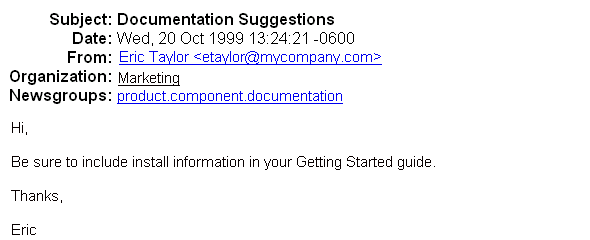

To specify a default organization header:
From the General Administration page, click the News Server server name button > Server Preferences > Technical Settings.
Under Organization Name, in the Organization field, type the default header.
Click OK.
You might want to change the port number to improve server security. Be aware that changing the server port number has implications for all clients, including other news servers attempting to connect to your server. If a client is unaware of the port number change, the client can no longer connect to your server.
To change the port number:
From the General Administration page, click the News Server server name button > Server Preferences > Technical Settings.
Under Port Number, type the port number.
Click OK.
The server will check whether this port is in use by some other server to prevent re-use.
The spool directory indicates the location where all of the articles on your server are kept. Articles are stored in subdirectories corresponding to their discussion group names. For example, you might find music, theater, and dance subdirectories. Under music you might find rock and classical directories.
When you install the server, the spool directory is automatically created. You might want to point to another spool directory, or you might want to create a new spool directory.
You can change the location of the spool directory without affecting the HISTORY file. (The HISTORY file contains a mapping of the message IDs to the filenames in the spool directory.)
Be sure the new spool directory has the correct ownership and permissions (read, write, and execute). Otherwise, you will have problems with your server.
From the General Administration page, down the News Server by clicking Off.
Copy the spool hierarchy to the new directory.
From the General Administration page, click the News Server server name button > Server Preferences > Technical Settings.
Under Spool Directory Location, in the Spool Directory field, type the new location.
Click OK.
If you are copying the entire spool, you do not need to create new subdirectories.
Create the directory where you want to keep the spool.
The new directory (and subdirectories) must have the same ownership and permissions as the original subdirectory.
Create the following subdirectories:
From the General Administration page, click the News Server server name button > Advanced Tasks > Recovery.
Rebuild any full-text indexes.