

| |
ConnectView enables you to generate and display billing charges based on the accounting profiles assigned to users and remote access usage.
IMPORTANT: The audit trail file and/or archived files must be available for the display period to display accounting data. Also, ensure that the BSPXCOM.NLM file is loaded on the managed servers and the BREQUEST.EXE program file is running on the ConnectView workstation.
Only connections that begin and terminate during the display period (connections that have both a valid start record and end record) are considered in accounting data. RNS connections that fail to log in might be included in the billing charges because a start record and end record might still be logged. Because NCS cannot report the baud rate used for its dial-out connections, baud rate and port name charges do not apply to the NCS dial-out connections. Also, because a connected speed is not available for connections using an AIOPAD port, the rates specified in the baud rate and port name rate tables do not apply to AIOPAD connections.
NOTE: Connections with a duration less than the grace period, the minimum connection duration, are not included in accounting data. By default, the grace period is set to 30 seconds. To change the grace period, choose File > Preferences and click the Grace Period tab button.
After accounting profiles are assigned and connection data is available, accounting data can be displayed in an accounting log, with data listed by username or account number or in an accounting report.
IMPORTANT: If you are accessing large amounts of data in the current audit trail file and/or archived files, displaying accounting data could require a substantial amount of time and memory. This is escpecially so if low memory conditions occur and Windows begins to swap data to disk, increasing the amount of time required to process the data. In extremely low memory conditions, you might not be able to complete the operation.
To access accounting data, select the desired server icon in the View All window or a View window, or select the desired server name in the Server combo box in the left corner of the Tool Bar. Then, either click the Accounting icon or choose Accounting > View Billing Charges by User Name. ConnectView opens the Billing Period dialog box, shown in Figure 43.
Figure 43
Billing PeriodDialog Box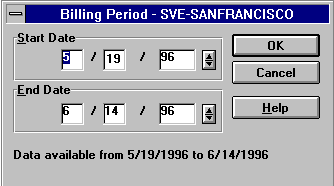
Enter the desired Start and End dates and click the OK button.
NOTE: Connections that are started before the billing period start date and continue past the billing period end date (span the entire specified billing period), and connections that do not start within the billing period but end within the billing period are not displayed as incomplete connections and are not included in accounting data.
By default, start and end dates are determined by the available audit trail and archived files.
To check for connections that started during the specified billing period but last beyond the end date (a start connection record is found, but not a matching end connection record), ConnectView checks for end records up to one day after the billing period. If an end connection record that matches a start connection record is found, ConnectView includes the connection in the accounting data. If not, ConnectView counts it as incomplete.
Because of this one day checking and to avoid duplicate billing, ConnectView discards any end connection records for which a matching start connection record cannot be found. The following table summarizes this accounting process for a connection that begins on
3/1/96 at 8:00 a.m. and ends on 3/4/96 at 3:00 p.m.
ConnectView opens the Accounting Log window with data for the specified date. Figure 44 shows an example Accounting Log window with data displayed by user ID.
Figure 44
Accounting Log by User Name Window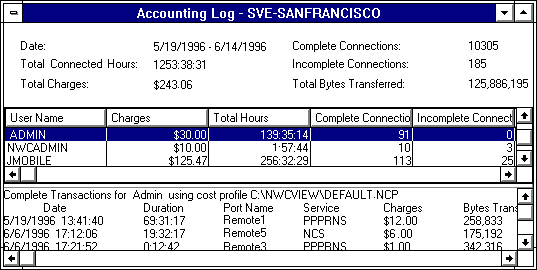
From this example, you can see that the Accounting Log window is divided into three sections. The top section contains billing period summaries, the middle section shows totals by user ID, and the bottom section lists the completed transactions associated with the selected user.
IMPORTANT: The Accounting Log window can display data for up to 8,000 user IDs for the specified billing period. However, this display limitation does not apply to copying, printing, or exporting accounting data.
ConnectView enables you to limit the data displayed in the Accounting Log window by usernames, account numbers, and dates within the display period.
To limit the display of accounting data, with the Accounting Log window open, choose View > Display Options (F4). ConnectView opens the Accounting Log By Users Display Options dialog box.
Specify the desired dates. These dates cannot exceed the dates and times specified for the accounting display period.
Then, select the desired usernames in the Available Users list and click Add. The usernames appear in the Selected Users list.
Click OK to limit the data displayed in the Accounting Log window to specified options. Click Cancel to close this dialog box without changing the data in the Accounting Log window.
To display accounting data by account number, first open the Accounting Log window with data displayed by user ID. This is the default view of the accounting log. When this window is open, the command changes to Accounting > View Billing Charges by Account Number. Choose this command. ConnectView displays accounting data by account number.
Figure 45 shows an example Accounting Log window for the period from 5/19/96 to 6/14/96, with data by account number.
Figure 45
Accounting Log by Account Number Window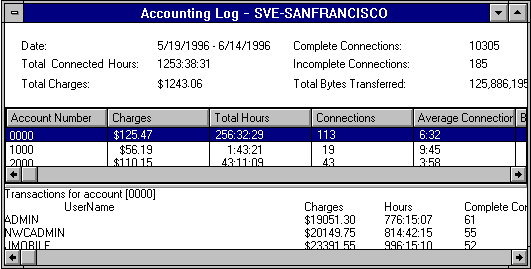
From this example, you can see that the Accounting Log window is divided into three sections. The top section contains billing period summaries; the middle section shows connections by account number; and the bottom section lists the users assigned to the selected account number along with data for each user.
IMPORTANT: The Accounting Log window can display up to 8,000 user IDs for the specified billing period. However, this display limitation does not apply to copying, printing, or exporting accounting data.
To switch back to displaying accounting data by user ID, choose Accounting > View Billing Charges by User Name.
ConnectView enables you to limit the data displayed in the Accounting Log window account numbers and dates within the original display period.
To limit the display of accounting data, with the Accounting Log window open, choose View > Display Options (F4). ConnectView opens the Accounting Display By Account Number Options dialog box.
Specify the desired dates. These dates cannot exceed the dates and times specified for the original accounting display period.
Select the desired account numbers in the Available Acccounts list and click Add. The account numbers appear in the Selected Accounts list.
Click OK to limit the data displayed in the Accounting Log window to specified options. Click Cancel to close this dialog box without changing the data in the Accounting Log window.
You can use the Accounting Report window to display accounting totals and daily connections in report format.
To display accounting data in report format, ensure the desired server is selected and from any window choose File > Generate Report > Accounting. The Billing Period dialog box appears so you can enter start and end dates. For a description of the Billing Period dialog box, see Billing PeriodDialog Box.
Enter the desired dates and click OK.
ConnectView opens the Accounting Report window shown in Figure 46.
Figure 46
Accounting Report Window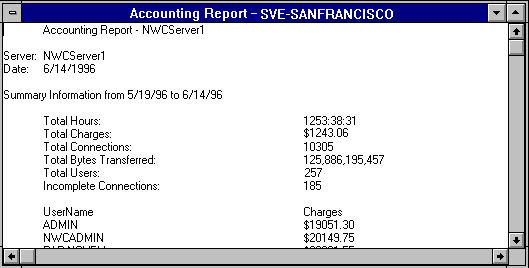
From this example, you can see an Accounting Report window with data for connections made between 5/19/96 and 6/14/96.
IMPORTANT: The Accounting Report window can display up to 32,000 lines of data for the specified billing period. However, this display limitation does not apply to copying, printing, or exporting accounting data.
ConnectView allows you to specify which information appears in the Accounting Report window and in what order the data columns appear.
To customize the data display in the Accounting Report window, choose File > Report Preferences and click the Accounting tab button. The Report Preferences dialog box appears with the options for the Accounting Report window.
By default, the Accounting Report includes summary information, user totals, account totals, and connection information. The following table shows the default fields for the user totals and connection information.
Clear the check boxes for the data you do not want to appear in the report.
To change the order of the detailed information, select the desired field and click the Up or Down button.
To save your changes, click the OK button. The changes take effect the next time the Accounting Report window is opened and remain in effect until these options are changed. To close this dialog box without applying the changes, click the Cancel button.
Incomplete connections are connections for which ConnectView can find a start connection record but cannot locate the related end connection record. Incomplete connections could be due to one of the following:
NOTE: ConnectView automatically checks for end connection records up to one day after the end date of the billing period. If an end connection record that matches a start connection record is found in the day after the billing period end date, ConnectView includes the connection in the accounting data. If the matching end connection record is not found, ConnectView counts it as incomplete. Because of this one day checking and to avoid duplicate billing, ConnectView considers any end connection records for which a matching start connection record cannot be found as incomplete connections.
Duplicate connection IDs occur when a new connection record contains the same connection ID as an existing connection record of the same type. When this occurs, ConnectView displays a warning message and allows you to terminate or continue the accounting process. If the accounting process is continued, ConnectView cannot guarantee the integrity of the accounting data.
To display the incomplete connections and connection records with duplicate connection IDs, with the Accounting Log window open, choose Accounting > View Invalid Connections.
ConnectView opens the Invalid Connections dialog box, shown in Figure 47.
Figure 47
Invalid Connections Dialog Box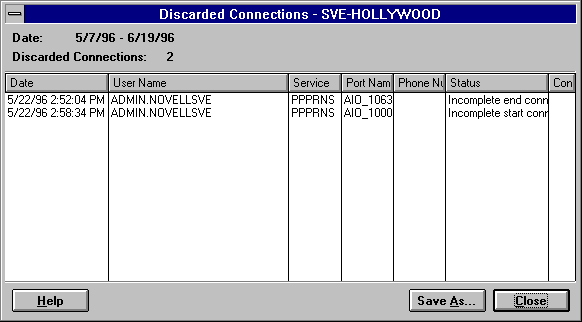
From this example, you can see there were two invalid connections during the current billing period. These connections are not included in the accounting data.
NOTE: Connections that are started before the billing period start date and continue past the billing period end date (span the entire specified billing period) are not displayed as discarded connections and are not included in accounting data.
| |