

| |
ConnectView opens a View All window whenever the application is started. The View All window enables you to quickly view a list of your managed servers, display and control the servers' resources, and view summary information about them. Server resources include the boards/drivers, port groups, ports, and remote access services. To view this data, you need the Simple Network Management Protocol (SNMP) MonitorCommunity (GET) access rights. Figure 17 shows an example View All window.
NOTE: Only one instance of the View All window can be opened. This window cannot be closed unless you exit the application; however, it can be minimized.
Figure 17
View All Window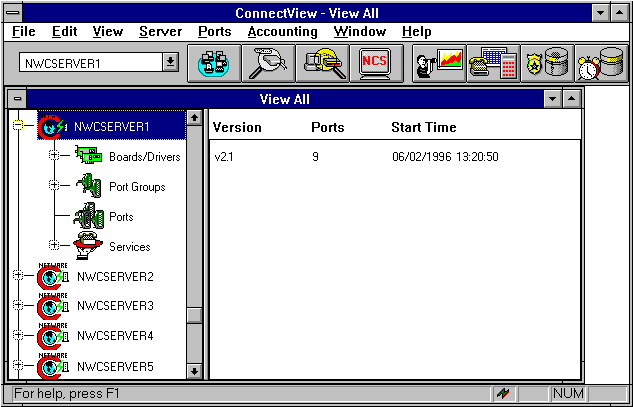
You can also open View windows to display additional views of resources and data for individual servers. To open a View window, select the desired server and choose Window > New. A View window appears for the selected server.
Server and server resources appear as containers or leaf objects. Container objects (servers, board/driver groups, port groups, and service groups) can be expanded to display additional resources. A plus sign (+) appears in front of the container objects that can be expanded. A minus sign (-) appears in front of the objects that have been expanded and can then be collapsed. Leaf objects (individual boards/drivers, ports, individual port group, and service) are objects that cannot be expanded and do not have either symbol in front of them. Selecting an object causes information for the selected object to appear in the right side of the window.
To expand the objects of a container, either double-click the container or select it and choose View > Expand Object or press +. To return the objects to the container, either double-click the expanded container or select it and choose View > Collapse Object or press -.
NOTE: The message Gathering data... appears when data for the server's resources is being obtained. Also, to indicate the application is processing data, a lightning bolt flashes in the Status Bar.
By default, server polling intervals are set to 5 minutes so the data in the View All and View windows is refreshed every 5 minutes. To force an immediate update of the data displayed in the View All window or a View window, select the window and choose View > Update (F5).
If data for a server cannot be retrieved, collapse it and select another object. Then, reselecting and expanding the server icon causes ConnectView to retry retrieving the data.
| |