
My Tasks displays current active requests allocated to the logged in User. They can also view a list of active or all tasks assigned to the Team(s) the User is associated with, by selecting the relevant My Teams Tasks Filter. If the Queue option is enabled for the User's Teams, My Teams Queued Tasks is also accessible in the Filter drop down list.
Within this screen Incidents can be:
Created
Searched
Grouped
Exported to PDF or Excel
Subscribed to for updates via RSS feeds.
To expand and view an Incident, select the Request # hyperlink.
To create a new Incident:
Select Home>My Tasks
The Tasks screen appears.
Click
New
The Request Information screen appears.
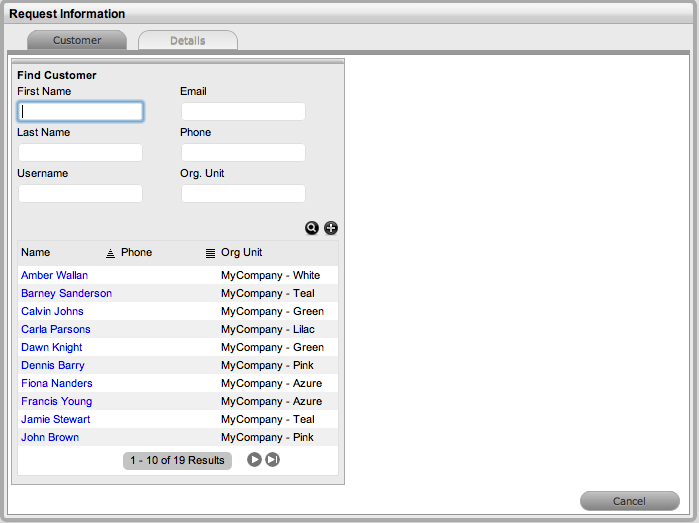
Search and select a
Customer
See: Searching for Customers or
Creating a New Customer.
Search and select an
Item
See: Searching for an Item.
Select the Classification and enter in the Description
Click Save.
For more information about the relevant Summary tab screen, see: Incident Summary.
Incident Search Tips:
Search results displayed within the Home tab, will only include Incidents associated with the logged in User or their associated Teams. For a more comprehensive search results list, perform the search within the relevant Incident tab.
The request search option has a default Status to search only Active Incidents. To ensure search success, select the relevant Incident Status, if unsure, select All
To search for multiple requests numbers at once, insert a comma separator between ID numbers
To search by Classification, select an Item Category from the Category drop-down list. After the Category is chosen, a list of Classifications is displayed
To search based on the content of an Incident Description, select the Full Text option within the Search and enter a relevant term (See: Full Text Search.)
To search using an Item's Custom field information, select the Item Category to display any Custom Fields enabled for that Item.
For information regarding Incident assignment, reviewing an Incident, adding Notes or updating the Status, refer to Working on Incidents.