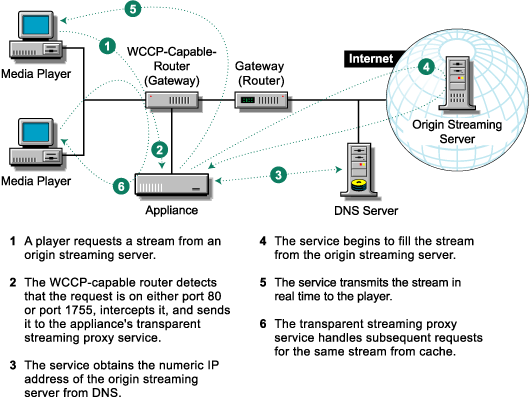


A WCCP-capable router, which is configured as the default gateway for the client workstation, intercepts player requests from the client and routes them to the appliance. The transparent proxy service processes the request for the player.
Figure 17
Transparent streaming proxy doesn't require player configuration. Once the router and the appliance are configured, proxy services are transparent to the player.
Figure 18 provides a visual map for the information in this section.
NOTE: The letters in Figure 18 are referenced in the table that follows. The addresses shown are for illustration purposes only. You will need to substitute actual addresses for your network.
Figure 18 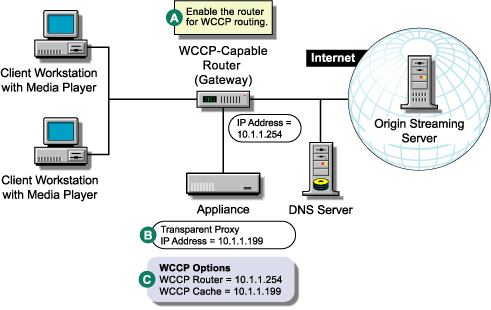
Table .
| To | Do This | Notes |
|---|---|---|
Understand Media Excelerator's features. |
|
|
Ensure your basic network configuration is complete. |
|
|
Enable WCCP routing on the router. |
|
See A in Figure 18. A WCCP-capable router can service more than one transparent proxy server. |
Set up HTTP transparent proxy services on the appliance |
|
See A in Figure 18. |
Set up an MMS transparent service. |
For more information see Streaming Tab in the Volera Excelerator 2.3 Administration Guide. |
See B in Figure 9. If logging is enabled, MMS log files for the MMS accelerator server will have the same name as the MMS accelerator service. Both native MMS and HTTP-MMS requests will be logged in this log file. NOTE: UDP requests are filled using TCP unless the Allow UDP for Filling option is checked when a Media Cache service is created. |
If the routers on your network use WCCP version 1, register the appliance with a WCCP version 1 router. |
|
See C in Figure 18. The Proxy Name and Farm Name fields on the WCCP options form are text strings for your reference. They have no other function. The appliance needs the WCCP Router IP address in order to register with the router. The router needs the WCCP Cache IP address to know where to send player requests. An appliance can register with only one WCCP-capable router. If WCCP routing isn't working, try entering the get stats wccp command on the command line. Check the configuration for problems. For more information, see WCCP Version 1.0 Options Dialog Box in the Volera Excelerator 2.3 Administration Guide. |
If the routers on your network use WCCP version 2, register the appliance with the WCCP version 2 routers. |
|
See C in Figure 18. The router needs the WCCP Cache IP address to know where to send player requests. Excelerator needs one or more WCCP router IP addresses in order to register with the routers. An appliance can register with multiple WCCP version 2 routers. If WCCP routing isn't working, try entering the get stats wccp command on the command line. Check the configuration for problems. For more information, see WCCP Version 2.0 Options Dialog Box in the Volera Excelerator 2.1 Administration Guide. |