

| |
The sixth page of the wizard provides the capability to create protected resources which are stored in the iChain Service Object (ISO) selected on page one of the wizard. Operation of this page is identical to the Protected Resource tab found in the ISO snap-in in ConsoleOne. See Figure 39.
Figure 39
Protected Resource Page
The following table describes the field on this page:
| Field Name | Description | Status |
|---|---|---|
Protected Resource |
Table that displays all the protected resources defined for this ISO. |
Required |
This section describes the following buttons:
The Add New Protected Resource button allows you to launch the Add New Protected Resource dialog box.
The Delete Protected Resource button allows you to delete a protected resource from the table.
The Edit Protected Resource button allows you to launch the Modify New Protected Resource dialog box.
The OLAC Parameters button allows you to launch the New OLAC Parameters dialog box.
The Add New Protected Resource dialog box allows the user to specify a new protected resource. The Modify Protected Resource dialog box is the same except for the dialog box title. See Figure 40.
Figure 40
Add New Protected Resource Dialog Box
The following table describes the fields in this dialog box:
The OLAC Parameters dialog box gives the user the means to enter OLAC parameters for a protected resource. See Figure 41.
Figure 41
OLAC Parameters Dialog Box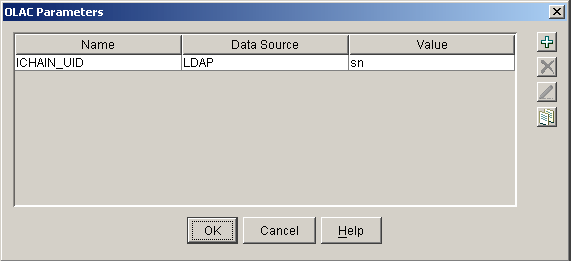
This section describes the following buttons:
The New OLAC Parameters button allows you to launch the New OLAC Parameters dialog box.
The Delete OLAC Parameters button allows you to delete the selected set of OLAC parameters.
The Edit OLAC Parameters button allows you to launch the Modify OLAC Parameters dialog box.
The Import Parameters button allows you to launch the Import Parameters dialog box.
The New OLAC Parameters dialog box allows the user to specify a set of OLAC parameters including the name, data source, and value. The Modify OLAC Parameters dialog box is exactly the same except for the dialog box title. See Figure 42.
Figure 42
New OLAC Parameters
The following table describes the fields in this dialog box:
The Import Parameters dialog box provides a list of all protected resources that have OLAC parameters defined for them from which the user can select to import into the current protected resource. See Figure 43.
Figure 43
Import Parameters Dialog Box
| |