

| |
This section describes how to
You should have read Using the AUDITCON Utility which describes how to run AUDITCON and navigate the menu tree.
When you run AUDITCON, it displays a screen with one of the five Available audit options menus. The particular entry menu you see depends on your current volume and the state of that volume audit trail.
NOTE: The container auditing state is independent of the state of volume auditing. You do not have to enable auditing of a volume or have access to a volume audit trail to perform container auditing.
Choose Audit directory services from the initial Available audit options menu (101, 102, or 103).
Press Enter.
AUDITCON displays menu 1000, which shows the full screen for container auditing. The second line of the header defines your current container (in Figure 66, the Organization O=ACME) and the server currently in use (in Figure 66, SERVER1).
As you move from one container to another in the Directory tree, this field shows your current context. In addition, it shows which server is being used for accessing the container audit trail.
Figure 66
Menu 1000: AUDITCON Full Screen for Container Auditing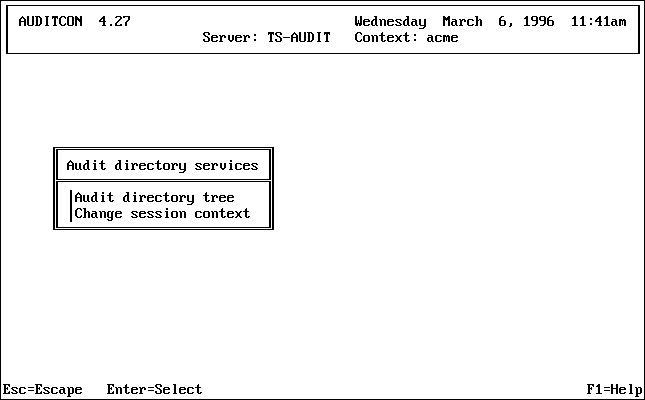
To audit a container, your session context (shown in the second line of the header area) must point to that container. If not, you must change your session context before you can begin auditing that container.
AUDITCON provides two methods of changing your context. You can type in the explicit context for the container you want to audit, as explained in this section (this might be the preferred method if your network has many containers and you know which container you want to audit).
You can also browse through the Directory tree and select a container for auditing (see Audit the Directory Tree). This is generally the preferred method, because you can select a container and begin auditing that container in a single operation.
NOTE: You don't need rights to the container or to the container's Audit File object to set the container context.
To define a different container for auditing, choose Change session context in the Audit directory services menu (1000) and press Enter.
AUDITCON displays the Edit Session Context, which allows you to edit the current session context.
Edit the current session context by backspacing and typing over the existing container name or pressing Home and inserting text at the beginning of the line.
When you are done, press Enter to change context to the specified container.
If the container exists, AUDITCON changes your NDS context, updates the context field in the display header area, and returns to menu 1000.
WARNING: If auditing is enabled, your first selection from the top level menu should be Change replica (see Change Replica), to determine which replica of the partition will be used for auditing. Failure to use the primary copy (as described in Configuring Auditing and Container Audit File Maintenance) for configuration changes can cause the audit configuration changes to be lost. When doing audit reporting, you should examine each replica of the partition in turn, as described in Generating Container Audit Reports.
This option allows you to browse the Directory tree to select a container for auditing. AUDITCON displays a menu that allows you to begin auditing that container. If you have already selected the container, as described in Change Session Context, you do not need to browse the tree.
Choose Audit Directory tree in the Audit Directory services menu (1000) and press Enter.
AUDITCON displays menu 1010, which allows you to browse the Directory tree to select a container for auditing.
WARNING: If auditing is enabled, your first selection from the top level menu should be Change replica (see Change Replica), to determine which replica of the partition will be used for auditing. Failure to use the primary copy (as described in Configuring Auditing and Container Audit File Maintenance) for configuration changes can cause the audit configuration changes to be lost. When doing audit reporting, you should examine each replica of the partition in turn, as described in Generating Container Audit Reports.
Figure 67
Menu 1010: Audit Directory Tree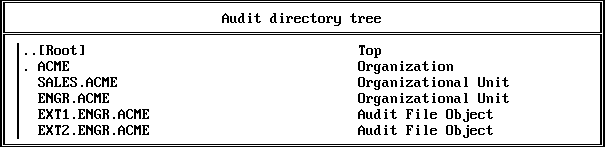
AUDITCON displays the parent of the current container (in this case, [Root], indicated by ..), the current container (in this case, ACME, indicated by .), and any containers within the current container (in this case, SALES.ACME and ENGR.ACME).
If the menu does not show the container you want to audit, keep choosing the nearest ancestor and pressing Enter until AUDITCON shows the desired container.
For example, if you want to audit LAB1.ENGR.ACME, which is not shown in menu 1010, you would first choose ENGR.ACME. AUDITCON changes the session context and displays menu 1010-Updated.
Figure 68
Menu 1010-Updated: Audit Directory Tree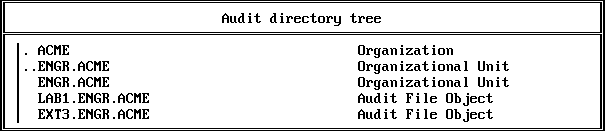
When the menu shows the desired container, move the cursor to that container. Press F10 to review the container audit trail.
AUDITCON will change your NDS context and update the context field in the display header area. It will then display one of the top-level menus (see Top-Level Menus).
If you press Enter instead of F10, AUDITCON displays menu 1010 with the new session context, and you can then select the current container for auditing.
After you've selected a specific container for auditing, there are four different top-level menus. AUDITCON selects which menu to display depending upon three variables:
Table 13, Container Auditing Entry Menus, summarizes the algorithm AUDITCON uses to determine which menu to display.
Table 13. Container Auditing Entry Menus
| Allow Audit Passwords = ON | Sufficient Rights | Container Audit Enabled | Menu |
|---|---|---|---|
Yes |
Yes |
Yes |
1101 |
Yes |
Yes |
No |
1102 |
Yes |
No |
Yes |
1103 |
Yes |
No |
No |
1102 |
No |
Yes |
Yes |
1101 |
No |
Yes |
No |
1102 |
No |
No |
Yes |
1104 |
No |
No |
No |
1104 |
The four top-level Available audit options menus for container auditing are as follows:
Menu 1101. AUDITCON displays this menu when the auditor has NDS access to the selected container audit trail or has successfully logged in to the audit trail.
Figure 69
Menu 1101: Available Audit Options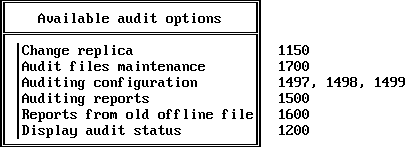
Menu 1102. AUDITCON displays this menu when the selected container is not enabled for auditing.
Figure 70
Menu 1102: Available Audit Options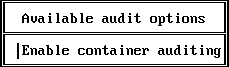
Menu 1103. This is the AUDITCON entry menu when the current container is enabled for auditing but you do not have rights to read or enable the audit trail. If password-based access is permitted for the audit trail (that is, the server console parameter ALLOW AUDIT PASSWORDS is ON), you can select the Auditor container login entry and try to log in to the audit trail as described in Auditor Container Login.
Figure 71
Menu 1103: Available Audit Options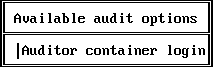
If you don't have rights to access the audit trail, AUDITCON displays an error message.
This section describes how you can use AUDITCON to select which replica of a container you want to use. This is used for two purposes: to select the replica that you use for all configuration changes, and to select the replica when you are reviewing audit trails (to ensure that you see all audit data by reviewing the data stored in each replica).
Choose Change replica from the Available audit options menu (1101).
AUDITCON displays menu 1150, which allows you to choose the server you want to use.
Figure 72
Menu 1105: Replicas Stored on Server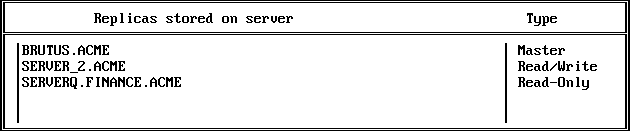
Move the cursor to the server name and press F10 or Enter to choose the server.
AUDITCON updates the server name at the top of the screen and returns to menu 1101.
NOTE: Audit data is stored on master, read/write, and read-only replicas of the container.
Logging in to an audit trail is fundamentally different from logging in to a NetWare server. When you log in to a NetWare server, your login password is used to authenticate your individual identity to NDS for the life of your login session. Logging in to a container audit trail is a means of controlling access to an audit file. However, if you use audit passwords to control access to the audit trail, do not reuse your NetWare login password.
Choose Auditor container login in the Available audit options menu and press Enter.
Enter the container audit password (after the colon prompt) and press Enter to log in to the current container's audit trail.
AUDITCON does not echo your password to the screen. If your login is successful, AUDITCON goes to menu 1101.
If you use the wrong password or audit passwords are disabled for your current server, AUDITCON displays an error report as shown in menu 131.
Press Enter to return to menu 1101.
If you are unable to log in to the audit trail, and do not have rights to the container Audit File object, ask your system administrator for help.
| |