

| |
AUDITCON allows you to process online and offline audit files to extract and review the information the server has collected for you. Processing consists of displaying audit information on the AUDITCON screen (viewing) and generating printable reports (printing).
This section describes how to process online audit files, either the current audit file or the old audit files that have been archived (that is, rolled over) by the server but are still maintained as audit files by the server. See Generating Reports from Offline Audit Files for information on how to process offline audit files.
WARNING: Because AUDITCON places temporary files in the directory you were in when you started AUDITCON, and these temporary files contain audit data, you must not generate any reports unless your current directory is protected from access by users who are not authorized to see audit data.
Choose Auditing reports from the Available audit options menu (101).
AUDITCON displays menu 500.
Figure 32
Menu 500: Auditing Reports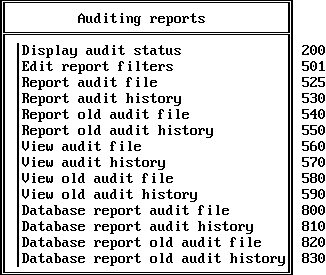
Choose the desired auditing report option, and press Enter.
You have several options for creating and viewing reports from the records in audit files.
The audit history is actually included in the audit file, and is not a separate file. It is described as the audit history file for compatibility reasons.
These options are addressed in the following sections.
NOTE: The procedures described in this section allow you to generate filter files and report files on your local workstation. See your client documentation for details on how to use your workstation's security mechanisms to protect these files.
AUDITCON lets you create filters so you can extract the specific information that you want from an audit file. If you view a report without applying a filter, AUDITCON displays the entire contents of the file.
You can create as many filters as you want to screen information in the audit file. Then, any time you want to generate a report, you can select and apply the filter.
WARNING: An audit filter is an ordinary file that contains the filter information. By default, AUDITCON saves the filter file in your current working directory, which can be either a local drive or a network drive. The name of the file is typically the filter name, with a file extension of .ARF (for Audit Report Filter). While this allows you to create audit filters in a variety of different directories, AUDITCON does not provide a means for you to access filters in a different directory. Consequently, to use a filter that you have previously defined, you must run AUDITCON from the directory where the filter is located, or copy the filter to your current directory before you run AUDITCON. Audit report filters must be protected from modification by storing them only in locations where they will be protected by NetWare or by client workstation access controls.
From the Auditing reports menu (500), choose Edit report filters.
AUDITCON displays menu 501, which lists the filters you have previously defined. If you have not defined any filters in the current directory, AUDITCON displays a null entry _no_filter_.
Figure 33
Menu 501: Edit Filter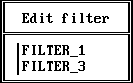
Highlight an entry and press either F10 or Enter to select that filter for editing. Or, press Insert to create a new audit filter.
In each case, AUDITCON displays menu 502, which shows the available filter criteria. The steps for creating a new filter and editing an existing filter are essentially the same.
The primary difference is that if no audit filters exist, you can press Enter to create a new audit filter, but you cannot press F10 to edit.
Figure 34
Menu 502: Edit Report Filter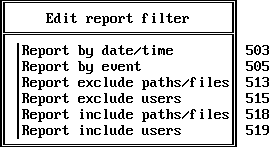
Choose an option (that is, criteria for printing an audit record) and press Enter to define the filter rules, described in Table 12.
Table 12. Filter Rules
| Filter Rule | Description |
|---|---|
Report by date/time |
This filter allows you to specify one or more time periods to include in a report. All audit records that match one of the time periods are a candidate for reporting. If the date/time filter is empty (that is, no times are specified), all audit records are a candidate for reporting. For instructions, see Report by Date/Time. |
Report by event |
This filter allows you to specify the types of audited events to include in a report. All audit events that match the specified events are a candidate for reporting. For example, if you specify create directory and file open events in a filter, your report will include only create directory and file open events. For instructions, see Report by Event. |
Report exclude paths/files |
This filter allows you to specify one or more files or directories that you wish to exclude from audit reports. All other files and directories are potentially included in the report. Only those files and directories named are excluded. That is, if you exclude \FOO, that does not also exclude \FOO\BAR. For instructions, see Report Exclude Paths/Files. |
Report exclude users |
This filter allows you specify one or more users that you want to exclude from audit reports. All other users are potentially included. For instructions, see Report Exclude Users. |
Report include paths/files |
This filter allows you to specify one or more file or directory pathnames that you want to include in the report. The default is *, which indicates that all files and directories are potentially reported. Only those files and directories named are included. For example, if you include \FOO, that does not also include \FOO\BAR. For instructions, see Report Include Paths/Files. |
Report include users |
This filter allows you to specify one or more users that you want to be included in the report. The default is *, which indicates that all users are potentially reported. For instructions, see Report Include Users. |
When you create an audit report, AUDITCON applies these filters to records that it reads from the audit file. AUDITCON reports only those events that match all the filter criteria. That is, the audit record timestamp must match the date/time filter and the audit record event type must match the event type filter, and so on. If a filter contains conflicts between include and exclude options, the exclude option takes priority.
When you have finished defining all the filter criteria, return to the Edit report filter menu (502) and press Esc.
AUDITCON asks for confirmation before it saves the filter information.
If you choose Yes to save the changes, AUDITCON prompts you for the name of the filter file.
The filter name can be up to eight characters long and must not contain a period. AUDITCON appends a .ARF extension to the filter name (for example, FILTER_3.ARF), and writes the filter file in the auditor's current directory.
From the Edit report filter menu, choose Report by date/time.
AUDITCON displays menu 503, which lists the existing date/time ranges defined for the filter.
If you are inserting a new filter, this menu initially will be empty.
Figure 35
Menu 503: Report by Date/Time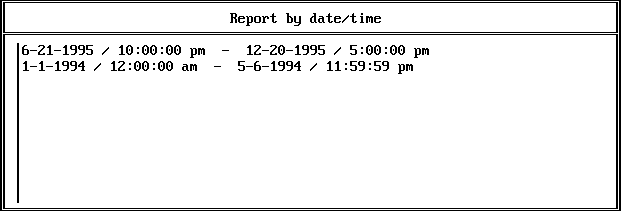
Highlight an entry and press Enter to edit an existing date/time range, or press Insert to define a new range, or highlight an entry and press Delete to remove a time range from the filter.
If you press Insert or Enter, AUDITCON displays menu 504, which allows you to do more editing of the date/time profile selected in menu 503.
Figure 36
Menu 504: Report by Date/Time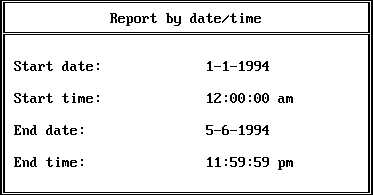
To edit the date/time profile, use the arrow keys to move the cursor to the desired field and type in the new value.
AUDITCON makes reasonable attempts to convert alternate forms (for example, 3/15/95, mar 15, 15 Mar 95, 8am, or 8a) into the standard format.
When you have reviewed the date/time range, press Esc to return to menu 503.
Choose Yes to save your changes or No to cancel the changes.
If AUDITCON finds an error (for example, the start date/time later than the end date/time), it displays an error message and goes back to menu 504.
Press Esc to return to the Edit Report Filter menu (502).
From the Edit report filter menu, choose Report by event.
AUDITCON displays menu 505, which provides a high-level selection of the types of audit events (file system events, queue events, server events, and user events) defined in the current filter.
Figure 37
Menu 505: Report by Event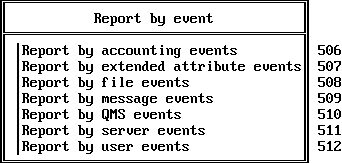
NOTE: QMS events occur only in the volume SYS: audit trail. If you are examining another volume's audit trail, the menu item identified as 510 will not be present.
Choose one of the types of audit events.
See Audit by Event for descriptions of these events.
When you choose a type of event, one of the following seven menus will appear.
Each of the menus has three columns:
The preselection indication is with respect to the current configuration of the current audit file, and might bear no significance to the events that are actually recorded in the audit files to which the filter is applied.
Report by accounting events. This menu shows the accounting audit events that are included in the current filter.
Figure 38
Menu 506: Report by Accounting Events
Report by extended attribute events. This menu shows the extended attribute audit events that are included in the current filter.
Figure 39
Menu 507: Report by Extended Attribute Events
Report by file events. This menu shows the file and directory audit events that are included in the current filter.
Because of the screen size, only 16 events are shown at one time, with the remainder of the events available using the Page Up and Page Down and arrow keys.
Figure 40
Menu 508: Report by File Events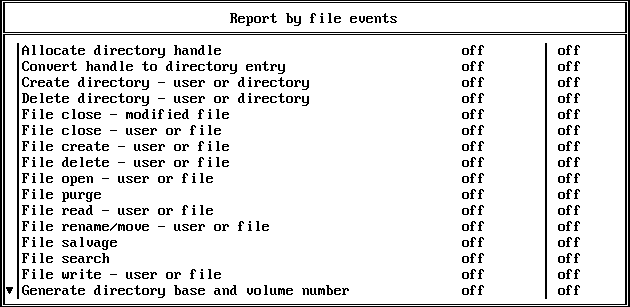
The following events can be displayed by scrolling the Report by file events screen:
Report by message events. This filter shows the message audit events that are included in the current filter.
Figure 41
Menu 509: Report by Message Events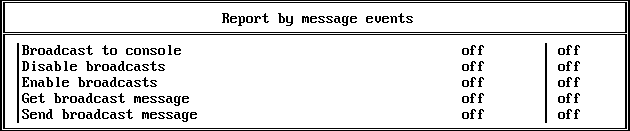
Report by QMS events. This filter shows the print and queue events that are included in the current filter. Because of the screen size, only 16 events are shown at one time, with the remainder of the events available using the Page Up and Page Down and arrow keys.
Figure 42
Menu 510: Report by QMS Events
The following events can be displayed by scrolling the Report by QMS events screen:
Report by server events. This filter shows the server audit events defined for the current menu. Because of the screen size, only 16 events are shown at one time, with the remainder of the events available using the Page Up and Page Down and arrow keys.
Figure 43
Menu 511: Report by Server Events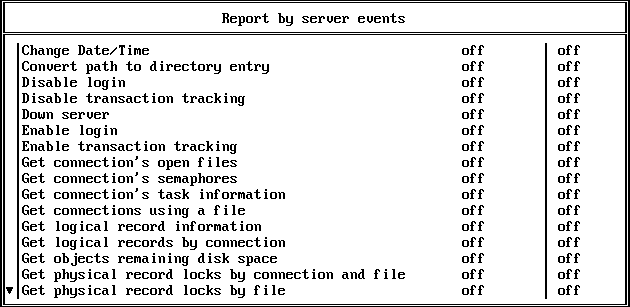
The following events can be displayed by scrolling the Report by server events screen:
Report by user events. This filter lists the user events defined for the current filter.
Figure 44
Menu 512: Report by User Events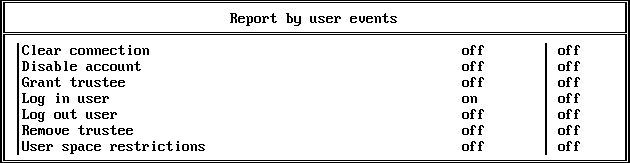
To change preselection of events in the current filter, choose an event and press F10 to toggle the setting for that event in the right column.
When you are finished, press Esc to return to menu 505.
From the Edit report filter menu, choose Report exclude paths/files.
AUDITCON displays menu 513, which lists the audit filter's pathnames to be excluded from audit reports.
As shown in the menu, path specifications do not include a volume name or leading backslash, but rather are relative to the root of the volume. Path specifications can contain DOS wildcard characters (* and ?) in the last component of the name.
Figure 45
Menu 513: Report Exclude Paths/Files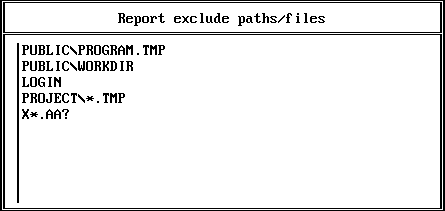
WARNING: AUDITCON does not verify that the paths entered are valid pathname specifications. If they are not valid, they are ignored.
Press Insert to define a new pathname. When prompted for the path/filename, press Enter to edit an existing entry or press Delete to remove an existing entry. Press Insert twice to browse the volume files and directories to select pathnames to be excluded.
Press Esc to return to the Edit Report Filter menu (502).
From the Edit report filter menu, choose Report exclude users.
AUDITCON displays menu 515, which lists the audit filter's users to be excluded from audit reports.
Press Insert to define a new username. When prompted for the username, press Enter to edit an existing entry or press Delete to remove an existing entry. Press Insert twice to browse the list of usernames to select usernames to be excluded from audit reporting.
The list of users displayed is those users in the default bindery context for the server where the volume is located.
WARNING: The list of users shown is not the complete list of users who might have audit records in the audit file. If you want to exclude users other than those in the default bindery context, you must type their names, rather than selecting them using the browser. Enter the full context without a preceding period (.), such as JOE.SALES.NOVELL.
NOTE: The status shown in menu 517 for each user is the current status, which is not necessarily the same status of the user when the audit data was recorded.
AUDITCON does not verify that the user names entered are valid. If they are not valid, they are ignored.
Figure 46
Menu 515: Report Exclude Users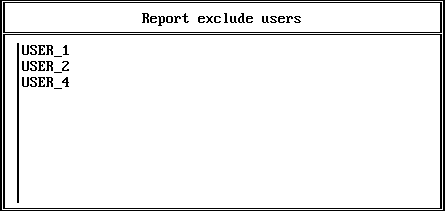
Figure 47
Menu 517: Report by User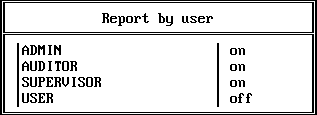
Press Esc to return to the Edit Report Filter menu (502).
From the Edit report filter menu, choose Report include paths/files.
AUDITCON displays a list of the audit filter's pathnames to be included in audit reports.
Initially, this screen contains only an asterisk to indicate that all paths/files are to be included in the audit report, but you can edit the menu (as described in Report Exclude Users) to specify a few important pathnames.
Press Esc to return to the Edit Report Filter menu (502).
From the Edit report filter menu, choose Report include users.
AUDITCON displays a list of the audit filter's users to be included in audit reports.
Initially, this screen contains only an asterisk to indicate that all users are to be included in the audit report, but you can edit the menu (as described in Report Exclude Users) to specify a few important users.
Press Esc to return to the Edit Report Filter menu (502).
At menu 501, press Delete to remove a selected audit filter.
AUDITCON asks for confirmation.
Choose Yes and press Enter to delete the .ARF file that contains the specified audit filter or No to leave the filter in place.
AUDITCON displays menu 501, and lists the remaining filters (that is, .ARF files) in the current directory. If you have deleted the last remaining audit filter in the current directory, AUDITCON shows _no_filter_ in menu 501.
Press Esc to return to the Edit Report Filter menu (502).
This section describes how to generate a formatted text version of the user events in the current audit file. You cannot directly print the server's audit files, because the server's audit files are not directly accessible to network clients and the server's audit files are stored in a compressed format.
Choose Report audit file from the Auditing reports menu (500).
AUDITCON prompts you for the name of the output file.
Enter the pathname for the file and press Enter.
AUDITCON attempts to create the file and displays an error screen if it cannot.
NOTE: If you do not specify a complete pathname, including the drive letter, AUDITCON leaves the report on your current drive. The safest approach is to specify the full pathname for your output file.
AUDITCON displays menu 526, which shows the available filters. These include the files with .ARF extensions in your current directory and a null filter (_no_filter_) that will pass all records in the audit file. To use one of these filters, select that filter and press Enter.
Figure 48
Menu 526: Select Filter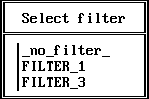
AUDITCON also allows you to create a temporary filter, or modify an existing filter, for use in this report. Choose the desired filter (or _no_filter_) and press F10. Edit the filter as described in Generating Reports from Offline Audit Files, then press Esc to bring up the Save filter menu. From there you can discard the changes, save the changes to a filter file, or apply the filter to the current report without saving the changes.
AUDITCON retrieves records from the current audit file, applies the specified filter to those records, formats the filtered records, and writes formatted records to your output file.
Depending on the size of the audit file and the complexity of your filter, this can be a time-consuming process. AUDITCON displays a Reading file message in the header area of your screen and a Please wait ... notification in the menu area. When it is finished, AUDITCON returns to menu 500.
To review the contents of your report, exit to DOS and either print or use an editor.
This section describes how to generate a formatted text version of the auditor events in the current audit file.
Choose Report audit history from the Auditing reports menu (500).
AUDITCON prompts you for the name of the output file.
Enter the pathname for the file and press Enter.
AUDITCON attempts to create the file and displays an error screen if it cannot.
NOTE: If you do not specify a complete pathname, including the drive letter, AUDITCON leaves the report on your current drive. The safest approach is to specify the full pathname for your output file.
AUDITCON retrieves records from the current audit file, formats the records, and writes them to your output file.
AUDITCON displays a Reading file message in the header area of your screen and a Please wait ... notification in the menu area. When it is finished, AUDITCON returns to menu 500.
To review the contents of your report, exit to DOS and either print or use an editor.
This section describes how to generate a formatted text version of the user events in an old online audit file.
Choose Report old audit file from the Auditing reports menu (500).
AUDITCON displays menu 540, which lists up to 15 old audit files that are still maintained online by the server. The old audit files are sorted by date and time (oldest first). The dates and times displayed show when the audit file was created (that is, when it started accumulating audit events).
Figure 49
Menu 540: Select Old Audit File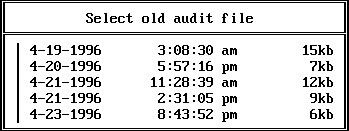
Move the cursor to choose the desired audit file, then press Enter.
AUDITCON prompts you for the name of the output file.
Enter the pathname for the file and press Enter.
AUDITCON attempts to create the file and displays an error screen if it cannot.
NOTE: If you do not specify a complete pathname, including the drive letter, AUDITCON leaves the report on your current drive. The safest approach is to specify the full pathname for your output file.
AUDITCON displays menu 542, which shows the available filters. Choose the desired filter and press Enter, or press F10 to edit a filter.
Figure 50
Menu 542: Select Filter
AUDITCON retrieves records from the current audit file, applies the specified filter to those records, formats the filtered records, and writes formatted records to your output file.
Depending on the size of the audit file and the complexity of your filter, this can be a time consuming process. AUDITCON displays a Reading file message in the header area of your screen and a Please wait ... notification in the menu area. When it is finished, AUDITCON returns to menu 500.
To review the contents of your report, exit to DOS and either print or use an editor.
This section describes how to generate a formatted text version of the auditor events in an old online audit file.
Choose Report old audit history from the Auditing reports menu (500).
AUDITCON displays menu 550, which lists up to 15 old audit files that are still maintained online by the server. The old audit files are sorted by date and time (oldest first). The dates and times displayed show when the audit file was created (that is, when it started accumulating audit events).
Figure 51
Menu 550: Select Old Audit File
Move the cursor to choose the desired audit file, then press Enter.
AUDITCON prompts you for the name of the output file.
Enter the pathname for the file and press Enter.
AUDITCON attempts to create the file and displays an error screen if it cannot.
NOTE: If you do not specify a complete pathname, including the drive letter, AUDITCON leaves the report on your current drive. The safest approach is to specify the full pathname for your output file.
AUDITCON retrieves records from the current audit file, formats the records, and writes them to your output file.
AUDITCON displays a Reading file message in the header area of your screen and a Please wait ... notification in the menu area. When it is finished, AUDITCON returns to menu 500.
To review the contents of your report, exit to DOS and either print or use an editor.
This section describes how to display a listing of the user events in the current audit file on the screen of your workstation.
Choose View audit file from the Auditing reports menu (500).
AUDITCON displays menu 560 to display the available filters. These include the files with .ARF extensions in your current directory and a null filter (_no_filter_) that will pass all records in the audit file.
If AUDITCON does not display the desired filter, return to DOS, change to the directory where the filter is located, and try again.
Figure 52
Menu 560: Select Filter
Choose the desired filter and press Enter, or press F10 to edit a filter.
If you select a filter and press Enter, the audit file is displayed. The second line of the header area shows your location in the audit file or when AUDITCON is waiting for information from the server. - HOME - indicates the beginning of the file and - END - indicates the end of the audit file.
Figure 53
Sample audit file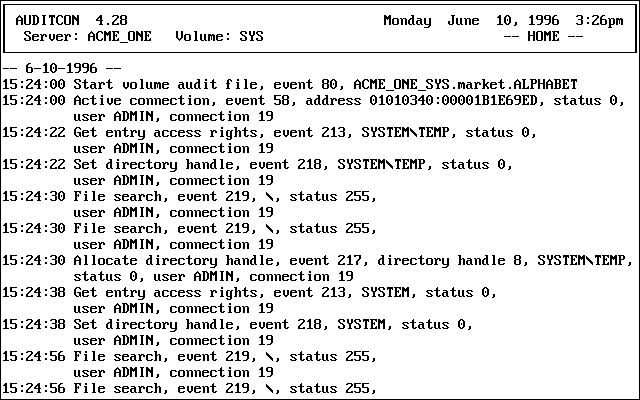
At any time you can press Home to return to the beginning of the file, or End to go to the end of the file. Press Page Down or Page Up to display a new page of formatted audit records, or use the down or up arrow keys to change the display one record at a time. When AUDITCON is waiting for data from the server, it displays a - Reading file - notification; otherwise, it displays - PAUSE -.
AUDITCON displays the time (for example, 17:38:28) for each audit record, but only displays the date (- 3-14-1995 -) at the beginning of an audit file or when the date rolls over from one day to the next. The first record defines the start time of the audit file and the server/volume being audited.
Subsequent events define the name of the event (for example, Open file handle), a numeric event number (64), a pathname (\PUBLIC\AUDITCON.EXE), the status for the event (in this case, 0 indicates success), the user name, and the user connection number. See Audit File Formats for more information on the format of individual events.
If an audit event was generated as a result of an action by a user who was not logged in (typically, by a user reading \LOGIN\LOGIN.EXE), then the username will be _NOT_LOGGED_IN in place of the actual username.
When examining console audit events, you will need the manual console audit log (described in Maintaining a Console Audit Log) to determine the responsible administrator for each action.
Press Esc when you are finished.
AUDITCON asks for confirmation that you are done.
Choose Yes and press Enter to return to menu 500.
This section describes how to display a listing of the auditor events on the screen of your workstation.
Choose View audit history from the Auditing reports menu (500).
AUDITCON reads the current audit file and displays menu 570, which contains the first screen of audit history events.
Figure 54
Menu 570: View Audit History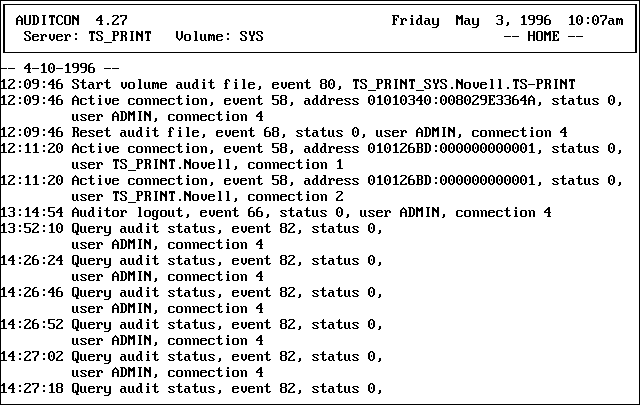
Press the Home, End, Page Up, Page Down, and arrow keys to move through the display. When you are finished, press Esc and answer Yes to return to menu 500.
NOTE: The Auditor login event means that an auditor began accessing the audit file, while the Auditor logout event means that an auditor ceased accessing the access file. These events do not indicate user logins or logouts.
This section describes how to display a listing of the user events from an old online audit file to the screen of your workstation.
Choose View old audit file from the Auditing reports menu (500).
AUDITCON displays menu 580, which lists up to 15 old audit files that are still maintained online by the server. The old audit files are sorted by date and time (oldest first). The dates and times displayed show when the audit file was created (that is, when it started accumulating audit events).
Figure 55
Menu 580: Select Old Audit File
Move the cursor to select the desired audit file, then press Enter.
AUDITCON displays menu 581 to display the available filters.
Figure 56
Menu 581: Select Filter
Choose the desired filter and press Enter, or press F10 to edit a filter.
AUDITCON retrieves records from the current audit file, applies the specified filter to those records, formats the filtered records, and displays the formatted records to your screen. The screen format is described in Generating Volume Audit Reports.
Press the Home, End, Page Up, Page Down, and Arrow keys to move through the display. When you are finished, press Esc and answer Yes to return to menu 500.
This section describes how to display a listing of the auditor events from an old online audit file to the screen of your workstation.
Choose View old audit history from the Auditing reports menu (500).
AUDITCON displays menu 590, which lists up to 15 old audit files that are still maintained online by the server. The old audit files are sorted by date and time (oldest first). The dates and times displayed show when the audit file was created (that is, when it started accumulating audit events).
Figure 57
Menu 590: Select Old Audit File
Move the cursor to choose the desired audit file, then press Enter.
AUDITCON retrieves records from the current audit file, formats the records, and displays them to your screen. The screen format is described in Generating Volume Audit Reports.
Press the Home, End, Page Up, Page Down, and Arrow keys to move through the display. When you are finished, press Esc and answer Yes to return to menu 500.
This section describes how to generate a file containing the user events in the current audit file in a form suitable for loading into a database.
Choose Database report audit file from the Auditing reports menu (500).
AUDITCON prompts you for the name of the output file.
Enter the pathname for the file and press Enter.
AUDITCON attempts to create the file and displays an error screen if it cannot.
NOTE: If you do not specify a complete pathname, including the drive letter, AUDITCON leaves the report on your current drive. The safest approach is to specify the full pathname for your output file.
AUDITCON displays menu 801 to display the available filters. These include the files with .ARF extensions in your current directory and a null filter (_no_filter_) that will pass all records in the audit file.
Figure 58
Menu 801: Select Filter
To use one of these filters, choose that filter and press Enter.
AUDITCON also allows you to create a temporary filter, or modify an existing filter, for use in this report. Choose the desired filter (or _no_filter_) and press F10. Edit the filter as described in Generating Reports from Offline Audit Files, then press Esc to bring up the Save Filter menu. From there you can discard the changes, save the changes to a filter file, or apply the filter to the current report without saving the changes.
AUDITCON retrieves records from the current audit file, applies the specified filter to those records, formats the filtered records, and writes formatted records to your output file.
Depending on the size of the audit file and the complexity of your filter, this can be a time-consuming process. AUDITCON displays a Reading file message in the header area of your screen and a Please wait ... notification in the menu area. When it is finished, AUDITCON returns to menu 500.
Exit to DOS and use an appropriate database loading program to insert the audit records into a database for review.
See Format of the Database Output File for a description of the format of the database file.
This section describes how to generate a formatted text version of the auditor events in the current audit file in a format suitable for loading into a database.
Choose Database report audit history from the Auditing reports menu (500).
AUDITCON prompts you for the name of the output file. Enter the pathname for the file and press Enter.
AUDITCON attempts to create the file and displays an error screen if it cannot.
NOTE: If you do not specify a complete pathname, including the drive letter, AUDITCON leaves the report on your current drive. The safest approach is to specify the full pathname for your output file.
AUDITCON retrieves records from the current audit file, formats the records, and writes them to your output file.
AUDITCON displays a Reading file message in the header area of your screen and a Please wait ... notification in the menu area. When it is finished, AUDITCON returns to menu 500.
Exit to DOS and use an appropriate database loading program to insert the audit history records into a database for review.
See Format of the Database Output File for a description of the format of the database file.
This section describes how to generate a file containing the user events in an old online audit file in a form suitable for loading into a database.
Choose Database report old audit file from the Auditing reports menu (500).
AUDITCON displays menu 820, which lists up to 15 old audit files that are still maintained online by the server. The old audit files are sorted by date and time (oldest first). The dates and times displayed show when the audit file was created (that is, when it started accumulating audit events).
Figure 59
Menu 820: Select Old Audit File
Move the cursor to choose the desired audit file, then press Enter.
AUDITCON prompts you for the name of the output file.
Enter the pathname for the file and press Enter.
AUDITCON attempts to create the file and displays an error screen if it cannot.
NOTE: If you do not specify a complete pathname, including the drive letter, AUDITCON leaves the report on your current drive. The safest approach is to specify the full pathname for your output file.
AUDITCON displays menu 822 to display the available filters.
Figure 60
Menu 822: Select Filter
Choose the desired filter and press Enter, or press F10 to edit a filter.
AUDITCON retrieves records from the current audit file, applies the specified filter to those records, formats the filtered records, and writes formatted records to your output file.
Depending on the size of the audit file and the complexity of your filter, this can be a time consuming process. AUDITCON displays a Reading file message in the header area of your screen and a Please wait ... notification in the menu area. When it is finished, AUDITCON returns to menu 500.
Exit to DOS and use an appropriate database loading program to insert the audit records into a database for review.
See Format of the Database Output File for a description of the format of the database file.
This section describes how to generate a file containing the auditor events in an old online audit file in a form suitable for loading into a database.
Choose Database report old audit history from the Auditing reports menu (500).
AUDITCON displays menu 830, which lists up to 15 old audit files that are still maintained online by the server. The old audit files are sorted by date and time (oldest first). The dates and times displayed show when the audit file was created (that is, when it started accumulating audit events).
Figure 61
Menu 830: Select Old Audit File
Move the cursor to move the desired audit file, then press Enter.
AUDITCON prompts you for the name of the output file.
Enter the pathname for the file and press Enter.
AUDITCON attempts to create the file and displays an error screen if it cannot.
NOTE: If you do not specify a complete pathname, including the drive letter, AUDITCON leaves the report on your current drive. The safest approach is to specify the full pathname for your output file.
AUDITCON retrieves records from the current audit file, formats the records, and writes them to your output file.
AUDITCON displays a Reading file message in the header area of your screen and a Please wait ... notification in the menu area. When it is finished, AUDITCON returns to menu 500.
Exit to DOS and use an appropriate database loading program to insert the audit history records into a database for review.
See Format of the Database Output File for a description of the format of the database file.
Each line in the output file represents a single audit record. Each line consists of a series of comma-separated fields in the following order:
This format is suitable to be imported into most databases by specifying that the input is a comma-separated text file.
| |