Overview of RConsoleJ Components
An RConsoleJ session consists of at least two and possibly three components, depending on the connectivity requirement:
- RconsoleJ running on a Novell Client or NetWare server.
- Agent software running on the target server.
- Proxy software running on a proxy server if the target server uses IPX rather than IP to communicate.
IMPORTANT: The Proxy server must run both IP and IPX.
Communication between these components is summarized in the following illustration.
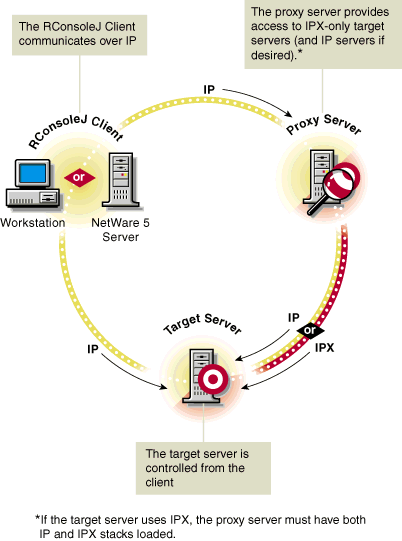
IMPORTANT: For security reasons, the version of RConsoleJ included in the initial release of NetWare 5 must only be used inside firewalls.
Before you can run RConsoleJ, you must prepare the target server to communicate with RConsoleJ. If the target server communicates using IPX, you must also prepare a proxy server to handle the IPX connection. The proxy server must have both IP and IPX loaded. Each of these tasks is explained in the following procedures.
If the target server communicates using IPX, enter the following command at the server console prompt. Otherwise, skip to the next step. SPXS
At the server console prompt, enter RCONAG6
You are prompted to enter a password to use when you establish the RConsoleJ session. Enter the password you want network administrators to use when accessing the target server using RConsoleJ. If you want to use the ADMIN password, you must enter it at this point. You are prompted for a TCP port number. Enter the TCP port number on which RCONAG6 will listen for either RConsoleJ or a proxy server. The default value is 2034. If the server communicates using IPX only, enter -1 to disable TCP listening. To enable listening over a dynamically assigned port, enter 0. You are prompted for an SPX port number. Enter the SPX port number on which RCONAG6 will listen for a proxy server. The default value is 16800. If the server communicates using IP only, enter -1 to disable SPX listening. To enable listening over a dynamically assigned port, enter 0. If the target server communicates using IPX, prepare a proxy server by completing the next procedure. After completing all the steps above, you can start an RConsoleJ session from a Novell Client workstation or a NetWare 5 server.
If the target server communicates using IPX, enter the following command at the server console prompt. Otherwise, skip to the next step. SPXS
At the server console prompt, enter the following command. RCONPRXY
You are prompted for the TCP port number. Enter the TCP port number on which RCONPRXY will listen for RConsoleJ. The default value is 2035. To enable listening over a dynamically assigned port, enter 0. Once the proxy server is running, RConsoleJ can communicate through it with a target server that uses only IPX to communicate. You can run RConsoleJ from a Novell Client (Windows 95, 98, or NT) using various methods. All required RConsoleJ software is on the NetWare 5 server rather than the client.
There are two basic methods for starting RConsoleJ on a Novell Client workstation. Complete one of the following substeps. In NetWare Administrator, click Tools > Pure IP Remote Console. From a Windows 95, 98, or NT workstation, ensure you have a drive mapped to the root of the SYS: volume on the NetWare 5 server. In the Windows Start / Run dialog box, browse that drive mapping to \PUBLIC\MGMT\CONSOLEONE\1.2 and run RCONJ.EXE. Click Remote Servers, select a server from the list, enter the appropriate password and skip to Step 3, or enter the required information for RConsoleJ to locate the target server: If the target server communicates using IP, enter one of the following in the Server Address slot:
If the target server communicates using IPX, enter either the case-sensitive server name or the IPX address and IPX number separated by a colon, as shown in the following example: IPX_Address:000000000001 In the Password slot, enter the password provided when RCONAG6 was loaded. If you entered a non-default TCP port number and/or you are using a proxy server, click Advanced>. Otherwise, skip to Step 3. If you entered a non-default TCP port number, enter the TCP port number given when RCONAG6 was loaded on the target server. If you are not using a proxy server, skip to Step 3. In the Remote Server Port slot, enter the SPX port number given when RCONAG6 was loaded on the target server. Check the Connect through Proxy checkbox. In the Server Address slot, enter the proxy server's case-sensitive name entered in DNS, or the proxy server's IP address. In the Port No slot, enter the proxy server's TCP port number. If the target server communicates using IPX, set the Agent Protocol to SPX. Click Connect. The remote console session is now open. RConsoleJ displays the same information you would see on the server console screen. NOTE: Graphical screens are not displayed in remote console utilities. When the utility launches, if a graphical screen is displayed on the server console screen, the System Console screen is displayed in the remote view. After a remote console session starts, if someone at the server console switches to a graphical screen, the switch is not reflected on the remote screen.
(Optional) To connect to another server, click Disconnect in the RConsoleJ window. To close RConsoleJ, click in the upper left corner of the RConsoleJ window and select Close.
There are two basic methods for starting RConsoleJ on a NetWare 5 server. Complete one of the following substeps. In ConsoleOne running, right-click a NetWare server object > click Remote Console. From the server console prompt, type RCONJ.NCF. Click Remote Servers, select a server from the list, enter the appropriate password and skip to Step 3, or enter the required information for RConsoleJ to locate the target server: If the target server communicates using IP, enter one of the following in the Server Address slot:
If the target server communicates using IPX, enter either the case-sensitive server name or the IPX address and IPX number separated by a colon, as shown in the following example: IPX_Address:000000000001 In the Password slot, enter the password provided when RCONAG6 was loaded. If you entered a non-default TCP port number and/or you are using a proxy server, click Advanced>. Otherwise, skip to Step 3. If you entered a non-default TCP port number, enter the TCP port number given when RCONAG6 was loaded on the target server. If you are not using a proxy server, skip to Step 3. In the Remote Server Port slot, enter the SPX port number given when RCONAG6 was loaded on the target server. Check the Connect through Proxy checkbox. In the Server Address slot, enter the proxy server's case-sensitive name entered in DNS, or the proxy server's IP address. In the Port No slot, enter the proxy server's TCP port number. If the target server communicates using IPX, set the Agent Protocol to SPX. Click Connect. RConsoleJ displays the same information you would see on the server console screen. NOTE: Graphical screens are not displayed in remote console utilities. When the utility launches, if a graphical screen is displayed on the server console screen, the System Console screen is displayed in the remote view. After a remote console session starts, if someone at the server console switches to a graphical screen, the switch is not reflected on the remote screen.
(Optional) To connect to another server, click Disconnect in the RConsoleJ window. To close RConsoleJ, click the upper left corner of the RConsoleJ window and select Close. You can put commands in the SYS:SYSTEM\AUTOEXE.NCF file to load the required RConsoleJ agent module using the SYS:SYSTEM\LDRCONAG.NCF file each time the server is started. Since the module requires the remote password, you can place an encrypted version of the password in the LDRCONAG.NCF file too. The method described in this section secures the server console by hiding the remote console password from users who access the AUTOEXEC.NCF file. The following procedure explains how to set an encrypted password and autoload RCONAG6.NLM with the encrypted password. To encrypt a password for RCONAG6.NLM, enter the following: RCONAG6 ENCRYPT
Enter the password you want to use for remote console sessions. If you want to use the ADMIN password, you must enter it at this point. Enter the other required port information. The system displays the encrypted value and a message asking if the RCONAG6 command should be written to the SYS:SYSTEM\LDRCONAG.NCF file. To include the RCONAG6 command with your encrypted password in the LDRCONAG.NCF file, respond Yes. The system places a LOAD RCONAG6 command into the SYS:SYSTEM\LDRCONAG.NCF file with the encrypted password as a parameter. You can execute the LDRCONAG.NCF file with the encrypted password whenever you want to load RCONAG6.NLM, or you can place the command to execute the file into your AUTOEXEC.NCF file by completing all the steps in this procedure. Either option will save you from having to type in the encrypted password, which is often quite long, every time you load RCONAG6.NLM. To autoload RCONAG6.NLM with an encrypted password on startup, use either NWCONFIG or EDIT to open the AUTOEXEC.NCF file. For information about editing NCF files, see Using EDIT to Create and Edit Text and Batch Files. Move the cursor to the end of the file and type the following: LDRCONAG For more information about utilities related to using RConsoleJ, see RConsoleJ, RCONAG6, or RCONPRXY. You can restart a NetWare server from a remote console by first modifying the server's AUTOEXEC.BAT file and then executing another .NCF file that you create for this purpose.
To restart the server automatically, add commands to the server's AUTOEXEC.BAT file to change to the NetWare directory and execute SERVER.EXE. For example, if the SERVER.EXE file is in the C:\NWSERVER directory, add the following lines in the server's AUTOEXEC.BAT file: CD C:\NWSERVER SERVER.EXE
Start a remote console session with the server. At the server console prompt, enter EDIT
Create an .NCF file and include the following command: RESTART SERVER
See Using NWCONFIG to Create and Edit Startup Batch Files. Save the file in the sys:system directory. Start a remote console session with the server. Send a message to all users to inform them that the server is going down. See Sending Console Messages to Workstations if you need help sending a message. At the system prompt on the remote console, enter the name of the NCF file you created. When the file has finished processing, a message appears indicating that the connection has been lost. Close the remote session by clicking the upper left corner of the RConsoleJ window and selecting Close. (Optional) Open a new remote console connection with the server.Preparing To Run RConsoleJ
Preparing a target server
Prerequisites
Procedure
Preparing a proxy server
Prerequisites
Procedure
Running RConsoleJ from a Novell Client
Prerequisites
Procedure
Running RConsoleJ from a NetWare 5 Server
Prerequisite
Procedure
Loading RConsoleJ Modules at Startup
Restarting a Remote Server Using RConsoleJ
Prerequisites
Procedure