Defining a Terminal Emulator
A terminal emulator enables a user to connect to a UNIX*, mainframe,
AS/400*, or other host-based session via a program on a Windows workstation. v-GO for Novell Single Sign-on provides single sign-on functionality to IBM* S/390* mainframe applications via several terminal emulators that implement the IBM HLLAPI (high-level language API).
v-GO mainframe terminal emulator support is based on v-GO's ability to recognize a screen by looking for specific strings of data at specific screen locations. You enter this recognition data in the Single Sign-on Application Type property page of the nssoApplication object.
To define a mainframe application, you will provide row, column, and match string information. This information helps v-GO detect the application's logon screen and indicate where the secret data should be entered.
NOTE: For multi-screen logons, you can create nssoApplication objects for as many screens as may be required, as long as each screen depicts a unique event for which the same information is entered by each user.
Assigning an Application Type
This section assumes that you have created an nssoApplication object. See Creating an nssoApplication Object. For v-GO to uniquely identify and respond to each logon, you must enter a unique name for the mainframe application.
-
Select the object's Single Sign-on tab > click General > enter a description.
-
Launch a terminal emulator session and the mainframe application so that you can reference the logon screen in the subsequent steps.
-
In ConsoleOneTM, right-click the nssoApplication object > select Properties > Single Sign-on > Application Type.
-
Click the Application Type drop-down list > Terminal Emulator Logon.
Entering Emulator Settings
-
(Conditional) Modify the Username and Password entries.
If this application logon screen requires a username (or ID), modify the Username entry in the Terminal Emulator Logon list. Specify the row and column number of the first character of the input field associated with the username value.
The following figure illustrates these fields.
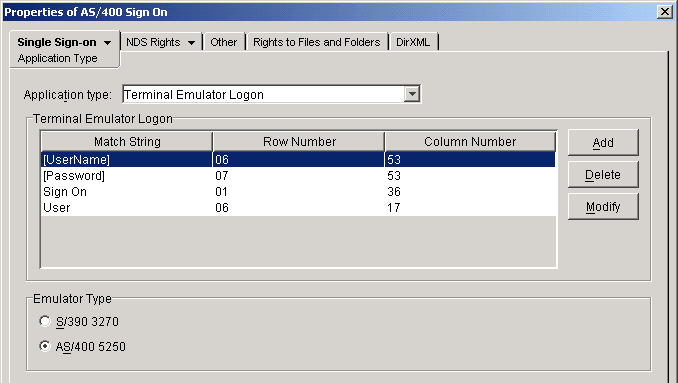
These values can be determined in most emulators by positioning the cursor (using the Tab key) in the field and referencing the row/column indicator on the session status bar.
If the application logon screen requires a password, repeat the process above for the Password field. Again, specify the row and column values for the first character of the password input field.
If a username or password isn't required, delete the unneeded field.
-
To uniquely identify this logon screen, use the Add function to create as many Match String entries as may be needed. This must be static data.
The following figure illustrates a terminal emulator logon screen that displays the configuration entered in Step 1.
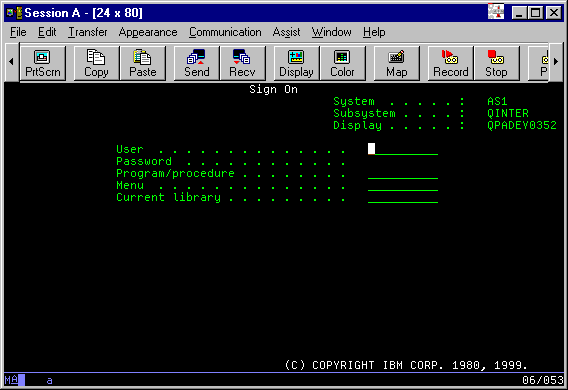
The emulator screen displays the match string User at 06/17 and the Username entry field at 06/53.
Similarly, the Password entry field is at 07/53.
Don't use terminal IDs and dates as match strings. You may want to cut-and-paste to ensure that strings are entered exactly as they appear in the application logon screen. The row and column values are for the first character in the string.
-
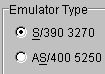
Select the emulator type.
Saving the Settings
Save the updated property values by closing the object.
To save and exit, click OK. To save and continue making changes, click Apply.
This step regenerates the v-GO configuration data attribute. (This attribute contains data that v-GO needs from the individual application and password policy objects within the nssoSingleSignon container.)
You can also select the nssoSingleSignon object > click the v-GO General tab > Generate.
Previous | Next