Defining a Terminal Emulator (Manual Entry)
Assigning an Application Type
This section assumes that you have created an nssoApplication object. See Creating an nssoApplication Object. For v-GO to uniquely identify and respond to each logon, you must enter a unique name for the mainframe application. Also include all the necessary parameters.
-
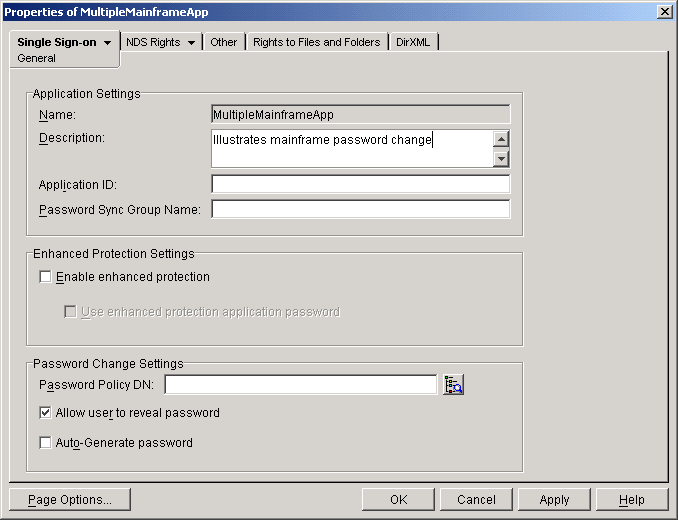
Select the object's Single Sign-on tab > click General > enter a description.
The following figure illustrates a General page for a mainframe nssoApplication object.
-
Launch a terminal emulator session and the mainframe application so that you can reference the logon screen in the subsequent steps.
-
In ConsoleOne, right-click the nssoApplication object > select Properties > Single Sign-on > Application Type.
-
Click the Application Type drop-down list > Terminal Emulator Logon (Manual Entry).
Entering Logon Settings
-
(Optional) Use v-GO to fill in some information.
v-GO can save you time by entering some information for you in a Terminal Emulator Logon (Manual Entry) screen.
Click the Application Type drop-down list > Terminal Emulator Logon > Apply > Terminal Emulator Logon (Manual Entry).
-
Enter logon information in the Terminal Emulator Logon (Manual Entry) text box.
The following figure illustrates parameters in this text box.
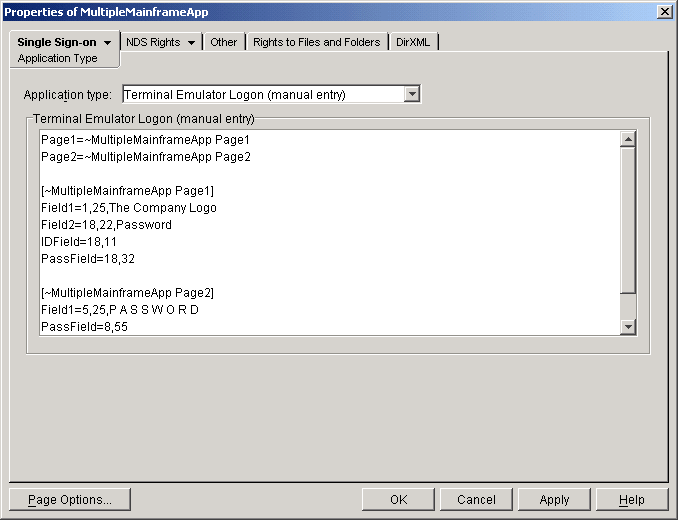
You declare a data element by using a key-value pair. The key is the name of the configuration option and is either a reserved word such as IDField or a reserved word plus an integer, such as Field1 or Field2, when there can be more than one value for an option. The integers must be consecutive. You cannot skip or repeat numbers.
The value is the specific setting of a key for a particular logon configuration. The syntax for section names, key-value pairs, and other INI file settings are generally case sensitive.
[VM] |
The application name requires a unique name in brackets |
Field1=13,44,VM/SP Release 6 |
A Field1 key requires the following values: first field row, first field column, first field text. A Field2 key requires the following values: second field row, second field column, second field text. |
IDField=20,16 |
The IDField key requires a user ID field row and a user ID field column. |
PassField=21,16 |
The PassField key requires a password field row and a password field column. |
For additional details, see Key-Value Pairs for Mainframe Logons.
Entering Information to Change Passwords
To enable v-GO to change passwords for mainframe applications, enter information in the Terminal Emulator Logon (Manual Entry) text box. Identify the mainframe applications and configure mainframe pages.
Identifying the Mainframe Applications
Pointers to Subsections
You identify section pointers to subsections. After you enter information in the text box and click Apply, the NSSO system saves the information to a [*Mainframe] section in the ENTLIST.INI file
Section1=MainframeApp1 |
A section pointer to a mainframe application configuration. The format is Sectionn=AppName. n is an incremental number that identifies the section pointers. |
Sectionn=MultipleMainframeApp |
The second section pointer. |
Configuring a Mainframe Application
You enter a section used to configure a mainframe application. If multiple screens are expected for a mainframe applications, you set up pointers to the authentication screens (pages). If only one screen is expected, all settings and configurations can reside within this configuration setting.
The following table illustrates a section used to configure a mainframe application.
[~MultipleMainframeApp] |
A configuration pointer from the [Mainframe] section. |
Page1=MultipleMainframeapp Page 1 |
A pointer to the first page setup. The format is Pagen=PageName. n is an incremental number used as the ID for the page pointer. PageName is the name used to point to the page section that is used as the configuration for the authentication process. |
Pagen=MultipleMainframeApp Pagen |
A pointer to the nth page setup. |
Configuring Mainframe Pages
Subsections are identifiers for all authentication screens for a given mainframe application and section. Subsections enable v-GO to be flexible in mainframe sessions that have multiple applications.
The following tables illustrate a mainframe application that contains two different logon screens. The tables describe the process for obtaining values for keys that are derived from internal application settings such as IDField and PassField.
[MultipleMainframeApp Page 1] |
A page configuration pointer from the Mainframe Application Configuration section. |
Field1=1,25,The Company Logo |
The first matching criteria used to identify a page. This example states that from row 1 column 25, the text is "The Company Logo." |
Field2=18,22,Password |
The second matching criteria used to identify a page. This example states that from row 18 column 22, the text is "Password." |
IDField=18,11 |
A key/value pair that identifies the location of the username/ID field. |
PassField=18,32 |
A key/value pair that identifies the location of the password field. |
[MultipleMainframeApp Page 2] |
The page configuration pointer from the Mainframe Application Configuration section. |
Field1=5,25,P A S S W O R D |
The first matching criteria used to identify a page. This example states that from row 5 column 25, the text is "PASSWORD." |
PassField=8,55 |
A key/value pair that identifies the location of the Password field. |
NewPWField=11,55 |
A key/value pair that identifies the location of the New Password field. |
NewPWField2=13,55 |
A key/value pair that identifies the location of the New Password Confirmation field. This pair is optional. Don't enter it if only one New Password field is required. |
Example: Manual Entry
The following illustrates information in a Manual Entry text box.
[*Mainframe]
Section1=MainframeApp1
Section2=MultipleMainframeApp
[~MainframeApp1]
AllowReveal=1
Field1=1,2,ClCS Signon
Field2=2,11,Password
IdField=6,24
PassField=7,24
NovEnhancedProtection=0
[~MultipleMainframeApp]
Page1=MultipleMainframeApp Page1
Page2=MultipleMainframeApp Page2
[~MultipleMainframeApp Page1]
Field1=1,25,The Company Logo
Field2=18,22,Password
IDField=18,11
PassField=18,32
[~MultipleMainframeApp Page2]
Field1=5,25,P A S S W O R D
PassField=8,55
NewPWField=11,55
NewPWField=13,55
Saving the Settings
Save the updated property values by closing the object.
To save and exit, click OK. To save and continue making changes, click Apply.
This step regenerates the v-GO configuration data attribute. (This attribute contains data that v-GO needs from the individual application and password policy objects within the nssoSingleSignon container.)
You can also select the nssoSingleSignon object > click the v-GO tab > General > Generate.
Previous | Next