

| |
ConnectView allows you to view sample billing charges based on the current billing formula, so that you can quickly evaluate the specified billing formula and the specified rates.
To access the View Sample dialog box, click the View Sample button in the right side of the Accounting Profile dialog box. ConnectView opens the View Sample dialog box, shown in Figure 38.
Figure 38
View Sample Dialog Box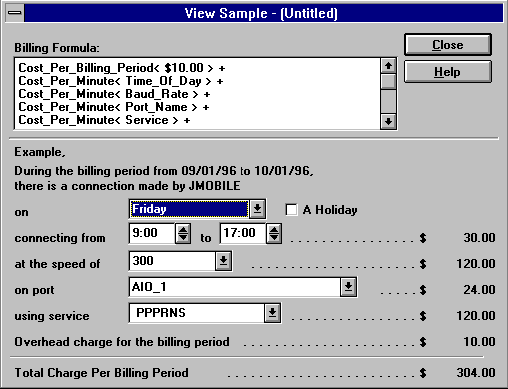
Use the spin controls to change the time of day, click the A Holiday check box to specify holiday charges, and use the combo boxes to select a connection time, baud rate, port, and/or service. ConnectView displays sample billing charges based on the current billing formula and rate tables. The current billing formula is displayed in the upper section of the dialog box.
IMPORTANT: Remote Node Service (RNS) connections that fail to log in could be included in the billing charges because a start and end record could still be logged. Because NCS cannot report the baud rate used for its dial-out connections, baud rate and port name charges do not apply to NCS dial-out connections. Also, because an AIOPAD port cannot report the baud rate used for its connections, the rates specified in the baud rate or port name rate tables do not apply to AIOPAD connections.
To close this dialog box, click the Close button.
| |