Configuring Remote Bridging
Novell Internet Access Server 4.1 supports WAN bridging over PPP, frame relay, or X.25, allowing you to connect geographically dispersed LANs and further extend the distances over which devices can communicate.
Novell Internet Access Server 4.1 provides two methods of attaching to another bridge over a WAN link:
- Configuring the WAN link to function like a token ring network (virtual WAN ring). This approach is used for the following reasons:
- To ensure interoperability of Novell Internet Access Server 4.1 with another vendor's bridge over a WAN link
- To avoid configuring two half-bridges when both bridges run Novell Internet Access Server 4.1 software
The use of the virtual WAN ring in this case is optional, but it is easier to configure than two half-bridges. Half-bridges must share the same bridge number.
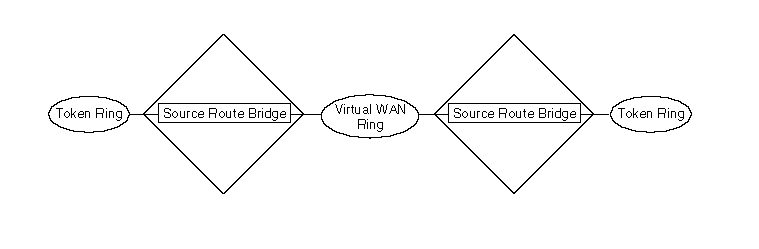
When a virtual WAN ring is used, both sides of the link must be configured with the same ring number. NIASCFG displays this manually configured parameter. The main disadvantage of the virtual WAN ring is that it adds one hop to the route (half-bridges do not add a hop). Figure 8 shows this extra hop.
- Configuring each side of the WAN link to operate as a half-bridge.
Because there is no standard for half-bridges, each vendor's implementation is proprietary. Therefore, Novell's half-bridge configuration option can be used only when both bridges run Novell Internet Access Server 4.1 software.
Figure 8
Remote Bridging Using the Virtual WAN Ring
For more information about remote bridging, refer to Understanding.
This topic contains the following sections:
Connecting a Bridge to Another Vendor's Bridge
You can also use this procedure when both bridges run Novell Internet Access Server 4.1 software, but you do not want to configure two half-bridges.
How to Configure a Connection to Another Vendor's Bridge
Before you begin, you must complete the following tasks:
To configure bridging over a WAN to another vendor's bridge, complete the following steps:
-
Load NIASCFG, then select the following parameter path:
Select Configure NIAS > Protocols and Routing > Protocols > Source Route Bridge
-
Set the Bridge Status parameter to Enabled .
-
Assign a value for the Bridge Number parameter, press Enter , then press Esc to return to the Internetworking Configuration menu.
-
Bind the source route bridge software to the WAN interface.
-
Select Bindings and do one of the following:
If you are adding a new binding:
- Press Ins .
- Select Source Route Bridge .
- Select the interface to which you are binding the protocol.
If you are modifying an existing binding, select the interface to which you are binding the protocol.
-
Set the Ring Number parameter to the correct value for the virtual WAN ring connected to the bridge.
-
Set Virtual WAN Ring to On .
-
Select the WAN call destination that connects the bridge to the other bridge (through the virtual WAN ring).
For information about defining WAN call destinations, refer to Configuring a Permanent PPP Connection in the NetWare Link/PPP documentation.
-
Press Esc to return to the Internetworking Configuration menu; save your changes when prompted.
-
If you want these changes to take effect immediately, restart the router.
If you want to configure other parameters, do so now, then restart the router when you are finished.
Connecting a Bridge to Another Novell Source Route Bridge
To configure bridging over a WAN to another system running Novell source route bridge software, it is usually easier to use half-bridges.
NOTE: Because there is no standard for half-bridges, each vendor's implementation is proprietary. Therefore, Novell's half-bridge configuration option can only be used when both bridges run Novell source route bridge software.
How to Configure a Connection to Another Novell Source Route Bridge
Before you begin, you must complete the following tasks:
To configure bridging over a WAN to another Novell source route bridge, complete the following steps for each bridge:
-
Load NIASCFG, then select the following parameter path:
Select Configure NIAS > Protocols and Routing > Protocols > Source Route Bridge
-
Set the Bridge Status parameter to Enabled .
-
Assign a value to the Bridge Number parameter, press Enter , then press Esc to return to the Internetworking Configuration menu.
Both half-bridges must have the same bridge number.
-
Bind the source route bridge software to the WAN interface.
-
Select Bindings and do one of the following:
If you are adding a new binding:
- Press Ins .
- Select Source Route Bridge .
- Select the interface to which you are binding the protocol.
If you are modifying an existing binding, select the interface to which you are binding the protocol.
-
Set the Ring Number parameter to the correct value for the virtual WAN ring connected to the bridge.
-
Set Virtual WAN Ring to On .
-
Select the WAN call destination that connects the bridge to the other bridge.
For information about defining WAN call destinations, refer to Configuring a Permanent PPP Connection in the NetWare Link/PPP documentation.
-
Press Esc to return to the Internetworking Configuration menu; save your changes when prompted.
-
If you want these changes to take effect immediately, restart the router.
If you want to configure other parameters, do so now, then restart the router when you are finished.
Previous | Next