Using the Migration Utility
The migration process for your Exchange system is performed in three phases. First, you migrate all Exchange mailboxes. Second, you migrate Exchange distribution lists/groups. Third, you migrate Exchange public folders.
- Migrating Exchange Mailboxes
- Migrating Exchange Distribution Lists/Groups
- Migrating Exchange Public Folders
Migrating Exchange Mailboxes
-
If you are running the GroupWise Gateway for Microsoft Exchange:
-
In ConsoleOne, disable directory synchronization and exchange on the Optional Gateway Settings page of the Exchange Gateway object.
-
For the users to be migrated, delete the External User objects from the external post office in the external domain that represents your Exchange system in your GroupWise system.
The External User objects must be deleted because they interfere with the creation of new User objects with the same names in the GroupWise system.
-
-
Follow the instructions in Starting the Migration Utility, then return to Step 3 below.
-
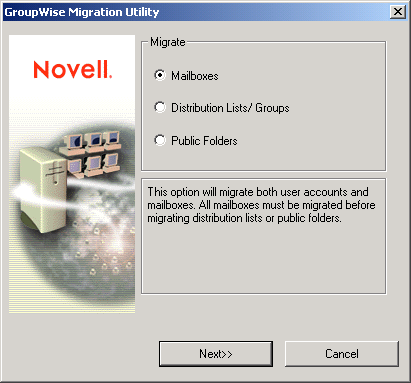
Select Mailboxes, then click Next.
-
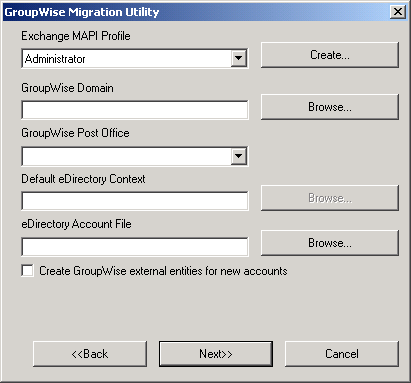
Fill in the following fields:
Exchange MAPI Profile: Select the Exchange administrator profile you created in Setting Up a MAPI Profile. Click Create if you have not set up the MAPI profile.
GroupWise Domain: Browse to and select the domain directory where the GroupWise domain database (wpdomain.db) resides.
GroupWise Post Office: Select the post office where you want to migrate the Exchange users. The list offers those post offices that belong to the domain selected above.
Default eDirectory Context: Browse to and select the eDirectory context for User objects.
If you have already created the User objects in eDirectory, then the Migration Utility adds GroupWise accounts to the User objects, if the existing User object names match the Exchange account names. If you have not yet created the User objects, then the Migration Utility creates both the User objects and the GroupWise accounts in the context you specify.
eDirectory Account File: If you want to create the User objects in multiple eDirectory contexts, browse to and select the eDirectory account file, as described in eDirectory Preparation.
Any Exchange users not found in the eDirectory account file are placed in the location specified in the Default eDirectory Context field.
Create GroupWise External Entities for New Accounts: If you select this option, the Migration Utility creates External Entity objects instead of User objects for your Exchange users. External entities can be given GroupWise accounts but are not considered eDirectory users for licensing purposes.
-
Click Next to list the users on the Exchange server.
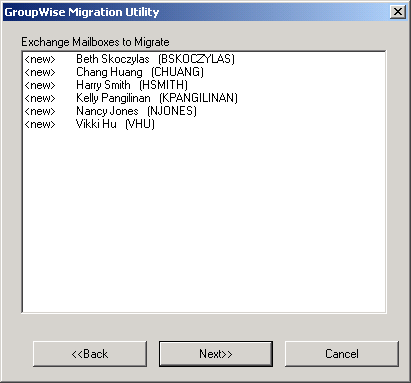
Users marked with <new> do not exist in the post office into which you are migrating users. If a user is marked with <exist>, then a GroupWise account for that user ID already exists. This is not a problem if both mailboxes belong to the same user; the contents of the Exchange mailbox are merged into the contents of the existing GroupWise mailbox. However, if the Exchange user ID is already in use in GroupWise by a different user, you must migrate the user into a different post office or give the user a new user ID in Exchange and then perform the migration.
-
Select the users you want to migrate into the post office, then click Next.
-
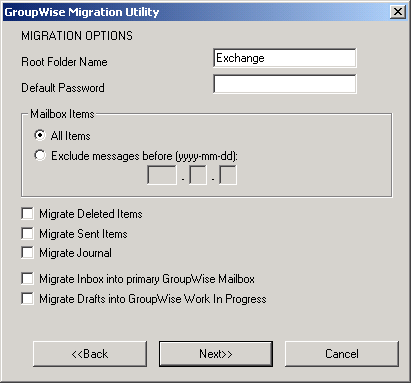
Select migration options:
Root Folder Name: Specify the name of the folder in GroupWise that will hold the migrated contents of users' Outlook mailboxes. The default folder name is Exchange.
Default Password: Provide a default password for all GroupWise mailboxes. Make sure you notify your users what their password is and remind them to change it so that users cannot access each others' mailboxes.
If the Migration Utility is creating both eDirectory User objects and GroupWise accounts, the default password is used for both eDirectory and GroupWise. If eDirectory User objects already exist and already have passwords, the existing eDirectory passwords are retained on the User objects and the default password is used for the GroupWise mailboxes. For information about GroupWise passwords, see "Mailbox Passwords" in "Security" in the GroupWise 6.5 Administration Guide.
If LDAP authentication is enabled on the POA for the post office, the POA validates users' eDirectory passwords against passwords stored in the LDAP directory, not against passwords stored in users' GroupWise databases. The POA can authenticate GroupWise users against any network directory that supports LDAP. For information about LDAP authentication, see "Providing LDAP Authentication for GroupWise Users" in "Post Office Agent" in the GroupWise 6.5 Administration Guide.
Mailbox Items: Select All Items, or select Exclude Messages Before and specify a date. Messages dated on or after the specified date are migrated to GroupWise. Messages dated before the specified date are not migrated to GroupWise.
Migrate Deleted Items: Select this option if you want to migrate deleted items into your GroupWise mailbox.
Migrate Sent Items: Select this option if you want to migrate sent items into your GroupWise mailbox.
Migrate Journal: Select this option to migrate journal items.
The fewer items you migrate, the faster the migration proceeds. If you choose to migrate deleted, sent, or journal items, all such items are migrated, regardless of date.
Migrate Inbox into Primary GroupWise Mailbox: Select this option to have the contents of users' current Outlook Inbox folder automatically appear in the main GroupWise Mailbox folder, rather than in the Inbox folder under the root folder specified above.
Migrate Drafts into GroupWise Work in Progress: Select this option to have the contents of users' current Outlook Drafts folder automatically appear in the GroupWise Work in Progress folder, rather than in the Drafts folder under the root folder specified above.
All other Outlook mailbox contents appear in folders under the root folder specified above.
At this point, the Migration Utility has created and saved an ExchMig.uct file that contains the user information that you have specified for this migration session, thus recording where each mailbox will be migrated. This control file is created in the Migration Utility installation directory and can be viewed in a text editor such as Notepad.
If you are performing a large system migration, you might want to cancel the Migration Utility at this point, start the Migration Utility at the next location where you want to run it, then repeat Step 3 through Step 7 for that migration session. In this manner, you can preconfigure in advance all the servers and workstation that are participating in the migration process. When you are ready to actually perform the migration, go to each location, run through the Migration Utility, and accept the preconfigured information provided by the ExchMig.uct file, then:
-
Click Next, then click Start to start the migration.
The Migration Utility log file displays at the end of the migration process. Use the Level drop-down list (Error, Warning, Verbose, Diagnostic) to control how much information is displayed. If a message extends beyond the viewing window, click it to display the full message text.
The Migration Utility log file is named migrate.log and is located in the Migration Utility installation directory. To start a new log file, click Clear Log in the Migration Log dialog box. This saves the existing log file as migrate.001. The extension increments each time you start a new log file.
-
Click Finish when the user migration is complete.
-
If you are running the Exchange Gateway:
The Migration Utility creates a gateway.csv file that enables you to update migrated users' auto-forwarding information for Exchange 5.5. The gateway.csv file is a simple comma-separated values file that updates each Exchange user's mailbox with the appropriate forwarding address.
Later versions of Exchange require manual update.
-
For Exchange 5.5, import the gateway.csv file into your Exchange system using Exchange Administrator. Click Tools > Directory Import. Specify the gateway domain, server, and container (Recipients/GroupWise). Select the gateway.csv file, then click Import.
or
For Exchange 2000/2003, manually update migrated users' auto-forwarding information using Active Directory* Users and Computers. Double-click each Exchange user, then select Delivery Options. Select the newly migrated GroupWise user as the Alternate Recipient.
-
In ConsoleOne, enable directory synchronization and exchange on the Optional Gateway Settings page of the Exchange Gateway object.
-
Delete the gateway status correlation database (gwcorr.db) in the gateway installation directory, then delete any files in the Exchange Gateway's ds and dx subdirectories.
This cleanup assures a clean synchronization between systems.
-
Stop and then start the Exchange Gateway, which causes an immediate directory synchronization and exchange.
This directory synchronization and exchange notifies your Exchange system about the new GroupWise users that have just been migrated into the GroupWise system.
-
In ConsoleOne, disable directory synchronization and exchange on the Optional Gateway Settings page of the Exchange Gateway object.
-
Delete the migrated users' External User objects to prevent duplicate entries in the GroupWise Address Book.
-
-
Repeat Step 1 through Step 10 until you have migrated all of your Exchange users.
The more sessions of the Migration Utility you run concurrently, the faster the process moves along. For best performance, run each session on a different server or workstation, as described in Installing the Migration Utility.
If you want to run multiple sessions on the same server or workstation, you must set up unique locations for .uct files. To accomplish this, create a Migration Utility icon on your desktop. Edit its properties, and in the Target field, add path to the directory where you want that session of the Migration Utility to create its .uct file. For example you could create three control file directories (c:\mig1, c:\mig2, and c:\mig3) and create three desktop icons with the following target lines:
"c:\Program Files\
Novell\GroupWise Migration Utility for Microsoft Exchange\exchldr.exe" c:\mig1
"c:\Program Files\
Novell\GroupWise Migration Utility for Microsoft Exchange\exchldr.exe" c:\mig2
"c:\Program Files\
Novell\GroupWise Migration Utility for Microsoft Exchange\exchldr.exe" c:\mig3Start each session using its customized desktop icon, then let them run concurrently.
When you have migrated all of your Exchange users to GroupWise, you are ready to migrate Exchange distribution lists/groups. Distribution lists/groups can be migrated in one session per GroupWise post office.
Migrating Exchange Distribution Lists/Groups
Exchange 5.5 distribution lists and Exchange 2000/2003 groups are parallel to GroupWise distribution lists, both of which are publicly available groups of users created by an administrator. All mailboxes must be migrated before you migrate distribution lists/groups because users must be added to distribution lists/groups based on their new GroupWise locations, not on their old Exchange locations. Although it probably required multiple session to migrate mailboxes, migration of all distribution lists/groups can be accomplished in just one session unless you want to spread your distribution lists/groups across multiple post offices.
-
Map a drive to each server or workstation where you ran the Migration Utility to migrate users.
In order to migrate distribution lists/groups, the Migration Utility needs access to all of the .uct files that were created during mailbox migration.
-
Follow the instructions in Starting the Migration Utility.
-
In the main Migration Utility dialog box, select Distribution Lists/Groups, then click Next.
-
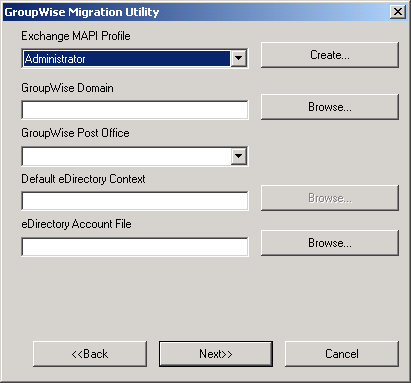
Fill in the following fields:
Exchange MAPI Profile: Select the Exchange administrator profile you created in Setting Up a MAPI Profile. Click Create if you have not set up the MAPI profile.
GroupWise Domain: Browse to and select the domain directory where the GroupWise domain database (wpdomain.db) resides.
GroupWise Post Office: Select the post office where you want to migrate the distribution lists/group.
Default eDirectory Context: Browse to and select the eDirectory context for Distribution List objects.
eDirectory Account File: If you want to create the Distribution List objects in multiple eDirectory contexts, browse to and select the eDirectory account file, as described in eDirectory Preparation.
-
Click Next to list all distribution lists/groups in your Exchange system.
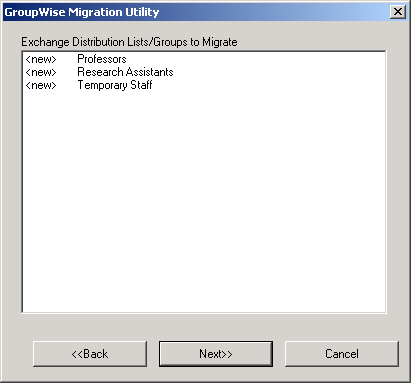
Distribution lists/groups marked with <new> do not exist in the post office into which you are migrating them. If a distribution list/group is marked with <exist>, then a GroupWise distribution list by that name already exists. This is not a problem if you want to merge the contents of the Exchange distribution list/group into the contents of the existing GroupWise distribution list. If you do not want this to happen, then rename one of the distribution lists so that the names are unique.
-
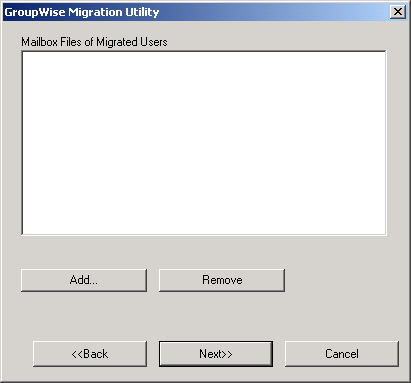
Select the distribution lists you want to migrate, then click Next to provide the required information about the Exchange users you have moved to GroupWise.
-
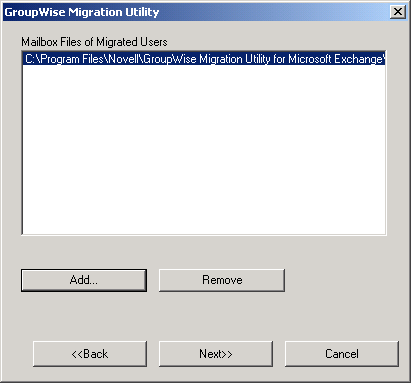
Click Add, then browse to and select the .uct file created during each user migration session.
-
Repeat Step 7 for each .uct file you created while migrating mailboxes.
-
When your list of the .uct files is complete, click Next, then click Start to perform the distribution list migration.
-
Click Finish when the distribution list migration is complete.
Distribution lists that are nested within distribution lists are not migrated. Therefore, you must manually put nested distribution lists back where they belong.
-
If you had nested distribution lists/groups in your Exchange system, use ConsoleOne to set them up in your GroupWise system the way they were in your Exchange system.
See "Adding Members to a Distribution List" in "Distribution Lists, Groups, and Organizational Roles" in the GroupWise 6.5 Administration Guide.
-
If you are migrating your Exchange distribution lists into multiple GroupWise post offices, repeat Step 2 through Step 11 for each post office.
When you have migrated all of your Exchange distribution lists to GroupWise, you are ready to migrate public folders. Public folders can be migrated in one session.
Migrating Exchange Public Folders
Exchange public folders are similar to GroupWise shared folders. Exchange provides a public location for public folders, but when you migrate them to GroupWise, the public folders are owned by a GroupWise resource. The Migration Utility automatically sets up shared folder access as similar as possible to the public folders in the Exchange system.
IMPORTANT: Migrate public folders only once. If you repeat the public folder migration session, duplicate shared folders are created.
Preparing Your GroupWise System to Receive the Public Folders
Public folders are migrated to a GroupWise resource. You might find it convenient to own that resource yourself or you can choose a different owner.
-
In ConsoleOne, create a new resource to own the public folders.
-
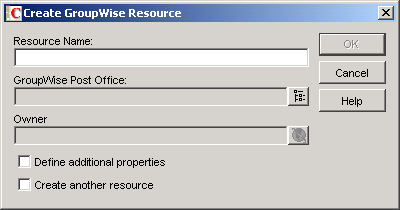
Browse to and right-click the container object where you want to create the Resource object, then click New > Resource.
-
Fill in the fields:
Resource Name: Specify a name for the resource, for example, PublicFolders.
GroupWise Post Office: Browse to and select the post office that you want the resource to belong to.
The user that you want to own the resource must belong to the same post office.
Owner: Browse to and select the user that you want to own the resource.
The owner of the public folders resource controls which users the folders are shared with and what rights each user has to the folders. Initially, the rights match the original public shared folders, except that GroupWise does not include the concept of granting rights to all users. In GroupWise, rights are granted on a user by user basis.
-
Click OK to create the new resource.
-
-
Set the post office security level to Low.
-
Continue with Migrating the Public Folders.
Migrating the Public Folders
-
Follow the instructions in Starting the Migration Utility.
-
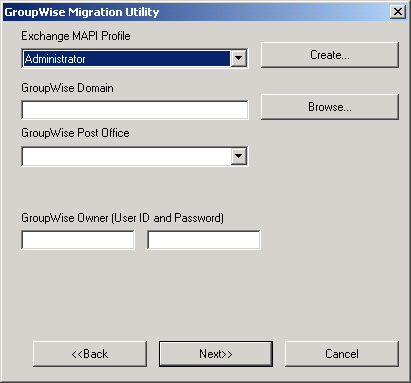
In the main Migration utility dialog box, select Public Folders, then click Next.
-
Fill in the following fields:
Exchange MAPI Profile: Select the Exchange administrator profile you created in Setting Up a MAPI Profile. Click Create if you have not set up the MAPI profile.
GroupWise Domain: Browse to and select the domain directory where the GroupWise domain database (wpdomain.db) resides.
GroupWise Post Office: Select the post office where you want to migrate the Exchange public folders.
GroupWise Owner (User ID and Password): Provide the name of the resource, created in Step 1 in Preparing Your GroupWise System to Receive the Public Folders, that you want to own the GroupWise shared folders that correspond to the Exchange public folders.
IMPORTANT: Resources do not have passwords, so leave the Password field empty.
-
Click Next, then click Start to perform the public folder migration.
-
Click Finish when the public folder migration is complete.
You have now finished your part in the migration from Exchange to GroupWise, but your users still have some work to do. As an administrator, you can help users adapt to GroupWise.