

The following sections outline the procedures that you should follow as you upgrade your existing ZENworks 2 or ZENworks Starter Pack system to a ZfD 4.x environment. To ensure a successful upgrade, you should perform these procedures in the following order:
Ensure that the workstations and servers on your network meet the necessary prerequisites.
For more information, see Platform Support for the ZfD Infrastructure and User Workstation Requirements in the ZENworks for Desktops 4 Installation Guide.
The following table lists the recommended hardware configuration required for installation.
The following table includes the software required to be installed on the various ZfD 4.x machines.
The following list details other things you need to know regarding the required software for managed workstations.
NOTE: The recommend version of the client for Windows NT/2000/XP is 4.83 SP2. The recommend version of the client for Windows 98 SE is 3.32 SP2.
For more information about these requirements, see User Workstation Requirements in the ZENworks for Desktops 4 Installation Guide.
You need to check the health of your eDirectory tree both before and after you install ZfD 4.x and extend the directory schema with ZfD 4.x attributes. The following resources provide the information required to perform the health check:
The ZfD 4.x installation program extends the eDirectory schema to allow the creation of new types of directory objects. Schema extension is not a reversible process.
The ZfD 4.x installation must be performed from a workstation running a supported version of Windows and the Novell Client. There are two possible scenarios.
Use the following steps to extend the directory schema in preparation for the ZfD 4.x upgrade from ZENworks Starter Pack:
From the installing workstation, log in to the network, authenticating to eDirectory as a user with administrative rights to the eDirectory tree.
Insert the ZENworks for Desktops Program CD or the ZENworks 6 Desktop Management Program CD into the CD drive of the workstation. If the CD autoruns, cancel the winsetup.exe installation program.
Copy the contents of the entire ZENworks for Desktops Program CD or the ZENworks 6 Desktop Management Program CD to an accessible network server.
From the new network location, use a text editor to open the schema.txt file in the \zenworks\schema directory.
Edit schema.txt.
From the root of the new ZENworks for Desktops 4 installation directory you created in Step 3, run winsetup.exe.
From the installation menu, select Schema Extensions to start the schema extension routine.
In the Select Tree dialog box, select the authenticated tree where you want to extend the schema > click OK.
In the Schema Extensions confirmation dialog box, click Yes to confirm your selection and begin the schema extension.
(Optional) In the ZENworks Schema Extension confirmation dialog box, click View Log File to open the log file.
Perform the eDirectory health check.
Use the following steps to extend the directory schema in preparation for the ZfD 4.x upgrade from ZENworks 2:
From the installing workstation, log in to the network, authenticating to eDirectory as a user with administrative rights to the eDirectory tree.
Insert the ZENworks for Desktops Program CD or the ZENworks 6 Desktop Management Program CD into the CD drive of the workstation to autorun the winsetup.exe installation program.
If the CD does not autorun, you can launch winsetup.exe from the root of the CD.
From the installation menu, select Schema Extensions to start the schema extension routine.
In the Select Tree dialog box, select the authenticated tree where you want to extend the schema > click OK.
In the Schema Extensions confirmation dialog box, click Yes to confirm your selection and begin the schema extension.
(Optional) In the ZENworks Schema Extension confirmation dialog box, click View Log File to open the log file.
Perform the eDirectory health check.
Novell ConsoleOne® is the centralized enterprise management console utilized by ZfD 4.x. All management tasks are performed in ConsoleOne, so if you are migrating from ZENworks 2 or earlier, you must move from the NetWare Administrator (nwadmn32.exe) to ConsoleOne 1.3.3 or later.
The Windows workstation where you run ConsoleOne must have the Novell Client installed.
For information about installing ConsoleOne, see Obtaining and Installing ConsoleOne in the ZENworks for Desktops 4 Installation Guide.
Examine eDirectory to see if there are any Search policies in the tree. Search policies---part of the Container Package---are very important because they keep ZfD agents from walking to the root to find policies and configuration information.
If the tree does not have a Search policy, you need to create a new ZfD 4.x Search policy to ensure optimal performance of the ZfD agents. Until the ZfD 4.x Management Agent is installed on the workstation, the Search policy functions like a ZENworks 2 Search policy. After you install the ZfD 4.x Management Agent on the workstations, the Search Policy will function with new behavior.
Unlike ZENworks 2 agents, ZfD 4.x agents do not recognize the partition boundary of a container. Consequently, if you have any existing Search policies that are based on the partition boundary, the ZfD 4.x agents will search to the container where the Container Package is associated, regardless of whether the agents cross any partition boundaries in search of policies.
For example, assume that you have the following tree:
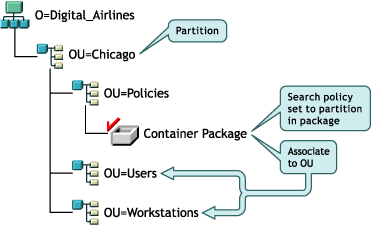
With ZENworks 2, the agents for the users or workstations would first walk to their parent container and find the associated Search policy that states that the agents should look only to the partition boundary for their policies. When the agents look for policies, they walk the tree only to the Chicago container (partition boundary).
With ZfD 4, the Partition option is not available in the Search Policy. It has been replaced with the Associated Container option. This means that any earlier Search Policies that were upgraded to ZfD 4.x the Partition option is now replaced with the Associated Container option. If you do not plan for this change, a different policy retrieval could result.
If you want to continue receive the same search results as when you used the Partition option as the search boundary, you need to associate the container package (that is, the policy package where the configured Search policy resides) to the eDirectory container that represents the partition boundary where you want user and workstation objects to end their search for policies.
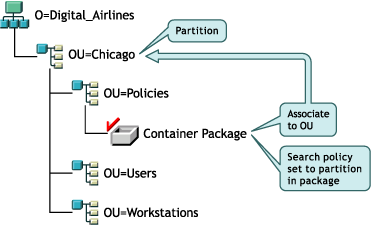
When the ZfD 4.x agents search the tree now, they will find the Container Package with the Search Policy at Chicago, and then will search for policies up to Chicago, because it is the associated container.
NOTE: The container that is associated with the package determines where the agents will stop walking the tree. It is not based on where the package is actually stored in the directory. The search level in the Search policy will now apply to the associated container rather than the partition boundary.
After you meet the software requirements for the ZfD Server by upgrading the network operating system, the JVM, and ConsoleOne, you need to follow a specific procedure as you upgrade the network server to work with ZfD 4.he tasks include:
If you want to upgrade the NetWare server where ZENworks Starter Pack or ZENworks 2 services are currently running, it will be necessary to remove commands from autoexec.ncf that load the ZENworks 2 services.
The standard ZENworks 2 installation appends various commands to the end of autoexec.ncf. As preparation for upgrade, you can create a new .ncf file and paste these lines into it. In autoexec.ncf, replace these lines with a call to the new .ncf file. Later, immediately before you upgrade to ZfD 4, shut down the ZENworks 2/Starter Pack components on the server and remove the references to the new .ncf file in autoexec.ncf.
When you have adequately updated the server with the required software and you are ready to upgrade to ZfD 4, you need to install the ZfD Server software. For detailed information on how to perform the installation, see Installing the ZfD Server Software in the ZENworks for Desktops 4 Installation Guide.
When you install the ZfD 4.x Server software and the ZfD 4.x Management Agent, you leave behind the ZENworks Starter Pack and ZENworks 2 workstation import design. You will need to design and implement the new ZfD 4.x Automatic Workstation Import component. For more information, see Understanding Automatic Workstation Import and Removal in the ZENworks for Desktops 4 Administration Guide.
Although the ZENworks Starter Pack did not include the Workstation Inventory component, ZENworks 2 did include it. In ZENworks 2, one central NetWare server ran the inventory database (Sybase* only), while workstations wrote to this database from anywhere in the enterprise. For more information, see the ZENworks 2 Workstation Inventory documentation.
ZfD 4.x uses a different, more efficient design with data roll-up capabilities for Workstation Inventory. It also gives you a choice of which database you want to use for the inventory data. For more information about understanding and deploying ZfD 4.x Workstation Inventory, see Understanding Workstation Inventory and Setting Up Workstation Inventory in the ZENworks for Desktops 4 Administration Guide.
Because these two Workstation Inventory designs are so different, it might be to your advantage to gather any useful reports you might need from your existing ZENworks 2 workstation inventory database, then design and deploy a new inventory system based on the ZfD 4.x architecture without trying to upgrade the existing ZENworks 2 system.
However, if you are satisfied with how you have implemented ZENworks 2 Workstation Inventory in your network and you see no need to redesign and redeploy it based on the ZfD 4.x architecture, you can upgrade the existing ZENworks 2 Workstation Inventory components to ZfD 4.
Upgrading Workstation Inventory from ZENworks 2 to ZfD 4.x includes the following tasks:
Before you upgrade your ZENworks 2 database server to a ZfD 4.x database server, make sure that you have made and archived a reliable backup of the ZENworks 2 database.
The ZfD 4.x Server installation program automatically upgrades an existing ZENworks 2 database engine to ZfD 4. However, the existing ZENworks 2 inventory data will not be migrated from a ZENworks 2 database to a ZfD 4.x Inventory database.
The ZfD 4.x Server installation program automatically creates the Sybase database object, but you must manually configure the Database Location policy. If you want to install Oracle* or MS SQL 2000, you must manually create and configure the database objects. For more information, see Manually Creating the Inventory Database Object for Oracle in Setting Up the Inventory Database for Oracle in the ZENworks for Desktops 4 Administration Guide or Configuring the Inventory Database for MS SQL Server 2000 in Setting Up the Inventory Database for MS SQL Server 2000 in the ZENworks for Desktops 4 Administration Guide.
You can upgrade the ZENworks 2 Inventory server by installing the ZfD 4.x Inventory server if the server where you want to install the ZfD 4.x Inventory server meets the installation requirements. For more information on how to install the ZfD 4.x Inventory server, see Installing the ZfD Server Software in the ZENworks for Desktops 4 Installation Guide.
er installing the ZfD 4.x Inventory server, you must manually create and configure the required policies, because the ZENworks 2 policies will not be migrated to ZfD 4.x. For more information, see Configuring the Workstation Inventory Policy in the ZENworks for Desktops 4 Installation Guide.
After upgrading the Inventory Agent to ZfD 4.x, you must rescan all the workstations attached to the server.
This section contains the following information about migrating ZENworks 2 policies to ZENworks for Desktops 4.x policies:
When you install ZfD 4, you are not required to migrate older policies because ZENworks 2 policy objects are not removed when extending the schema. This allows you to migrate the older policies in phases, such as by context. You should eventually migrate all ZENworks 2 or Starter Pack policies to obtain the better performance and ease of management that ZfD 4.x offers.
If you do not migrate ZENworks 2 or Starter Pack policies to ZfD 4, you must continue using NetWare Administrator for management purposes. ZfD 4.x uses ConsoleOne for management purposes. ConsoleOne will display only the effective policies in an object's properties for ZfD 4.x policies. If you have a mixed environment of ZENworks 2 policies and ZfD 4.x policies, you must use both NetWare Administrator and ConsoleOne. ZENworks 2 policies cannot be edited in ConsoleOne.
ZfD 4.x includes a policy migration tool launched from ConsoleOne that migrates ZENworks 2 policies to ZfD 4.x policies. The tool scans all of the existing policy packages, starting from the top of the tree and working down. The tool gives you the option of renaming the policy packages. We recommend that you perform a trial migration in a test environment to evaluate what is moved from ZENworks 2 to ZfD 4.x before you perform an actual migration.
NOTE: Default Package schedules are not migrated, so you will need to redefine these schedules for the migrated policies.
For more information about using the ZfD 4.x policy migration tool, see Migrating ZENworks 2 Policies into ZENworks for Desktops in the ZENworks for Desktops 4 Administration Guide.
The organization of ZENworks for Desktops policies differs in the ZENworks 2 and ZfD 4.x releases. In ZENworks 2 and Starter Pack, the policies are organized into two operating system groups: Windows 95/98 and Windows NT/2000. In ZfD 4, policies are combined into new packages. Because the policy packages are different in these releases, the existing ZENworks 2 policies are mapped to and migrated into new ZfD 4.x policy packages created by the migration tool. You cannot choose the packages where the old policies will be placed. Most ZENworks 2 policies are placed in either the User Package or Workstation Package.
The following table shows how ZENworks 2 policies are mapped and transferred into ZfD 4.x policy packages.
| ZENworks 2 or Starter Pack Policy and Placement | ZENworks for Desktops 4 Policy and Placement |
|---|---|
Windows 98 |
Windows 98 |
Windows NT/2000 |
Windows NT/2000/XP General |
Some ZENworks 2 policies were not carried forward into the ZfD 3 or ZfD 4.x releases (for example, Print Policy, Help Desk Requester, Login Restrictions). You cannot create these policies in ZfD 4. You can continue to use these policies to deliver login restrictions or traditional queue-based printing. The migration tool will migrate them and make them available for management in ZfD 4.x with no loss of functionality.
If you are currently running an older version of NetWare and NDS (for example, NetWare 4.11 and NDS 6 or NDS 7) and you decide to upgrade to a newer version of NetWare and eDirectory, it is possible to create a new directory tree and then use DirXML® to transfer your former users, groups, and other directory structures into this tree. If you install ZfD 4.x into this new tree, you will not be able to migrate any ZENworks 2 policies or transfer any ZENworks 2 policies that are no longer supported in ZfD 4. For more information, see the DirXML documentation.
When you upgrade the ZENworks Server to ZfD 4.x, nalexpld.exe and nal.exe are updated to launch naldesk or nalwin32 from the local directory where the ZfD 4.x Management Agent was installed. This change affects ZENworks 2 workstations using the Novell Client that have not been updated with the ZfD Management Agent.
Until you can update the ZENworks 2 workstations, you need to make sure that users are able to access the old Application Launcher. There are solutions for two scenarios:
If your users primarily access the Novell Application Launcher while connected to the network, you might want to continue using the client login script to start the Application Launcher. One way of checking the workstation for updated ZfD 4.x files is to use the exist.exe tool to check c:\program_files\novell\zenworks for the existence of nalwin32.exe or naldesk.exe.
NOTE: The exist.exe tool can be downloaded from the Novell ZENworks Cool Solutions page. Run this tool from a login or application startup script to check for the presence of any file you specify. If the specified file is detected, the .exe returns ERROR_LEVEL of zero (0).
When you have downloaded exist.exe, edit your login scripts to put in a check to run the ZfD 3.x NAL locally, from the server, or to let the ZfD 4.x version run. These lines must be after the sys:\public directory is added to the search path or the exist.exe must have the full path specified. You need to modify the following (or an equivalent) line:
@z:\nalwin32.exe
This is how you need to modify the line:
; First check to see if the ZfD 4.x agent is present. If so, then you don't need
; to do anything; it will be launched automatically on the desktop.
#exist %<windir>\..\Program Files\Novell\Zenworks\naldesk.exe
; If the ZfD 4.x agent is NOT present, then keep checking
if "%ERRORLEVEL"!="0" then
; Check now to see if the ZfD 3.x App Launcher has been placed on the
workstation#exist %<windir>\system32\nalwin32.exe
; If the ZfD 3.x App Launcher has NOT been placed on the workstation then
; go and launch the App Launcher from the server.
if "%ERRORLEVEL"!="0" then
; Check our Windows 95 friends
#exist %<windir>\..\novell\client32\nalwin32.exe
			if "%ERRORLEVEL"!="0" then
				@z:\ZfD32NAL\nalwin32.exe
else
@%<windir>\..\novell\client32\nalwin32.exe
end
else
@%<windir>\system32\nalwin32.exe
end
end
This script change will launch Application Launcher in one of three ways:
The only difference in launching the ZENworks 2 files locally rather than from the server is that if you start the Application Launcher locally, updated ZENworks 2 Application Launcher files on the server are not pushed to the workstation. During a migration period, this is usually not necessary, but if it does become necessary, you can use an Application Launcher /i command line switch in a Policy package to update the local ZENworks 2 Application Launcher files.
NOTE: If your network environment contains roaming users, you should edit all of the login scripts at the same time, regardless of when the container, partition, or site is migrated to ZfD 4.x. This will prevent roaming users from having old Application Launcher files distributed to them.
If your users are often disconnected from the network, you can start the Application Launcher by specifying in the ZfD 4.x Management Agent installation that the Application Launcher or the Application Explorer should be launched from the Startup Folder. Although this is the simplest method, command line parameters cannot be added to the shortcut and users sometimes remove items from the Startup folder.
If you want to specify command line parameters, you can start the Application Launcher by editing the Windows registry and adding NALWIN32 or NALDESK to the HKLM\Software\Microsoft\Windows\CurrentVersion\Run key.
If you created Application objects using NetWare Administrator in ZENworks 2 or the ZENworks Starter Pack, the objects inside the directory will continue to work in ZfD 4. This is because when you extend the schema for ZfD 4.x, you are adding attributes to those objects that make them compatible with the updated software.
However, after the schema is extended, the ZfD Management Agent is installed, and the ZENworks 2 Application objects are opened with ConsoleOne, these ZENworks 2 Application objects are converted to ZfD 4.x objects and should never again be managed using NetWare Administrator. They must be managed with ConsoleOne.
There are some adjustments that you need to make to the updated Application objects:
When Application objects are converted from ZENworks 2 or Starter Pack format to ZfD 4.x format, they are all marked as disconnectable, which is an attribute that makes it possible for Application Launcher to continue to display the Application object icon even after the user has disconnected from eDirectory.
The only Application objects that should not have the disconnectable attribute enabled include:
If you want to avoid displaying applications requiring network resources to users working in a disconnected state, you need to modify the applications that require connectivity to the network to deselect the Disconnectable attribute.
In ConsoleOne, right-click the Application object > click Properties > Identification to display the Icon page.
Deselect the option to turn it off.
Click OK to save the changes.
For more information, see Supporting Disconnected Users in the ZENworks for Desktops 4 Administration Guide.
If you plan to use the Novell Client with ZfD 4.x, no change will be required to the migrated ZENworks 2 Application objects. The path to the application files, formatted with mapped drive designation, will continue to be valid and the applications will work as they were configured.
If you plan to deploy the ZfD Management Agent and not use the Novell Client on the workstation, refer to TID 10081393 available from the Novell Support Web site.
In order to utilize ZfD 4.x, the managed workstations will need to either be configured with the Novell Client and the ZfD 4 SP1/4.0.1 Management Agent, or with just the ZfD 4 SP1/4.0.1 Management Agent. The following sections outline the procedure for upgrading the Novell Client and installing the ZfD 4 SP1/4.0.1 Management Agent.
Although ZfD 4.x can manage workstations in the enterprise whether those workstations have the Novell Client installed or not, most administrators who upgrade from an earlier version of ZENworks for Desktops will probably want to continue to use the client after the upgrade. The client has significant performance and scalability advantages for accessing eDirectory and network servers.
If you want your users to continue using the Novell Client to access the network after you install ZfD 4.x, the user workstations need to have at least the minimum version of the client. Check the workstations for the minimum version required for ZfD 4.x and, if possible, upgrade to the most current version. You can obtain the latest Novell Client from the Novell Product Download Web site.
NOTE: If you continue to use the Novell Client after installing ZfD 4.x, the client will not authenticate through the ZfD Middle Tier Server if the workstation is inside the corporate firewall. For more information, see The Role of the Novell Client in Understanding the Novell Client in the ZENworks for Desktops 4 Administration Guide.
| Workstation OS | Novell Client Version (minimum) | Novell Client Version (recommended) |
|---|---|---|
Windows 98 SE |
3.30 |
3.32 SP2 |
Windows NT 4 |
4.80 |
4.83 SP2 |
Windows 2000 |
4.80 |
4.83 SP2 |
Windows XP |
4.82 |
4.83 SP2 |
You can automatically update the Novell Client by using the Automatic Client Update (ACU). ACU can be delivered through a login script, by a ZfD application, or by a Scheduled Action in a policy package. For more information about ACU and other Client upgrade information, see Installing Novell Clients in the Novell Client for Windows Installation and Administration Guide.
IMPORTANT: If you install the latest version of Novell Client and use it with ZENworks 2 or the Starter Pack before you complete the upgrade to ZfD 4.x, some ZENworks components will fail. If you want to upgrade and use the Novell Client before you upgrade to ZfD 4.x, we recommend that you do not install ZfD components (for example, Workstation Manager or Application Launcher) that are available during the client installation. When you are ready to upgrade to ZfD 4.x, these components are installed with the ZfD Management Agent.
ZfD 4.x requires the installation of the ZfD Management Agent, even if you intend to use the client exclusively for authentication. ZfD 4.x management components that also update the client for use with ZfD 4.x are included in the agent installation program.
When you have updated the Novell Client and the ZENworks Server, you need to install the ZfD Management Agent on the user workstations. This installation updates the Novell Application Launcher, Workstation Manager, and Remote Management software on the user workstation. It also installs the Workstation Inventory agent and the Image Safe Data service.
When you deploy the ZfD Management Agent, you will not be upgrading the ZENworks 2 Workstation Import or Remote Management software. Instead, you will be using entirely new ZfD components. For more information about ZfD 4.x Automatic Workstation Import, see Understanding Automatic Workstation Import and Removal in the ZENworks for Desktops 4 Administration Guide. For more information about ZfD 4.x Remote Management, see Understanding Remote Management in the ZENworks for Desktops 4 Administration Guide.
You can uninstall the Novell Client from user workstations after you deploy the ZfD Management Agent as the exclusive means for users to authenticate to eDirectory. In this sense, ZfD 4.x can be "clientless;" that is, ZfD 4.x does not require the Novell Client if users log in with the ZfD Management Agent. For more information, see Using the Novell Client in a ZfD 4.x Environment in The Role of the Novell Client in the ZENworks for Desktops 4 Administration Guide.
The workstation functionality afforded by ZENworks for Desktops 4.x components is available only if you install the ZfD Management Agent. This is true even if you currently have the Novell Client installed on that workstation. The ZfD Management Agent installation removes the ZfD features that were previously installed by the Novell Client and replaces them with selected ZfD workstation features.
The following tasks must be performed if you want to install the ZfD Management Agent on workstations that are currently using ZENworks 2 or ZENworks Starter Pack:
This installation utilizes Microsoft Windows Installer functionality. For detailed information about Microsoft Windows Installer, see the MSI Web site.
Because the Agent MSI installation depends on the presence of the MSI engine, you need to check to see if user workstations have the MSI engine installed. The following table lists the versions of the MSI that should already be installed on Windows workstations.
NOTE: You should consider whether to upgrade all of the user workstations to use the same version of the MSI engine.
If the MSI engine needs to be installed, you can use the Novell Application Launcher in ZENworks 2 or the Starter Pack to install it with a Simple Application distribution.
From the ZENworks for Desktops Companion CD or the ZENworks 6 Companion 1 CD, copy the appropriate MSI engine installer utility to your ZENworks Server.
Using the newly installed ZfD 4.x snap-ins in ConsoleOne, create a Simple Application object for the version of the MSI engine you want to install.
NOTE: If you want to install both versions, you must create a Simple Application object for each version.
After you name the simple application, enter the path to the location from which the application's executable file will run. Include the executable file in the path. Because the ZENworks 2 Application Launcher will copy the file to a target directory on the workstation, specify the path as it will exist after the file is copied to the target directory.
Example: c:\temp\instmsiw.exe
Define the system requirements that a workstation must meet before the MSI engine application will be distributed to it.
For more information, see Configuring the Application in eDirectory in Distributing Applications to Users and Workstations in the ZENworks for Desktops 4 Administration Guide.
Associate the application object to users or imported workstations > select the characteristics you want to apply to the association.
We recommend that you select the Force Run characteristic for the association so that the Application object will run as soon as the ZENworks 2 Application Launcher or Workstation Helper starts and the Application object is available.
For more information, see Configuring the Application in eDirectory in Distributing Applications to Users and Workstations in the ZENworks for Desktops 4 Administration Guide.
Configure the Simple Application object.
In the Application object Properties page, click the Distribution Options tab > Application Files.
You need to add the file to the Application Files list so that the ZENworks 2 Application Launcher will copy it to the workstation. For more information, see the online help in ConsoleOne.
Click Add > File > fill in the following fields:
Source File: Select the MSI engine installer utility you want copied to the workstation (for example, q:\public\zenworks\instmsiw.exe).
Target File: Enter the full path, including the file name, where you want the file copied (for example, c:\temp\instmsiw.exe).
Click OK to add the file to the list > click OK to save the Application Object information.
In the Application object Properties page, click the Run Options tab > Environment > select the Run Normal option > set the Executable Security Level to Run as Unsecure System User > click OK to save the Application Object information.
The MSI Engine will be installed as soon as the Application Launcher starts and the Application object is available.
The MSI engine installs an executable that will be used later for installing the ZfD Agent MSI. The MSI engine installer utility installs this file, called msiexec.exe, in the windows_drive:windows_directory\system directory of the workstation.
After you have deployed the Windows MSI engine on workstations, you need to install the ZfD Management Agent. For more information about the ZfD Management Agent, see Understanding the ZfD Middle Tier Server and the ZfD Server and Understanding the ZfD Management Agent in the ZENworks for Desktops 4 Administration Guide. Use the following steps to install the Agent MSI on the workstations:
Download the ZfD Management Agent MSI.
The ZfD 4 SP1 Agent MSI is included as part of Consolidated Support Pack (CSP) 9, and can be downloaded individually from the CSP download Web site. The updated ZfD Agent MSI (ZfD 4 SP1/4.0.1) can also be downloaded from the Novell Product Downloads Web site.
Copy the Agent MSI package to an accessible location on a network server.
Using the newly installed ZfD snap-ins in ConsoleOne, create a Simple Application object.
After you name the simple application, the Application creation wizard displays a page where you can enter the path to the executable. Enter the filename msiexec.exe. This is the executable that will run the ZfD Agent MSI package.
NOTE: Because Windows will search for and execute all versions of msiexec.exe on the hard drive, there is no need to add the path to the Windows 98 MSI engine or to the Windows NT/2000/XP MSI engine.
Define the system requirements that a workstation must meet before the ZfD 4 Agent MSI application will be distributed to it.
For more information, see Configuring the Application in eDirectory in Distributing Applications to Users and Workstations in the ZENworks for Desktops 4 Administration Guide.
Associate the application object to users or imported workstations > select the characteristics you want to apply to the association.
We recommend that you select the Force Run characteristic for the association so that the Application object will run as soon as the ZENworks 2 Application Launcher or Workstation Helper starts and the Application object is available.
For more information, see Configuring the Application in eDirectory in Distributing Applications to Users and Workstations in the ZENworks for Desktops 4 Administration Guide.
Configure the Simple Application object.
In the Application object Properties page, click the Distribution Options tab > Application Files.
You need to add the file to the Application Files list so that the ZENworks 2 Application Launcher will copy it to the workstation. For more information, see the online help in ConsoleOne.
Click Add > File > fill in the following fields:
Source File: Select the ZfD Agent MSI file you want copied to the workstation (for example, q:\public\zenworks\zfdagent.msi).
Target File: Enter the full path, including the file name, where you want the file copied (for example, c:\temp\zfdagent.msi).
Click OK to add the file to the list > click OK to save the Application Object information.
In the Application object Properties page, click the Run Options tab > Environment > select the Run Normal option > set the Executable Security Level to Run as Unsecure System User > click OK.
This step elevates privileges so that users who are not the administrators of their own workstations can still install the ZfD Management Agent.
Click the Run Options tab > Application > select Run Application Once > in the Parameters field, enter the parameters you want to use as you run the MSI engine to install the ZfD Agent MSI > click OK.
There are two required parameter types you can use in this field: Command Line Parameters and ZfD Agent MSI Installation Properties.
The ZfD Agent MSI command line parameters are explained in the following table.
The /i command line parameter is mandatory. For more information about MSI command line syntax, see the Windows Installer Command Line Options page.
MSI installation properties can be added to pre-set certain values used by ZfD Agent that would otherwise need to be chosen manually during the installation.
The following table lists the properties you can use as you install the ZfD Agent MSI.
When completed with both command line parameters and MSI installation properties, the parameter field might look like this:
/i zfdagent.msi /qb STARTUP_APPEXPLORER=1
Because the Parameters field of the Application object has a line length limitation, you might not be able to add a large number of MSI Installation properties. To work around this limitation, you can do one of two things:
For more information about using the Wise InstallTailor, see Wise InstallTailor in the ZENworks for Desktops 4 Installation Guide.
For information about how to install and use orca.exe, see the Microsoft Knowledgebase Article 255905 at the Microsoft Support Web site.
After you have upgraded the ZfD Server, updated ZENworks 2 policies and applications, and updated the managed workstations with a new version of the Novell Client or the ZfD Management Agent (or both), you need to install the ZfD Middle Tier Server if you want users to authenticate without using the Novell Client or if you want them to authenticate when their workstations are outside the firewall.
For conceptual information about the ZfD Middle Tier Server, see Understanding the ZfD Middle Tier Server and the ZfD Server in the ZENworks for Desktops 4 Administration Guide.
For information about installing the ZfD Middle Tier Server, see Installing ZfD Middle Tier Server Software in the ZENworks for Desktops 4 Installation Guide.