

| |
Accounting profiles define how charges will be calculated with a billing formula and rates. First, specify the desired billing formula (Step 1). Then enter the desired rates (Step 2). After the billing formula and rates have been entered, view sample charges to verify that the formula and rates are correct (Step 3).
A billing formula can be based on one or more of the following categories
Length of the connection multiplied by the rate per minute, based on:
Intervals of 60 minutes from 0:00 a.m. to 11:59 p.m., for each day of the week and holidays
Connection speeds in bits per second (bps)
Port names and available speeds
Remote access services available on the current server
Rate for each connection based on baud rate, service, or port
A flat-rate charge applied to the users assigned to the profile with valid remote access software connections. A check box is available to apply this charge to all users assigned to the profile, including those without valid connections.
After the billing formula and rates are specified, accounting profiles are saved as files with .NCP extensions. Accounting profiles can be saved locally or on a network drive. You can then assign users to the saved profiles.
NOTE: To delete unwanted accounting profiles, use the DOS command or Windows File Manager.
You can create multiple accounting profiles and apply them to different users as necessary. By default, ConnectView creates an accounting profile called DEFAULT.NCP, with no billing formula or rates. This default accounting profile is assigned to all users. However, you must specify the desired billing formula and enter the billing rates to generate meaningful charges.
To access the Accounting Profile dialog box, select a server icon in the View All window or a View window, or select a server name in the Server drop-down combo box in the left corner of the Tool Bar. Then, choose Accounting > Create Profile or, if an accounting profile has already been saved, Accounting > Edit Profile. ConnectView opens the Accounting Profile dialog box, shown in Figure 29.
Figure 29
Accounting Profile Dialog Box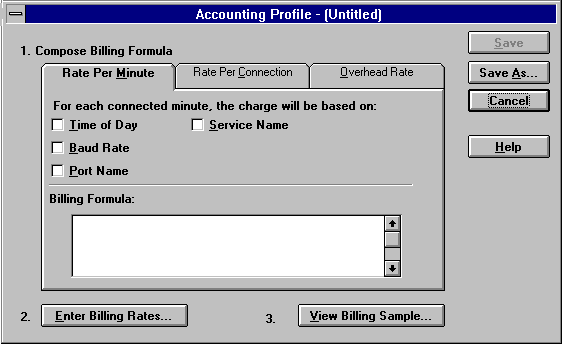
In this dialog box, you can use the tab buttons to specify the desired billing formula. The current billing formula appears in the lower section of this dialog box.
NOTE: The display in the Billing Formula list box changes as you select or deselect the desired charges, but cannot be edited.
ConnectView enables you to create or change billing formulas based on rate tables for time of day, baud rate, port, and service, as well as an overhead rate.
For more information on billing, refer to:
| |